
Browser-based remote session control
Connect to Antigravity sessions running on different machines from a browser-based dashboard, then switch between them without staying at the desk.

Antigravity Remote Control connects to Antigravity 2.0 sessions in a browser, keeping your workspace, tasks, and context across machines with mobile alerts.
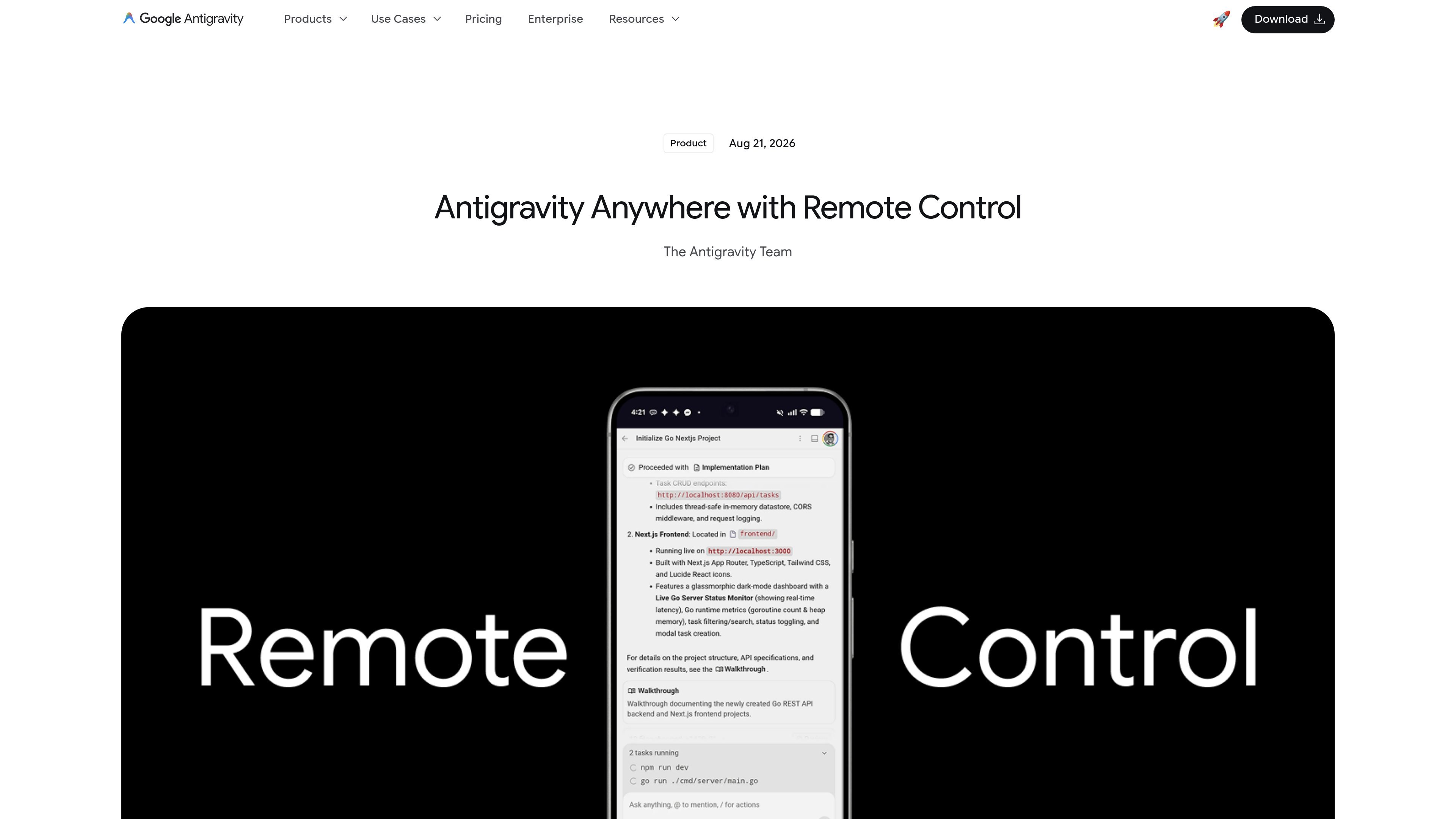
Antigravity Remote Control is a browser-based way to connect to and drive Antigravity 2.0 desktop sessions running on your machines. It is intended for software work that may take longer to complete, such as large refactors, extended test runs, dependency migrations, and other agent-led tasks.
The feature is meant to keep development work moving when you step away from your workstation. You can monitor active conversations, start new tasks, review implementation plans, inspect artifacts, and continue working with the same local environment, files, tools, and credentials from another device.
Connect to Antigravity sessions running on different machines from a browser-based dashboard, then switch between them without staying at the desk.
Keep access to files, workspaces, build tools, credentials, and environment variables on the machine where the session is running.
Manage multiple environments at once, such as UI work on a laptop and server-side tasks on a cloud machine.
Receive push notifications on mobile when an agent finishes a turn or needs user input.
Run sessions on local machines, servers, desktops, or headless daemon installs with optional naming, update interval, and service controls.
Use the same Google Account across the desktop app and browser dashboard to reach the correct remote instance.
Start a long refactor or test run on one machine, then leave your desk and continue monitoring progress from a browser on another device.
Keep a UI development machine separate from a server or cloud environment and switch between them as different tasks require different setups.
Access the same files, build tools, credentials, and environment variables from a remote machine instead of recreating the environment locally.
Use mobile push notifications to know when an agent needs approval or input, rather than checking the workstation repeatedly.
Run a machine as a remote instance or headless daemon when you want it to keep working after sign-in and reboot behavior is handled by the service.
Remote Control lets you connect to Antigravity sessions running on other machines through a web browser. After signing in with the same Google Account, you can choose a machine from the instance switcher and access conversations, agent tasks, implementation plans, and artifacts.
In Antigravity 2.0, open Settings, go to the App section, and toggle Enable Remote Control on. You can also set an optional nickname to make the machine easier to identify in the instance list.
The documentation says Remote Control works from any web browser. On mobile devices, you can optionally install the web app to the home screen to receive push notifications when agents finish tasks or need input.
The source documents describe individual plans, Google AI Pro, Google AI Ultra, and organization access through Google Cloud. For individuals, the pricing page lists a $0/month Individual plan and paid Pro and Ultra plans with higher limits and AI credits; team and enterprise usage is available through Google Cloud terms.
Remote Control is designed for desktop sessions running across your machines, including laptops, servers, and desktops. The enterprise documentation notes that enterprise support applies to Antigravity 2.0, Antigravity CLI, and Antigravity IDE Extensions, while standalone Antigravity IDE is not supported for enterprise deployments.

hob is an independent workspace for coding agents, with local control over sessions, terminals, history, routing, and follow-up work.

ByteAsk is a terminal-first AI coding agent for C and C++ that edits repos and verifies changes with compilers, debuggers, sanitizers, and tests.

CreateOS Sandbox is an isolated compute environment for running code and agent workloads in Firecracker micro-VMs with private networking and SDK, CLI, or MCP control.

Manta AI is an autonomous web app testing tool that maps app behavior, catches regressions, and generates tests from a URL, no scripts or selectors needed.

SonOf connects to your repo and PM tool, audits your codebase, and turns approved work into shipped tickets with senior engineering review.
Ghost is a terminal-based AI assistant for chatting, code generation, and CLI tasks. Includes free models, supports Linux, macOS, Windows, and is open source.