
Cross-device task overview
See tasks from multiple computers in one view, organized by agent and project, including work started directly at the computer.
BotBus lets developers monitor and control AI coding agents from iPhone, Apple Watch, or Android with approvals, prompts, interruptions, and remote Mac access.
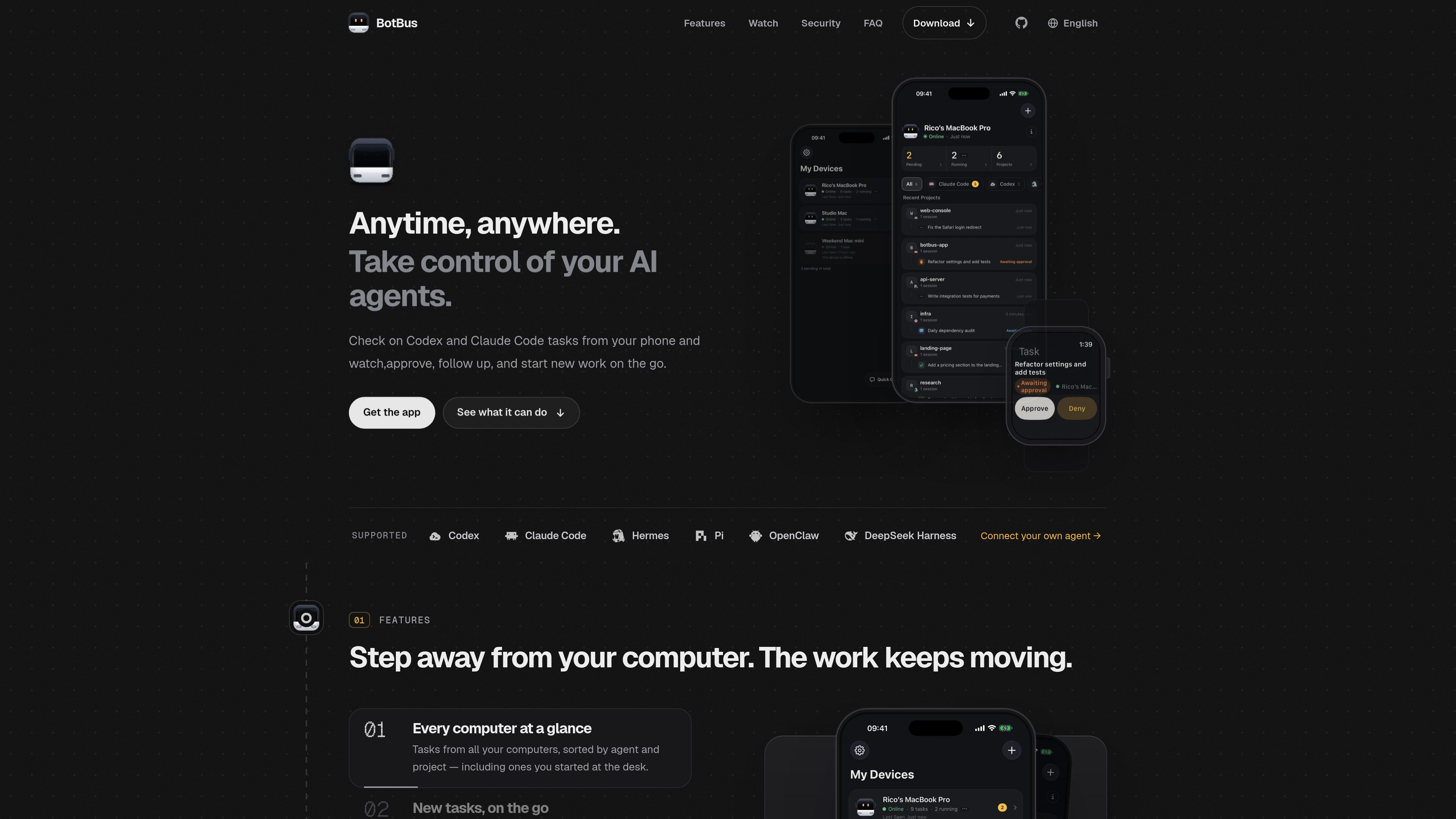
BotBus is a companion app for monitoring and controlling AI coding agents that run on a computer. Its desktop component lives in the menu bar, discovers local agents, and syncs task activity to a paired phone and Apple Watch so users can check progress without returning to the computer.
From the mobile apps, users can start new work, continue conversations, answer approval requests, interrupt tasks, and review returned files or media. The product supports six built-in agents and can also connect to other agents that implement Agent Client Protocol (ACP). Availability depends on the connector, task state, supported platform, and whether the computer is online.
See tasks from multiple computers in one view, organized by agent and project, including work started directly at the computer.
Choose a computer, project, and agent, then submit a one-sentence request from the phone. You can select a model or run the work in its own Git worktree when supported.
Receive prompts when an agent wants to run a command, edit files, or ask a question. Approve or answer from a phone or Apple Watch, interrupt a task, and enable auto-approval for a project.
View a live computer screen from the phone and tap, swipe, or type. Screen input starts locked, and the screen stream and input are end-to-end encrypted; this capability currently supports Mac.
Receive screenshots, files, and videos with task results. Images and PDFs referenced in a conversation can be opened from the phone.
Preview a development server started by an agent on the phone, and use additional controls such as voice input, photo sending, model or reasoning-effort switching, and review of uncommitted changes where the connector supports them.
Keep an eye on coding tasks started at the desk while away from the computer, and return only when an agent needs input or a task produces an important result.
Launch a task from a phone by selecting the target computer, project, and agent, then provide a short instruction when an idea or bug fix comes up away from the desk.
Respond to command, file-edit, or question prompts from a phone or watch so an agent can continue without requiring access to the computer keyboard.
Use live screen control or open returned screenshots, files, videos, and PDFs when a remote review requires more than a task status update.
Connect a private or company-built ACP agent to BotBus for mobile task control, using an ACP registry entry or a local manifest when the agent is not in the registry.
Install BotBus on the computer running the agent, then choose “Pair a Phone” from the desktop menu and scan the QR code with the phone. The desktop app runs in the background and discovers supported local agents.
The built-in integrations are Codex, Claude Code, Hermes, Pi, OpenClaw, and DeepSeek Harness. Other agents that implement Agent Client Protocol (ACP), including examples such as OpenCode, can also connect on Mac, Linux, and Windows when installed on the same computer as BotBus.
Viewing tasks that have already synchronized does not require the computer to be online. Approving requests, replying, starting or continuing tasks, and interrupting work require the target computer to be online and supported by the connector.
Chats, tasks, commands, images, notification text, and remote-control screens are encrypted on the device with AES-256-GCM before transmission. The pairing key is transferred through the computer’s QR code and remains in the paired devices’ keychains; the relay server handles ciphertext and limited routing metadata. Developer web-page previews are proxied through the server and are not end-to-end encrypted.
BotBus supports multiple paired computers and phones, with tasks listed separately by device and project. Control availability can vary by connector and task state, so some tasks may be view-only.

ByteAsk is a terminal-first AI coding agent for C and C++ that edits repos and verifies changes with compilers, debuggers, sanitizers, and tests.

MeetStream is a meeting bot API for Zoom, Google Meet, Microsoft Teams, and Webex. Record, stream, and analyze meetings with usage-based pricing and $5 free credit.

CreateOS Sandbox is an isolated compute environment for running code and agent workloads in Firecracker micro-VMs with private networking and SDK, CLI, or MCP control.

GitBot is a local browser workspace for reusable coding bots powered by Claude Code, Codex, or OpenCode, with persistent threads and configurable permissions.

hob is an independent workspace for coding agents, with local control over sessions, terminals, history, routing, and follow-up work.

Grok 4.7 is an xAI model for coding and knowledge work, available via Grok Build, Cursor, the Grok API and more, from $2 per million input tokens.