

Cleanup.pictures
Cleanup.pictures AI inpainting photo editor removes unwanted objects, people, text, logos & defects, with background tools and exports up to 720p.
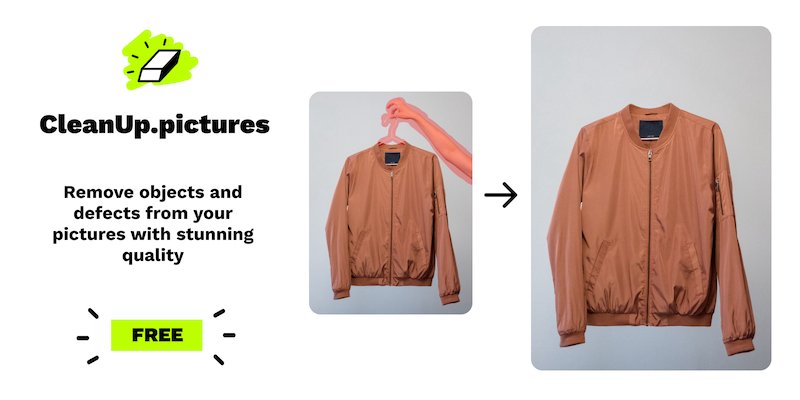
What is Cleanup.pictures?
Cleanup.pictures is an AI-based image retouching app focused on inpainting—removing unwanted elements from photos. It lets you remove objects, people, text, logos, and other defects, and it also includes tools for changing or extending backgrounds.
The core purpose is to help users quickly clean up and recompose images for common workflows such as product photography, portrait touch-ups, and editing tasks like removing stamps or tourists from photos.
Key Features
- Inpainting/object removal: Remove unwanted people, objects, cracks/defects, and similar items from photos.
- Text and logo removal: Remove unwanted text, logos, date stamps, or watermarks.
- Background tools: Includes functions to remove or replace backgrounds.
- Generative fill and remastering edits: Use generative fill to redesign parts of images and replace existing areas.
- Uncrop: Reframe/extend an image by adding filled content around it.
- Export options by plan: Free exports are limited to 720p, while Pro supports exporting without a stated size limit; the site says the quality is continuously improving.
- Drag & drop workflow: Start by dragging and dropping an image to begin editing.
- Developer API: Offers an inpainting API with documentation and samples (special pricing applies, per the site).
How to Use Cleanup.pictures
- Go to Cleanup.pictures and start a session by dragging and dropping an image.
- Choose the retouch/inpainting task you need (for example: removing an object, text, a logo, or other unwanted elements).
- Apply the edit and review the result.
- Export your image; note that free exports are limited to 720px/720p, while the Pro plan supports higher-resolution exports (as described on the site).
- If you want to automate editing, review the API documentation and use the provided samples.
Use Cases
- Remove tourists or time stamps before printing holiday photos: The site describes using Cleanup.pictures to remove time stamps or tourists from holiday images before sharing or printing.
- Clean portrait photos for profile pictures: Use inpainting to retouch portraits and remove unwanted elements from the photo.
- Repair visible issues such as cracks: The product is described as a way to remove cracks and other unwanted defects from photographs.
- Depersonalize real estate or room photos: Remove unwanted objects from images of rooms, flats, houses, or apartments to produce cleaner visuals.
- Improve e-commerce listings and social assets: Upload product photos to create cleaner product shots, and use tools like uncrop/re-design/generative fill for formats such as social media posts and thumbnails.
FAQ
-
What is inpainting? Inpainting is a retouching technique used to remove unwanted objects from photos. Cleanup.pictures describes it as using AI to remove unwanted people, text, objects, and other elements, producing results without relying on clone-stamp background references.
-
How does Cleanup.pictures handle free vs. Pro output resolution? The site states that the free version exports are limited to 720px/720p. For Pro, it says there is no size limit and that export quality is being continuously improved.
-
How much does Cleanup.pictures cost? Cleanup.pictures is free unless you need better quality and processing for hi-resolution images. The site lists $5 per month or $36 per year ($3 per month) for processing images of any size, and mentions a free trial that tests HD quality.
-
Does Cleanup.pictures work on mobile and desktop? The site states that the subscription works on both mobile and desktop.
-
Can developers use Cleanup.pictures via API? Yes. The site mentions an inpainting API with documentation, a live demo, and samples, and says special pricing applies.
Alternatives
- Photo retouching tools with inpainting/AI removal features: Instead of a dedicated inpainting web app, users can choose general-purpose editors that include AI object removal and retouching tools; workflows may differ in how you define the area to remove and how results are exported.
- Design/image editors with background removal and replace tools: For tasks focused mainly on background cleanup or background replacement, dedicated background editors may be better aligned with those specific operations, while Cleanup.pictures emphasizes inpainting for object/text removal.
- Workflow automation using local editing software: If you need batch processing, using desktop tools or local scripts may be an alternative to the Cleanup.pictures API, though automation and output resolution controls depend on the specific software chosen.
- General-purpose AI image editing platforms: Other platforms that support generative fill and image retouching can be considered when you need similar re-design and fill capabilities, but the exact inpainting and export behavior may vary.
Alternatives

Pixelcut
Easy-to-use AI tools to make your photos stand out!

Petalica Paint
Petalica Paint is an automatic coloring service for line art, designed to enhance digital artwork with ease.

Upscale.media
Upscale.media AI image enhancer upscales photos (2x/4x) and improves clarity with sharpening, deblurring, dehazing, portrait face enhancement, and restoration.

SnapEdit
SnapEdit is an AI online photo editor for quick retouching—remove objects, remove backgrounds with templates, enhance photos & HD export.

PhotoAid AI Image Enlarger
Resize images online without losing quality using advanced AI technology.

Magic Eraser
Magic Eraser is an AI-powered tool that allows users to quickly remove unwanted objects, people, text, and blemishes from photos with ease.