
Automatic work context recording
Records screen activity, windows, apps, input, browser history, and usage history from Claude Code, Cursor, terminals, and other tools in the background.

Contextberg records your screen, input, browser, and AI agent history locally, then shares work context via MCP with Claude Code and Cursor for resumptions, search, and reviews.
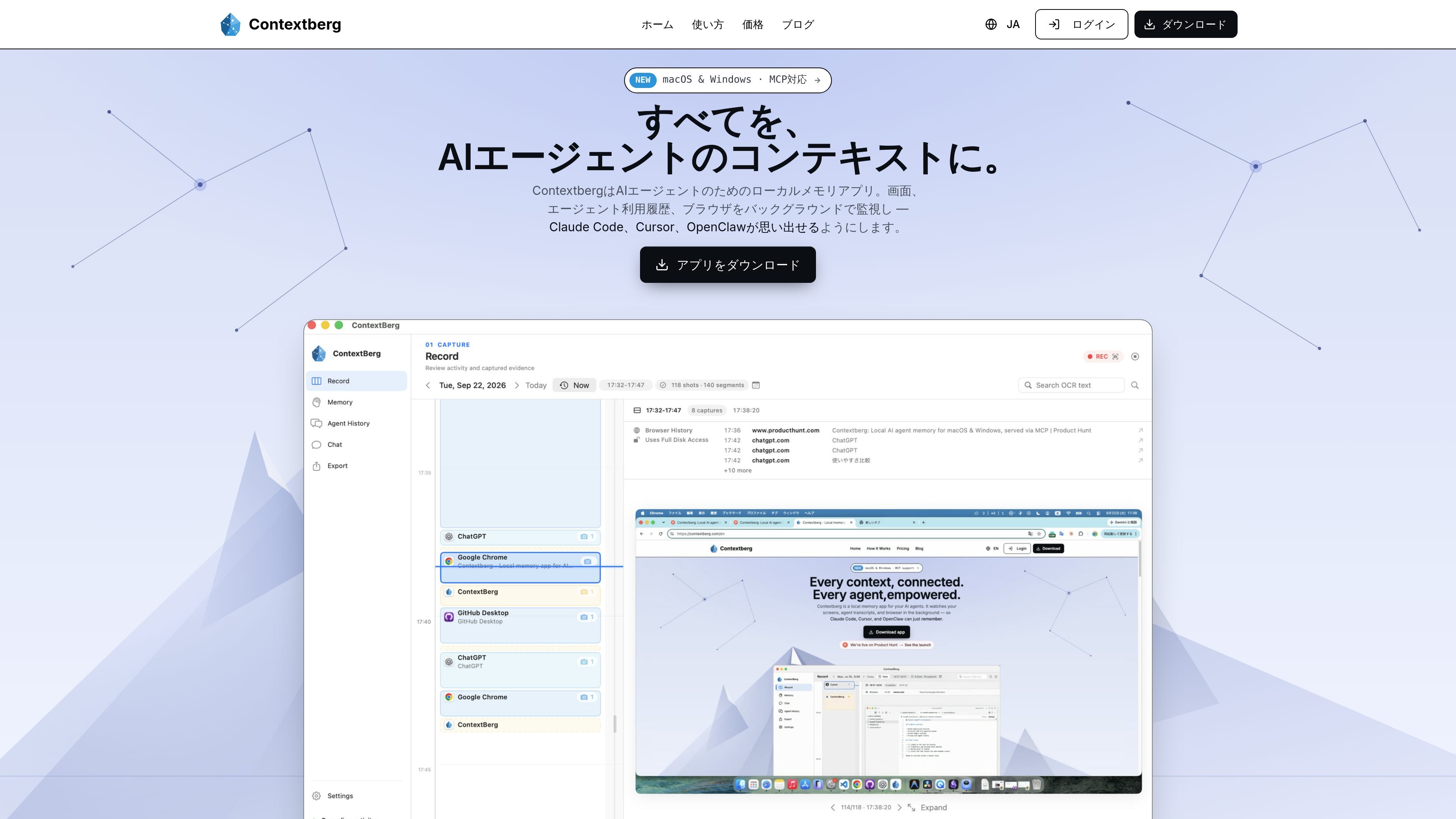
Contextberg is a desktop work-memory app that records PC screen activity, input, browser history, and AI agent usage history locally. It accumulates the flow of your work in the background, allowing you to review it on a timeline or organize it into daily and long-term context that AI can read.
Recorded information can be provided through the built-in MCP server to supported agents such as Claude Desktop, Claude Code, and Cursor. It is useful for having the agent summarize your recent situation after an interruption or search materials you viewed and error logs from the past. Data is primarily stored locally, and the Free plan supports local storage and Local LLMs.
Records screen activity, windows, apps, input, browser history, and usage history from Claude Code, Cursor, terminals, and other tools in the background.
Review chronological screenshots and usage time by app on a timeline to look back on the day’s workflow.
Organizes work information into three types—activity memory, daily memory, and long-term memory—to generate daily reports and context that agents can use.
Uses the built-in MCP server to provide recorded context to supported agents such as Claude Desktop, Claude Code, and Cursor.
Summarizes work before you stepped away by combining recent activity, browser history, and agent history. You can explore the summary further in chat.
Choose where data is stored and where inference takes place. In addition to local models and LM Studio, it supports Codex sign-in, Gemini, OpenRouter, and Contextberg Cloud.
After stepping away or switching to another task, review a summary spanning your recent screen, browser, and agent history, then resume work without repeating the explanation.
Have an AI agent search materials you viewed and error logs from the past, bringing previous research and solutions back into the conversation.
Use the timeline, usage time by app, and daily reports to reflect on when you were focused and when you drifted off task unconsciously.
Have AI summarize the day’s work log and accumulate it in your personal work database as material for daily reports and progress reviews.
Choose a local model or LM Studio to handle work history primarily locally while providing AI agents with the context they need.
Contextberg is downloaded from the official website and launched using an installer. No account registration or complex environment setup is required, according to the product information. The Windows version is distributed through the Microsoft Store, while the macOS version is provided as a DMG.
It supports macOS 13 and later, as well as Windows 10/11. The Windows version is available from the Microsoft Store, and the macOS version can be obtained as a DMG from the official website.
When the app runs in the background, it records windows and apps, input, the screen, browser history, and agent usage history from Claude Code, Cursor, terminals, and other tools. The timeline shows chronological screenshots and usage time by app.
Enable the built-in MCP server and add Contextberg to a supported agent such as Claude Desktop or Cursor. You can then search past work logs or give instructions such as “Summarize the material I was looking at earlier.”
The Free plan is free forever and includes local storage, AI work analysis, Local LLM support, and MCP integration. Lite costs $8 per month and provides access to all Gemini models and unlimited data retention, while Pro is described as in development. The Free plan includes only the basic Gemini model, with data retained for 180 days.

Goldfish is an AI memory app for macOS that helps you reply, write, summarize, and continue with context already on your Mac. It stores memory locally and writes in your tone.

ArtDeck is a visual reference board app for iPhone, iPad, and Mac. Collect mixed references on one canvas and study them with ToolBox lenses. Offline, optional iCloud sync, one-time purchase.

Dcyde is a shared decision log for product teams to capture what was decided, why, and the source, with searchable records from Slack, Figma, or Dcyde.

Yattayo: Slider To-Do Board turns tasks into a tactile slider board with sticky notes, widgets, reminders, iCloud sync, and Premium recurring habits.

recall is an AI flashcard app that turns reading and notes into study cards with Claude, ChatGPT, or another MCP client. One-time lifetime access with spaced repetition review.

Flunkey is a voice-first productivity layer for Windows that turns speech into text, AI outputs, and remembered context without leaving your app.