
Global keyboard shortcut
Press a global shortcut from any app to start dictating without switching windows or breaking your flow.

Harker is a free voice-to-text app for Mac that lets you dictate into any app with a global shortcut. Premium adds AI writing features for formatting, translation, and cleanup.
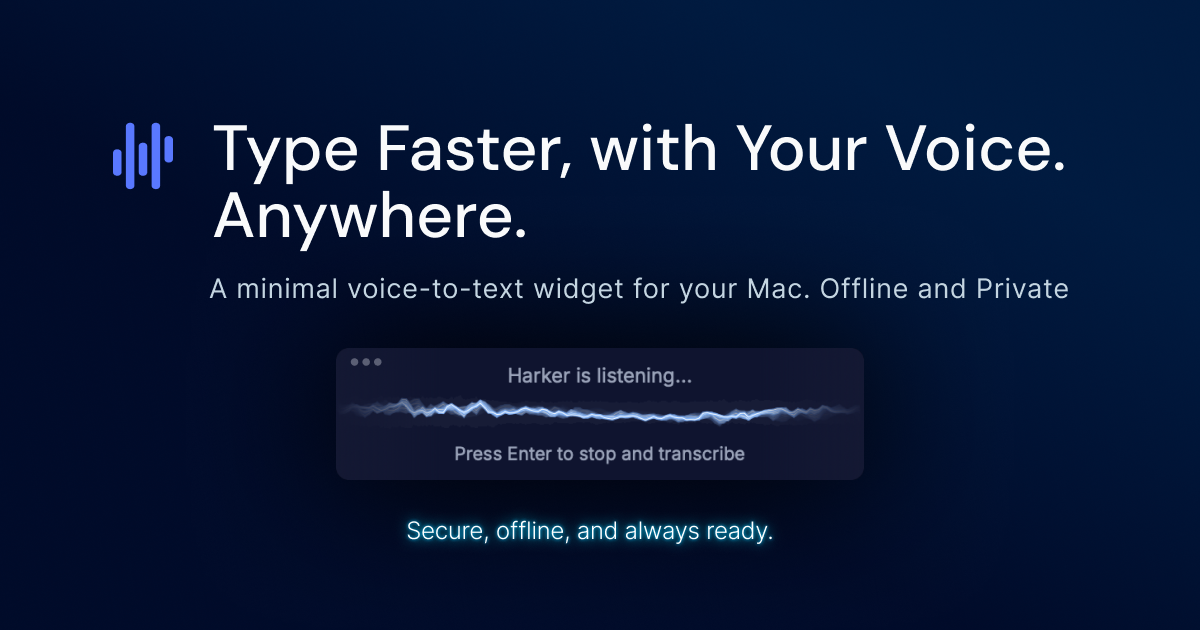
Harker is a voice-to-text app for Mac that lets you dictate into any application with a global keyboard shortcut. It is built around local transcription, so the free version processes audio on your Mac instead of sending it to a cloud service.
The product is designed for people who want faster text entry without leaving their current workflow. The free tier covers unlimited local transcription, while Premium adds AI-based cleanup and rewriting features such as style changes, formatting, translation, and custom instructions.
Press a global shortcut from any app to start dictating without switching windows or breaking your flow.
Harker transcribes speech locally on your Mac, with the source describing on-device Whisper processing and no cloud audio on the free tier.
Your dictated text can be inserted into any active text field, so the same workflow works in email, docs, Slack, code, and prompts.
The free tier includes unlimited transcription, support for all Whisper model tiers, auto-paste, and multi-language input.
Premium adds AI writing style transformation, output formatting for emails, bullets, and notes, grammar and punctuation fixes, translation, and custom instructions.
The download page says Harker requires macOS 12 or later and supports both Apple Silicon and Intel Macs.
Draft emails, replies, and follow-ups by speaking naturally, then paste the result directly into the message you are already composing.
Capture product ideas, prompts, and working notes without stopping to type, especially when you want the text to land in the current app immediately.
Turn spoken thoughts into code-related text, comments, or prompts while staying in your editor or terminal.
Convert rough dictation into a more polished format for emails, bullets, or notes when you want the AI layer to clean up tone and structure.
Speak in one language and translate the output to another when you need a quick multilingual draft or message.
Yes. The free tier includes unlimited local transcription with no account required, no word caps, and no trial clock.
Premium adds AI writing styles, smart formatting, grammar and punctuation fixes, translation, and custom instructions.
No. The free version does not require an account; you can download, install, and start dictating immediately.
The source states Premium is a 7-day free trial and says you can cancel Premium; it does not describe cancellation mechanics in more detail.
Free transcription is processed locally on your Mac, and the download page says no cloud audio is sent on the free tier.

Speech to Text Converter is a browser-based transcription tool for live dictation and uploaded audio or video files. It offers a free tier for short tasks and a Pro plan for unlimited transcription, AI summaries, translation, speaker identification, and advanced exports.

Dictato is a Mac dictation app that transcribes speech into text in any app using an on-device, offline workflow. It supports multiple transcription engines, optional cleanup and translation, and a one-time purchase license.

Sanota is an app that turns spoken memories, reflections, and interviews into clear written stories. It supports personal storytelling, family history, and shared memories, with guided prompts and subscription pricing.

Carbon Voice is an asynchronous voice messaging app for teams and individuals, with transcripts, AI catch-up, and cross-device access. It helps people and agents communicate without needing a live call.

An OpenAI API guide for choosing the right speech architecture for live audio, translation, transcription, speech generation, and audio-capable chat. It helps developers map each speech application to the appropriate session type, endpoint, and connection method.

Pewbeam is a church presentation app that listens to sermons, detects Bible verse references in real time, and displays the matching passage on screen. It is built for pastors, projection teams, and church media volunteers who want to reduce manual slide control during live services.