
UStackUStack
Keeby icon

Keeby

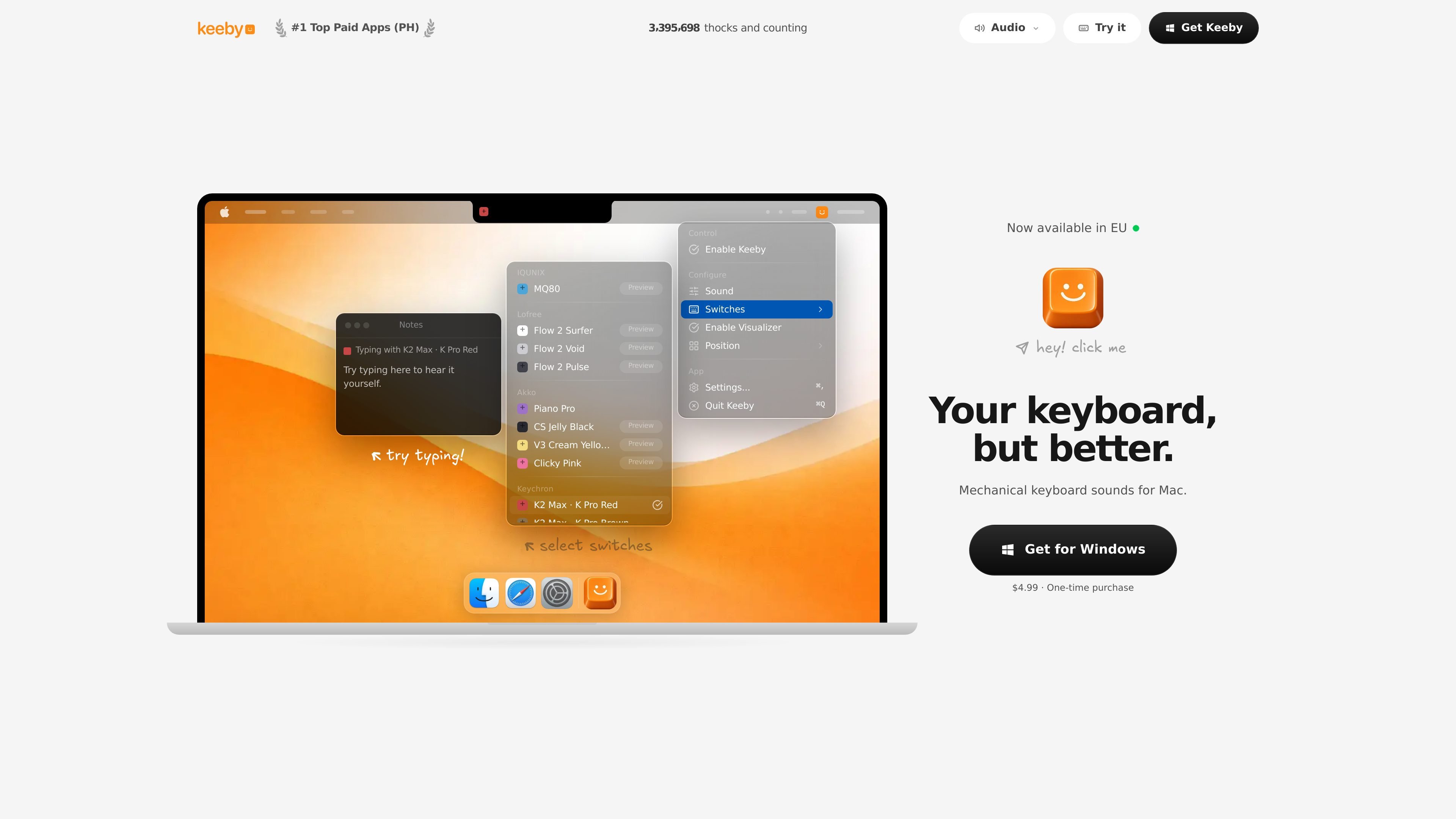
Keeby adds satisfying mechanical keyboard sounds to typing on Mac with spatial audio, a reactive visualizer, and customizable switch profiles.
Keeby

What is Keeby?

Keeby is an application for Mac that adds satisfying mechanical keyboard sounds to your typing. It’s designed to make typing feel more tactile by pairing those sounds with a reactive visualizer and configurable switch sound profiles.

The core purpose of Keeby is to let you customize the sound experience associated with mechanical keyboard-style typing on macOS, including spatial audio behavior and how the visuals respond as you type.

Key Features

  • Mechanical keyboard sound playback for Mac: Provides a keyboard-sound experience tailored to mechanical-style typing.
  • Spatial audio: Uses spatial audio output to shape how the sound is perceived.
  • Reactive visualizer: Displays visuals that react in response to keyboard activity.
  • Customizable switch profiles: Lets you switch between different sound profiles that resemble different mechanical “switch” characters.

How to Use Keeby

  1. Install and open Keeby on your Mac.
  2. Choose or configure a switch profile to match the mechanical keyboard sound you want.
  3. Ensure audio output is set to your preferred device so the sound plays as you type.
  4. Use the reactive visualizer as a feedback layer while you type to confirm the app is responding.

Use Cases

  • Quiet-work sessions: Add a consistent mechanical typing sound to make long writing or coding sessions feel more engaging without changing your keyboard hardware.
  • Typing feedback for accuracy: Use the visualizer and sound response as real-time feedback while practicing or typing faster.
  • Sound customization by work style: Switch profiles when moving between tasks (e.g., focused writing vs. light experimentation) to change the typing character.
  • Workspace setup with spatial audio: Use spatial audio output when your setup supports it to shape the perceived directionality of sound.

FAQ

  • Is Keeby for Mac? Yes. The product is described as “Mechanical Keyboard Sounds for Mac.”
  • What does the visualizer do? Keeby includes a reactive visualizer that responds to typing activity.
  • Can I change the keyboard sound style? Yes. It supports customizable switch profiles.
  • Does Keeby use spatial audio? The product description notes spatial audio as part of the experience.

Alternatives

  • Typing audio utilities: Other tools that add sound effects to typing events can offer a similar “typing feedback” workflow, though they may differ in profile customization and visual feedback.
  • Keystroke visualization apps: If your priority is the reactive visual layer, consider apps focused on on-screen keystroke feedback rather than sound.
  • Hardware-first mechanical keyboard options: If you want the most authentic tactile experience, consider changing keyboard switches/cases directly rather than adding software sounds, which may provide different realism and control.
  • Audio middleware/player setups: For users who want more control over audio routing, an audio-focused workflow may be an option, though it may require more setup than a typing-focused app like Keeby.