
Remote MCP connection
Launch the server by pasting a single remote MCP URL into a supported client, then complete Google Ads authentication through the browser flow.

Google Ads Remote MCP Server is a hosted MCP tool for controlling Google Ads from supported clients like Claude. It avoids local server setup and lets marketers authenticate, inspect, report on, and edit accounts through a remote connector.
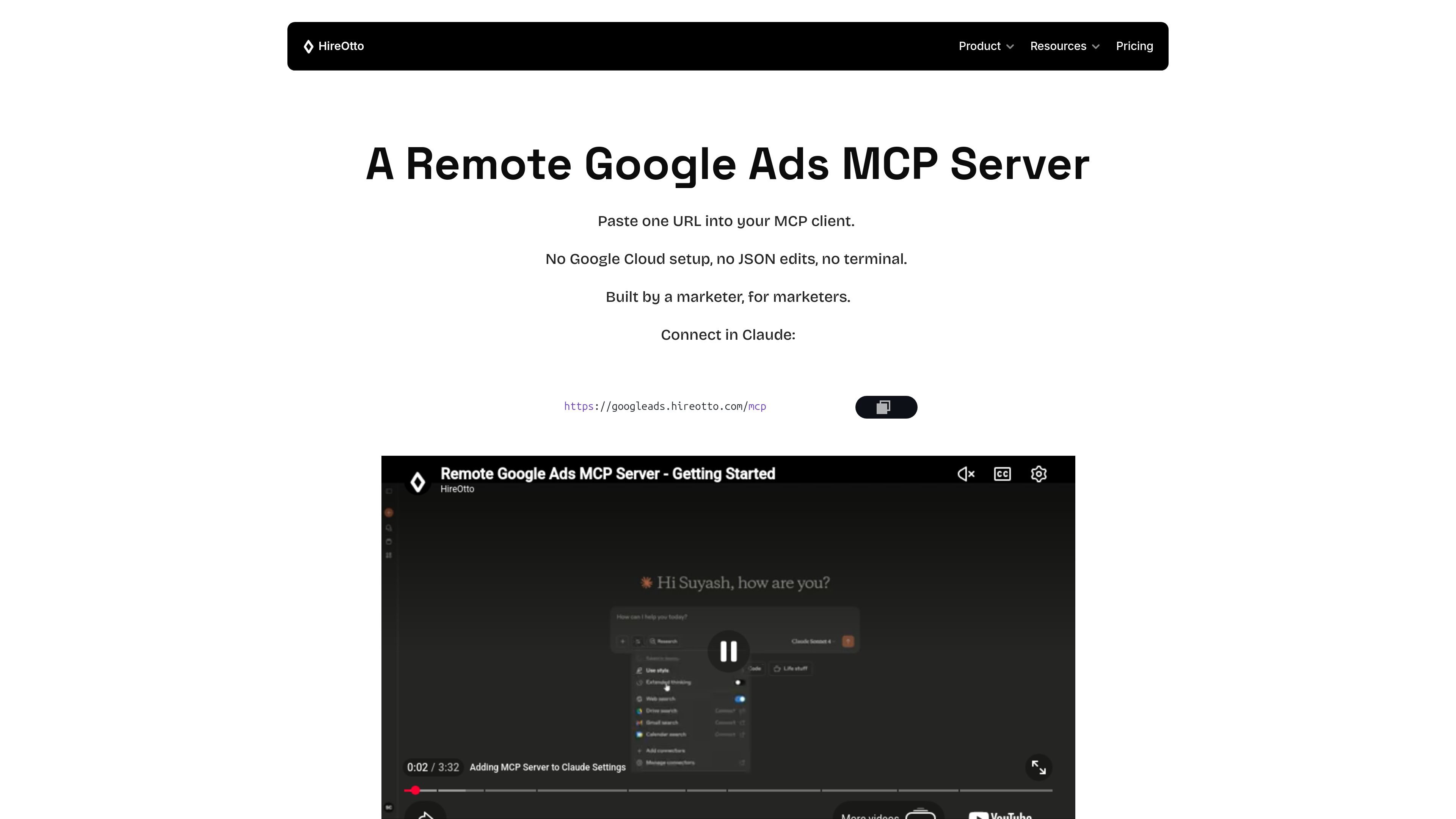
Google Ads Remote MCP Server is a hosted Model Context Protocol server that connects MCP-compatible clients, such as Claude, to Google Ads. It is designed to let users launch, inspect, and manage Google Ads workflows through a remote connector instead of running a local server.
The product emphasizes a browser-based setup flow: add the connector URL, authenticate Google Ads, choose the accounts you want the server to access, and then use prompts to list accounts, inspect campaigns, or carry out supported actions. Its positioning is aimed at marketers who want Google Ads control without Google Cloud setup, JSON edits, or terminal work.
According to the site and terms, HireOtto is a tool layer rather than an agency or account manager. It can read, analyze, export, create, update, and manage Google Ads objects, but the user remains responsible for approvals, account access, and review of material changes.
Launch the server by pasting a single remote MCP URL into a supported client, then complete Google Ads authentication through the browser flow.
Create and edit Google Ads objects such as campaigns, ad groups, keywords, budgets, and responsive search ads from natural-language prompts.
Review account health with tools for auto-tagging checks, auto-apply review, and disapprovals snapshots.
Run reporting across campaigns, ad groups, ads, keywords, devices, geography, search terms, and conversion or impression-share data where available.
Work with negatives, search-term review, keyword ideas, historical metrics, and geo or language targeting in a structured workflow.
Use inline summaries and signed CSV downloads when you want an output the client can analyze programmatically without keeping everything in context.
Use natural-language prompts to create or update campaigns, ad groups, keywords, budgets, and responsive search ads without switching to a separate UI-heavy workflow.
Inspect account hygiene before making changes by checking auto-tagging status, reviewing disapprovals, and validating what needs attention.
Pull reporting across the objects that matter for PPC operations, then export results to CSV when you want to analyze them outside the client.
Research new or existing keyword opportunities using seed phrases, URLs, historical metrics, geo and language targeting, and per-location results.
Manage negatives and search-term review to reduce wasted spend and keep account structure organized.
Supported clients include MCP-compatible AI clients; the page specifically shows Claude as an example. The setup flow is designed around adding a remote connector URL in the client, then authenticating Google Ads access.
No. The page states that you can connect by pasting one URL into your MCP client, and the product claims there is no Google Cloud setup, no JSON editing, and no terminal work.
No. The terms state that HireOtto does not independently decide to make changes to your Google Ads account; actions happen only when you or a connected client, workflow, or authorized user initiates them.
Support is handled by email at [email protected]. The contact page lists async support for Starter, priority async support for Team, and by-agreement support for Enterprise.
The pricing page lists a free 14-day trial, a Pro plan, and an Agency plan, and the refund policy says approved refund requests can be made within 14 days of completing a transaction.

PromptScout tracks how ChatGPT, Gemini, Google AI Overviews, and Perplexity mention your brand or competitors, then pairs those results with source analysis and website audits. It helps teams decide what to fix in content, positioning, or site readiness next.

SaveMRR is a Stripe retention tool for SaaS teams that scans billing data for churn and MRR leaks, then automates recovery through dunning, cancel-save offers, win-back emails, and onboarding nudges. It is built for founders and bootstrapped teams using Stripe.

Hype is a web tool for finding trending YouTube topics by category, time range, and scoring mode. Spot emerging ideas and review source videos.

Sleek Analytics is a privacy-friendly web analytics tool with real-time visitor tracking, Core Web Vitals, and revenue attribution. It helps site owners understand traffic and conversions without cookie banners or a heavy setup.

Struere is an AI-native platform for turning spreadsheet data into structured operational software with dashboards, alerts, and automations. It is aimed at teams that want to replace manual spreadsheet workflows without building custom tools from scratch.

ClayHog is an AI search visibility platform for tracking brand presence in ChatGPT, Gemini, Perplexity, Claude, and Google AI Overviews from one dashboard.