
Generate forms from prompts
Describe the form you need and Claude can generate a Jotform form with fields, structure, and basic logic.

Jotform Claude App connects Jotform to Claude for prompt-based form creation, field editing, submission filtering and AI response analysis in chat.
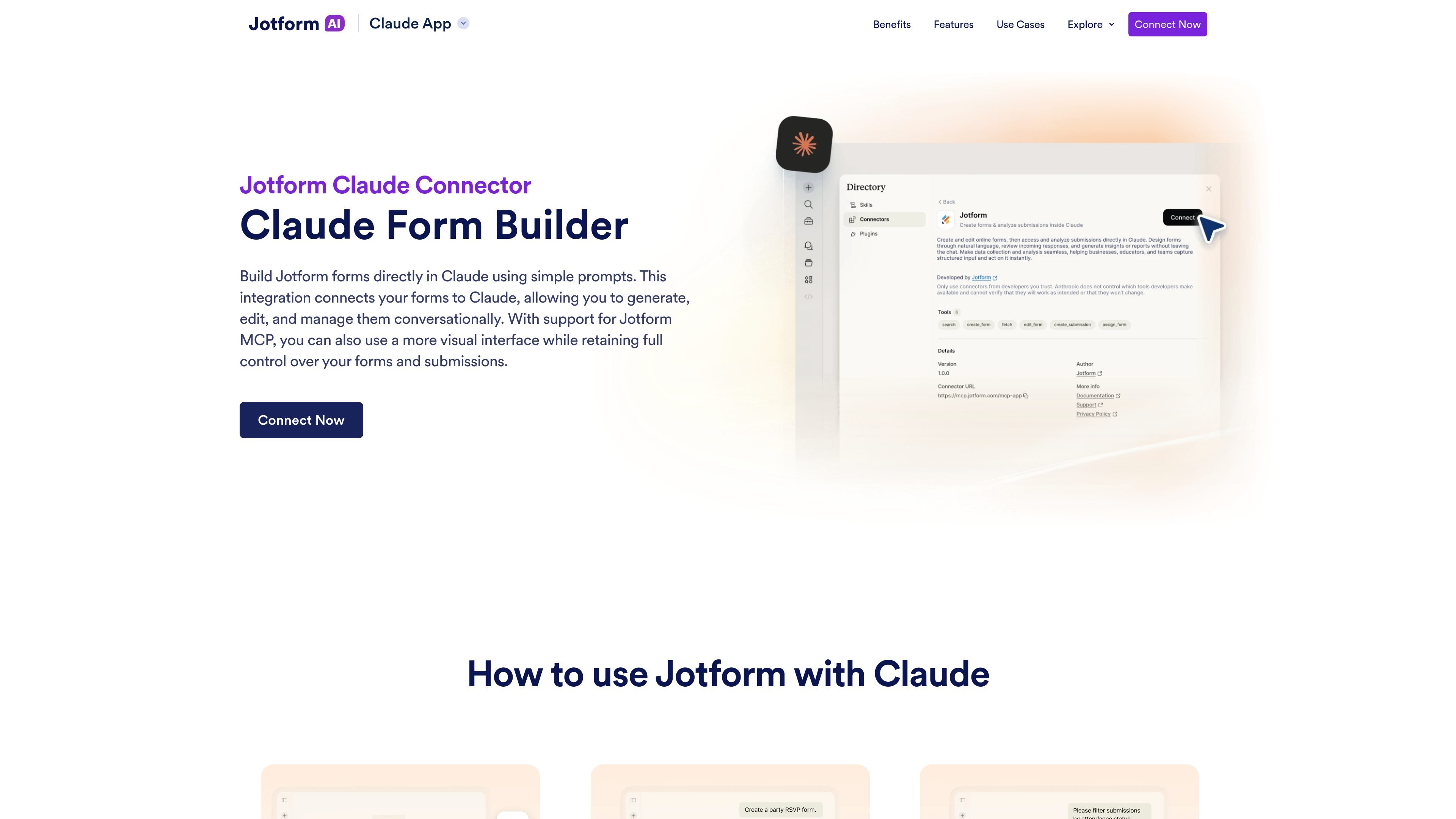
Jotform Claude App is a connector that lets you build and manage Jotform forms inside Claude using natural language. The page describes it as a Claude Connector and a Jotform MCP integration, with support for both chat-based interaction and a more visual interface.
It is designed for users who want to create forms from prompts, refine fields and layout as they go, and work with submissions in the same workflow. The source also says the integration can be used to view, filter, and analyze submission data, while the form data itself remains stored in Jotform.
Describe the form you need and Claude can generate a Jotform form with fields, structure, and basic logic.
Change questions, fields, settings, layout, and styling in conversation instead of rebuilding the form manually.
Browse your forms, reopen one for updates, and continue working without leaving Claude.
Filter responses by date, status, keywords, or specific field values, then review submissions in one place.
Use AI to summarize responses, identify trends, and surface recommendations based on form data.
Draft a lead capture form from a short prompt, then refine qualifying questions for budget, timeline, or service needs before sharing it.
Build an event RSVP form, add conditional follow-up questions, and review attendees by guest count or preferences.
Create a feedback survey, adjust question types for easier analysis, and summarize recurring issues from submitted responses.
Set up an order form with products, quantities, delivery details, and payment, then group recent orders by status.
Use the submission filters and AI analysis tools to review form responses and identify patterns without leaving Claude.
Jotform Claude App connects a Jotform account to Claude so users can create forms, edit fields, and manage submissions in chat using natural language. The page also describes support for Jotform MCP, which adds a more visual interface.
The landing page says you can connect Jotform to Claude through Claude’s “Connect your Tools” settings. It also notes that Jotform MCP can be used for a more visual connection and interaction.
Yes. The source says you can describe the form you need and Claude can generate a Jotform form with fields, structure, and basic logic.
Yes. You can update questions, add or remove fields, reorder elements, and adjust structure, settings, layout, and styling conversationally in Claude.
Yes. The product page says you can view forms, filter submissions by date, status, keywords, or field values, and analyze responses with AI to summarize submissions and identify trends.

AakarDev AI helps teams manage AI provider access, project setup, logs, and analytics in one dashboard. BYOK support included.

ClawEase is an AI business operator that captures requests across calls, email, SMS, WhatsApp, LINE, and web forms, then completes booking workflows in existing web systems.

VForms lets you place questionnaires inside YouTube videos, capturing feedback in context with timestamped, embeddable video forms.

BookAI allows you to chat with your books using AI by simply providing the title and author.

Skills Janitor is a GitHub-hosted set of slash commands for auditing, tracking, and cleaning up Claude Code and OpenAI Codex skills.

FeelFish is a PC client for AI-assisted novel writing, helping writers plan characters and settings, draft and revise novels, and manage story context.