

Kome
Kome is an AI browser extension that summarizes articles, news, webpages, and YouTube, plus a bookmark manager and AI-assisted writing from saved links.
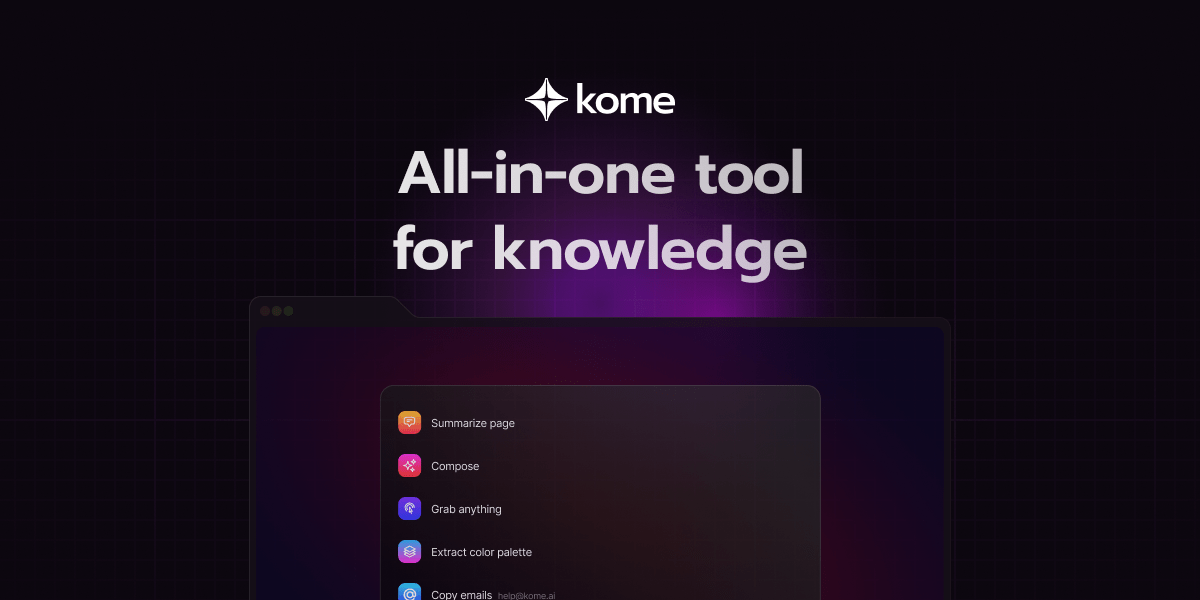
What is Kome?
Kome is an AI-powered browser extension that adds summarization, bookmarking, and AI-assisted writing to webpages you browse. The extension’s core purpose is to help you capture information (via bookmarks and notes) and quickly extract key points from articles, news, websites, and YouTube videos.
In addition to summarizing content, Kome provides a bookmark manager for organizing saved pages and tools that use your bookmarks to generate drafts (such as emails, tweets, and blog posts) and extract information from webpages.
Key Features
- AI-Powered Summarizer (one-click): Summarizes articles, news, webpages, and YouTube videos directly in your browser to help you get the main points without reading the full page.
- Bookmark Manager: Lets you capture and store content from any website, with the ability to search and revisit saved items.
- Smart Compose (based on bookmarks): Uses your saved bookmarks to generate writing such as emails, tweets, and blog posts.
- Webpage tools for extraction: Includes tools to extract email addresses from a page, generate a color palette from a webpage, and find or retrieve an URL (as described in the site copy).
- Works across major browsers: Designed to run on Chrome, Edge, Opera, Brave, and Arc.
- Notes and organization support: The site mentions writing notes on web pages as part of the organization workflow.
How to Use Kome
- Install the extension: Go to your browser’s extension marketplace, search for “Kome AI”, and follow the installation steps.
- Summarize a page: Open an article, news page, webpage, or YouTube video and use Kome’s summarizer to generate a summary with a single click.
- Save what matters: Use Kome’s bookmark manager to save the page or content you want to return to later, then use search to find it.
- Draft from your bookmarks: When you’re ready to write, use Smart Compose with your saved bookmarks to generate drafts like an email, tweet, or blog outline.
- Use extraction tools as needed: On pages where it’s relevant, use the email extraction or color palette extraction tools described by the extension.
Use Cases
- Quickly triage long articles and news: When you encounter lengthy content, use one-click summarization to understand the main points faster and decide what to read in full.
- Build a personal research library: Save useful pages (including webpages and articles) into the bookmark manager, then use search to retrieve them later.
- Turn saved references into drafts: Use Smart Compose to generate an email, tweet, or blog outline based on the bookmarks you’ve collected.
- Find contact info from web pages: Use the email extraction capability to copy email addresses from a page without manually scanning the content.
- Capture visual styles from websites: Use the color palette extraction feature to pull color information from a webpage and save it in your preferred format.
FAQ
Which browsers support Kome?
Kome is compatible with Chrome, Edge, Opera, Brave, and Arc.
What content can Kome summarize?
The site states Kome can summarize articles, news, websites/webpages, and YouTube videos.
Does Kome include a way to save and find content later?
Yes. Kome includes a bookmark manager for capturing content from websites, searching, and accessing saved items.
What can Kome do with my bookmarks?
Kome’s Smart Compose feature uses bookmarks to generate drafts such as emails, tweets, and blog posts.
How do I install Kome?
Install Kome from your browser’s extension marketplace by searching for “Kome AI” and following the installation instructions.
Alternatives
- Other browser summarization extensions: Extensions that focus primarily on summarizing selected text or entire webpages; typically they may not include a full bookmark manager or bookmark-based writing workflow.
- Read-it-later services (bookmark/save apps): Tools that help you store and organize links across the web; they usually center on saving rather than AI summarization and AI-assisted drafting.
- AI writing tools with document input: General-purpose AI writing apps that generate drafts from provided text; they differ because they may require you to paste content rather than using a browser-based bookmark workflow.
- Research and note-taking apps with web clipping: Note tools that clip webpages and support organization; they may focus on capturing and annotating rather than one-click summarization and specific extraction actions (like color palettes or email extraction).
Alternatives

Wikiwand
AI-driven wiki aggregator created to enhance user experience on Wikipedia by streamlining knowledge consumption.

dumppp
dumppp delivers fast mobile capture to Notion with quick launch, context switching, and offline-first sync. Type instantly, review via timeline.

Struere
Struere is an AI-native operational system that replaces spreadsheet workflows with structured software—dashboards, alerts, and automations.

AI PDF Summarizer
An AI-powered tool that summarizes PDF documents quickly and efficiently, providing clear insights and allowing users to interact with the content.

Tactiq
Tactiq is an AI meeting assistant that provides live transcription, AI summaries, action items, and custom AI prompts for Google Meet, Zoom, and Teams.

garden-md
Turn meeting transcripts into a structured, linked company wiki with local markdown and an HTML browser view. Sync from supported sources.