
Inline text explanation
Select text in any Mac app, press ⌥ Space, and get an explanation without leaving the current window.

MiniAi is a macOS app that explains selected text in place. Highlight text, press ⌥ Space, and get an AI explanation on macOS 14 or later.
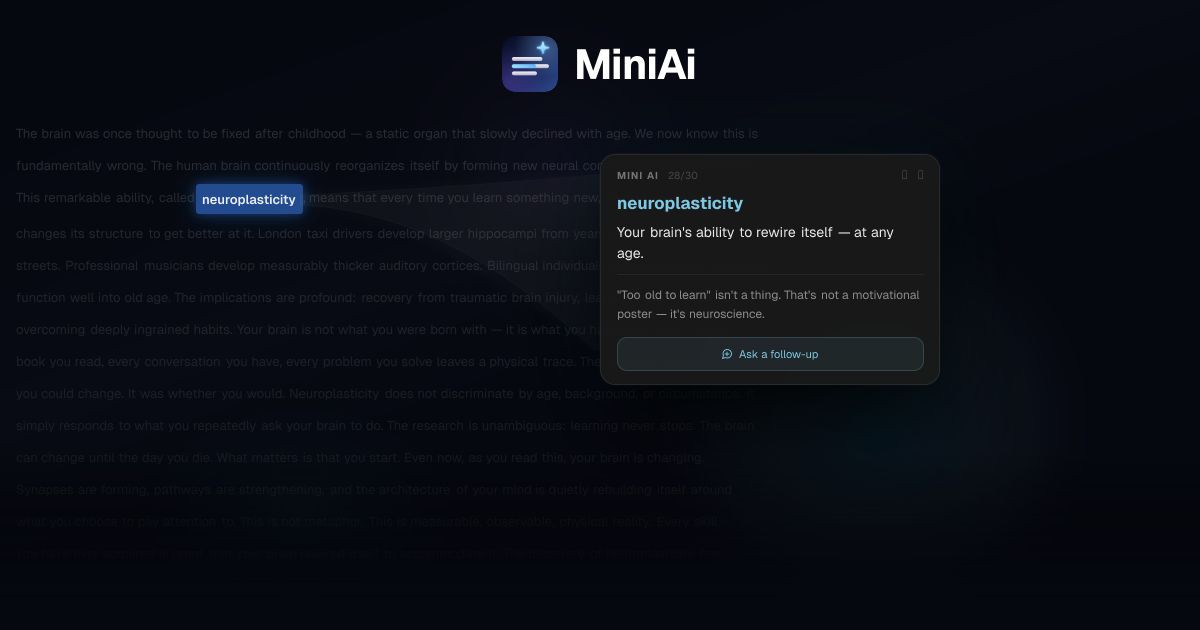
MiniAi is a macOS app that explains selected text in place. Its core workflow is simple: highlight text you do not understand, press ⌥ Space, and read an instant AI explanation right over your window.
The product is designed for native Mac use and is available as a free download for macOS 14 or later on Apple Silicon and Intel Macs. Setup requires installing the DMG, allowing the app in Privacy & Security, and granting Accessibility permission so it can read selected text.
Select text in any Mac app, press ⌥ Space, and get an explanation without leaving the current window.
The app is positioned as native to macOS and works over your window instead of sending you to a separate interface.
The setup guide says the app streams responses back as they are generated, so you can start reading before the full answer finishes.
The onboarding requires Accessibility permission so MiniAi can read the text you highlighted.
MiniAi is distributed as a downloadable DMG rather than through the App Store.
The setup page notes a daily usage limit, which resets the next day if reached.
A reader can highlight an unfamiliar sentence or technical term in any Mac app and get a plain-language explanation without copying the text elsewhere.
Someone working through docs, notes, or messages can use the shortcut to clarify a confusing passage while staying in context.
A user who wants to learn faster can select text they do not know and use the app as an on-demand explanation layer while reading.
After setup, the app can be used as a quick lookup tool anywhere on the Mac where text selection is available, as long as Accessibility permission is enabled.
MiniAi is distributed as a DMG for macOS and is not installed from the App Store. The setup guide says it runs on macOS 14 or later and needs Accessibility permission so it can read selected text.
Yes. The setup guide says MiniAi is ready to use after installation and accessibility approval, and it works in any Mac app where you can select text.
MiniAi explains the text you select after you press ⌥ Space. The explanation appears over your window and streams in as it is generated.
The setup page says MiniAi uses Anthropic's Claude Sonnet 4 (claude-sonnet-4-20250514) to generate responses.

Flunkey is a voice-first productivity layer for Windows that turns speech into text, AI outputs, and remembered context without leaving your app.

Spotit is a macOS app that reads your screen and highlights exactly where to click, using voice questions and on-screen guidance.

AakarDev AI helps teams manage AI provider access, project setup, logs, and analytics in one dashboard. BYOK support included.

Yattayo: Slider To-Do Board turns tasks into a tactile slider board with sticky notes, widgets, reminders, iCloud sync, and Premium recurring habits.

recall is an AI flashcard app that turns reading and notes into study cards with Claude, ChatGPT, or another MCP client. One-time lifetime access with spaced repetition review.

at8pm is an iPhone journaling app that locks daily entries after a chosen time, with text, voice, photos, locations, video notes, private iCloud sync, and Face ID.