

Magnific AI
Magnific AI is an online AI image upscaler, enhancer, transformer, and generator—boost resolution and reimagine details with prompts & sliders.
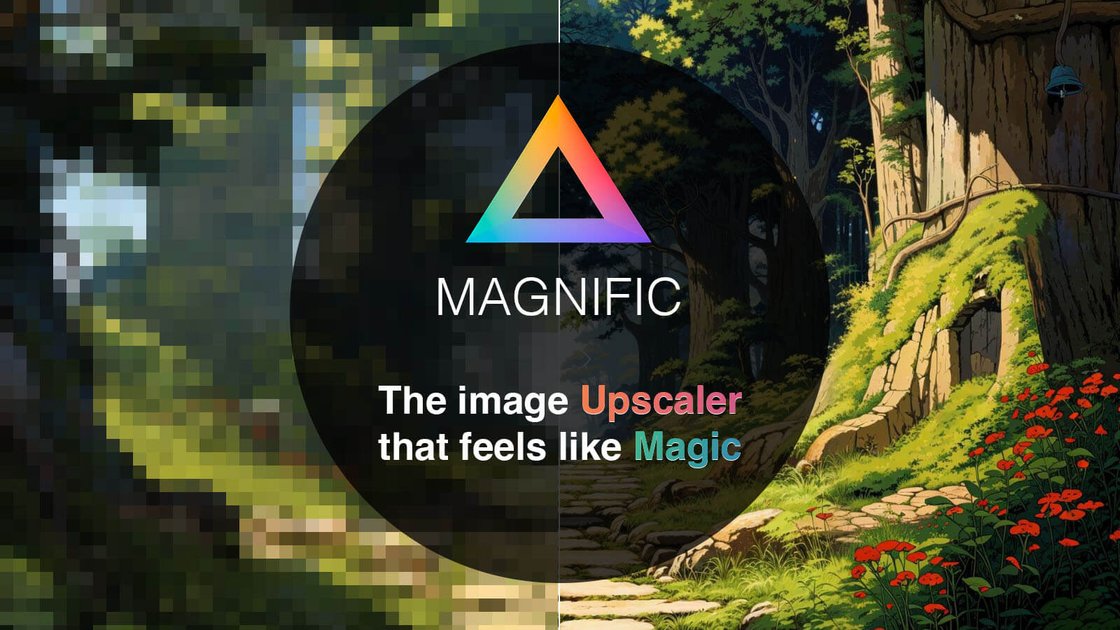
What is Magnific AI?
Magnific AI is an online image upscaler, enhancer, transformer, and generator powered by generative AI. Its core purpose is to help you increase resolution and add or reimagine visual details in your images, while using controls (including a prompt and parameters) to steer the output.
The product is positioned as a workflow tool for creators working with photos, illustrations, graphic designs, and other visual assets—either to upscale existing results or to guide the AI to generate new interpretations with a specified level of “Creativity.”
Key Features
- Upscaling to higher resolution: Converts an input image into a higher-resolution version to increase perceived clarity and detail.
- Enhancement for more detail: Supports enhancement workflows (e.g., “Upscaling Portraits,” “Upscaling & Enhancing Illustrations,” “Enhancing Films & Photography”) to improve the fidelity of existing images.
- Transformation and generation from a prompt: Lets you direct the process with a description (text prompt) and parameters so the model can reimagine details rather than only resizing.
- Controls to steer hallucinated details: Includes a “Creativity” slider that controls the degree of hallucination/new details; the FAQ also notes sliders like HDR and Resemblance for managing output characteristics.
- Interactive, web-based workflow: Presents a before/after workflow where you can preview results (with examples shown across portraits, illustrations, graphic design, landscapes, and more).
- Runs on generative AI (browser experience): The site describes the experience as “Indistinguishable from magic,” and the FAQ frames the feel as “like having a magic wand,” emphasizing guided transformation rather than manual editing.
How to Use Magnific AI
- Open Magnific and log in (or create an account on magnific.com, as referenced by the site).
- Select an image to upscale, enhance, transform, or use as a starting point for generation.
- Provide a prompt and parameters to guide the output; use the Creativity slider to control how many new details the AI adds.
- Adjust additional sliders when needed (the FAQ specifically mentions HDR and Resemblance for controlling artifacts and likeness).
- Review before/after results and export your generations (the site includes an “Export your generations” entry in the account area).
Use Cases
- Upscaling portraits for sharper detail: Improve resolution of portrait photos while enhancing or adding details, using the Creativity control to balance naturalness vs. added information.
- Upscaling and enhancing illustrations: Increase illustration resolution and add detail (the site highlights “insane amount of details added” for illustration upscaling).
- Upgrading graphic design and video game assets: Enhance existing assets such as graphic designs or video game-related imagery to support higher-resolution presentation.
- Enhancing film and photography: Use AI enhancement to increase detail and clarity in film/photography-style inputs, potentially steering the result with prompt and sliders.
- Reimagining sci-fi/fantasy visuals from a prompt: Start from an image and ask the model to “reimagine” details based on a description, leveraging parameters to control how far the output departs from the source.
FAQ
How does Magnific AI’s upscaler & enhancer work?
Magnific transforms an input image into a higher-resolution version and can add details. You can direct the process with a description and controls such as Creativity to set the level of hallucinations (new details).
Is Magnific suitable for beginners?
Yes. The site states it is designed to be accessible and user-friendly, with an intuitive interface and support through tutorials and community.
What controls help reduce artifacts?
The site notes artifacts can occur sometimes, but can be controlled using Creativity, HDR, and Resemblance sliders, as well as through the text prompt. It also states artifacts are more likely when Creativity or HDR are set too high or when Resemblance is not properly configured.
How much does Magnific AI cost?
Prices are shown on the pricing page at the time of purchase and may be displayed in your local currency. VAT and/or local taxes may be added, and annual subscriptions include “two months free.” The site also says you can cancel at any time.
Is the payment service secure, and what payment methods are accepted?
The site says payments are handled by Stripe and that it retains no card details on Magnific’s side. It accepts credit/debit cards (including VISA, MasterCard, American Express), and methods such as iDeal, SOFORT, Bancontact, Przelewy24, Giropay, EPS, GrabPay, and AliPay. It states PayPal and cryptocurrency are not accepted.
Alternatives
- Other web-based AI upscalers/enhancers: Similar category-focused tools for increasing resolution and enhancing details from a single upload. They typically differ in how much creative control you get over hallucinated details versus purely sharpening/resizing.
- Desktop photo editors with AI upscaling (plugin or built-in): Tools that integrate with common photo workflows and may offer different artifact control and parameterization; they may prioritize editing pipelines over prompt-guided generation.
- AI image editing tools (prompt-guided “image-to-image”): Adjacent solutions that emphasize transformation from an input image based on prompts; they may vary in whether the primary job is upscaling/enhancement or broader creative editing.
- Generative image models used via APIs: If you want a developer-first workflow, you can use generative models directly to build upscaling/enhancement pipelines; the difference is that you manage integration, parameters, and output handling rather than relying on a dedicated upscaler UI.
Alternatives

Pixelcut
Easy-to-use AI tools to make your photos stand out!

Upscale.media
Upscale.media AI image enhancer upscales photos (2x/4x) and improves clarity with sharpening, deblurring, dehazing, portrait face enhancement, and restoration.

SnapEdit
SnapEdit is an AI online photo editor for quick retouching—remove objects, remove backgrounds with templates, enhance photos & HD export.

PhotoAid AI Image Enlarger
Resize images online without losing quality using advanced AI technology.

Airbrush
Airbrush is an AI-powered portrait editor to enhance, retouch, erase, remove backgrounds, and reshape photos—online and via mobile/desktop apps.

Aaavatar
Aaavatar is a Mac tool for team portrait photos—one-drop background removal, background customization, and one-click retouching for export to LinkedIn and Slack.