
Auto-zoom that follows clicks
Automatically detects clicks and applies smooth zoom transitions from about 1.25x to 5x, reducing the need for manual keyframing when you are recording step-by-step software flows.

ScreenBuddy is a macOS screen recorder and editor for tutorials, demos, and walkthrough videos. It adds auto-zoom, spotlight, lightbox, annotations, custom backgrounds, cursor controls, and webcam overlay in an offline workflow.
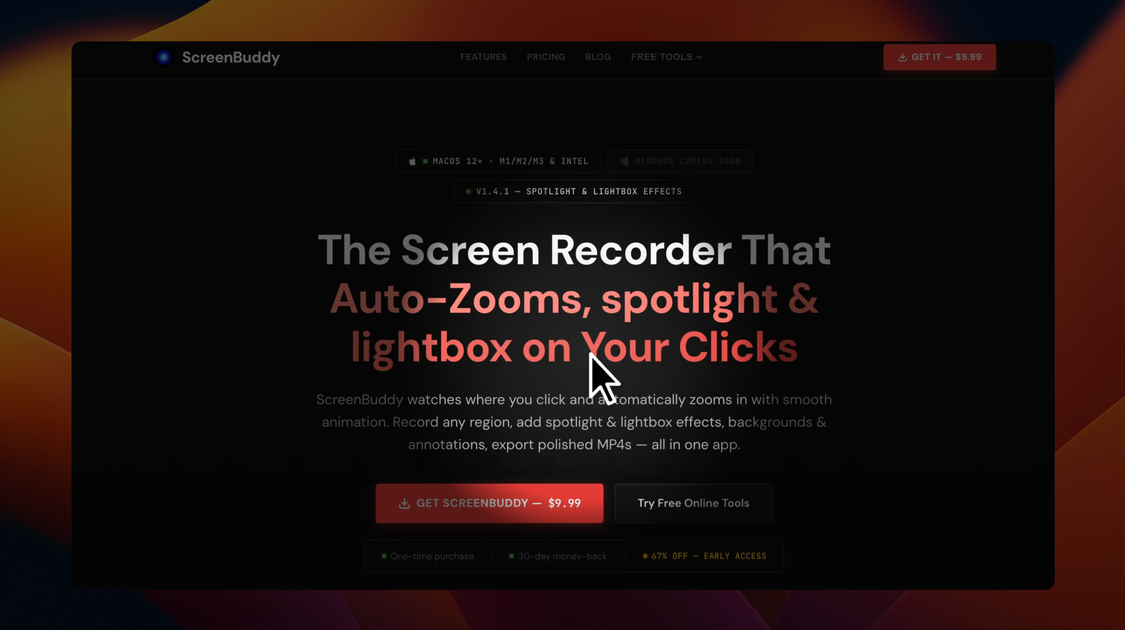
ScreenBuddy is a Mac screen recorder and editor built around viewer attention. Its main job is to help creators turn ordinary screen captures into clearer tutorials, product demos, and walkthrough videos by adding motion and visual cues where viewers need them most.
The product combines recording with a set of attention-focused editing tools: auto-zoom, a spotlight effect, a lightbox effect, annotations, background changes, cursor sizing, and webcam overlay. The site also describes it as working offline and as a one-time purchase, making it a self-contained macOS workflow rather than a subscription-based cloud editor.
Automatically detects clicks and applies smooth zoom transitions from about 1.25x to 5x, reducing the need for manual keyframing when you are recording step-by-step software flows.
Darkens the background while highlighting a circular area around the cursor, which helps viewers track menus, dropdowns, and guided walkthroughs.
Crops a region to up to 95% of the frame with smooth animation, custom corners, and pixel-aware transitions to keep attention on one part of the screen.
Adds text overlays, images, arrows, and shapes with style controls for fonts, colors, borders, and shadows so you can label steps or call out UI elements.
Lets you switch between 18 gradient presets, solid colors, or custom images, with padding, corner radius, and shadow controls for a cleaner presentation frame.
Includes cursor resizing and webcam overlay options for recordings where the pointer or presenter presence needs to stay visible.
Record a software tutorial where each click automatically zooms the viewer into the active part of the interface, reducing the need for manual keyframes.
Add arrows, text callouts, and image overlays to explain what the viewer should notice in a screen recording, especially when the recording is meant to work without voiceover.
Use the spotlight or lightbox effects to focus attention on a menu, form field, or single UI section during a product demo or guided tour.
Replace a cluttered desktop background with a gradient, solid color, or custom image to make screen recordings look more polished and keep distractions out of frame.
Overlay a webcam feed and adjust cursor visibility when you want the presenter and pointer to remain visible in a presentation or remote demo.
ScreenBuddy records on macOS and lets you apply attention-focused edits in the same workflow. You can record a new screen capture or import an existing MP4 or MOV file, then add auto-zoom, manual zoom, annotations, background changes, cursor resizing, or webcam overlay before export.
The source pages describe export to MP4 and GIF for zoom-related workflows. They also say you can work from an existing recording file, which suggests it is meant as a recorder-plus-editor rather than a live streaming tool.
ScreenBuddy’s built-in recording and editing tools are presented as usable offline, and the product is described as a one-time $29.99 purchase on the site and related guides.
The fetched pages do not describe team accounts, collaboration features, or shared review workflows. The available copy focuses on individual Mac recording and editing tasks.
The site positions ScreenBuddy around tutorials, product demos, presentations, and similar walkthrough content. Its auto-zoom, spotlight, lightbox, annotations, backgrounds, cursor sizing, and webcam overlay are all aimed at making recordings easier to follow.

Tavus is an AI video platform for building real-time, face-to-face agents, digital twins, and AI companions. It combines APIs, custom replicas, and multilingual conversational workflows for developers and teams.

HiringPartner.ai is an autonomous AI recruiting platform for sourcing, screening, and interviewing candidates 24/7. It supports ATS-connected workflows, bulk resume uploads, and reviewable interview outputs for hiring teams.

Bezel is a macOS app for mirroring and recording Apple devices on a Mac. Supports wireless AirPlay and USB mirroring for demos, walkthroughs, and screen recordings.

Capso is a native macOS screenshot and screen recording app for capturing, annotating, recording, and extracting text from screen content. Free forever, open source, and an alternative to CleanShot X.

Lumox is a Mac app for wireless screen mirroring from iOS devices. It supports screenshots, video recording, multiple devices, and presentation-friendly display modes such as transparent background and fullscreen.

Ailytics is an AI-powered video analytics product for construction, manufacturing, and other heavy industries. It is positioned to improve safety and operational efficiency by turning site footage into actionable insight.