
Automatic zoom effects
During recording, clicks, drags, and keystrokes are detected and converted into zooms. Each zoom is placed slightly before the relevant action so the viewer is already focused on the area being demonstrated.

ScreenCursor is a Chrome screen recorder for focused software demos and tutorials, with automatic zoom effects and MP4 export without uploading recordings.
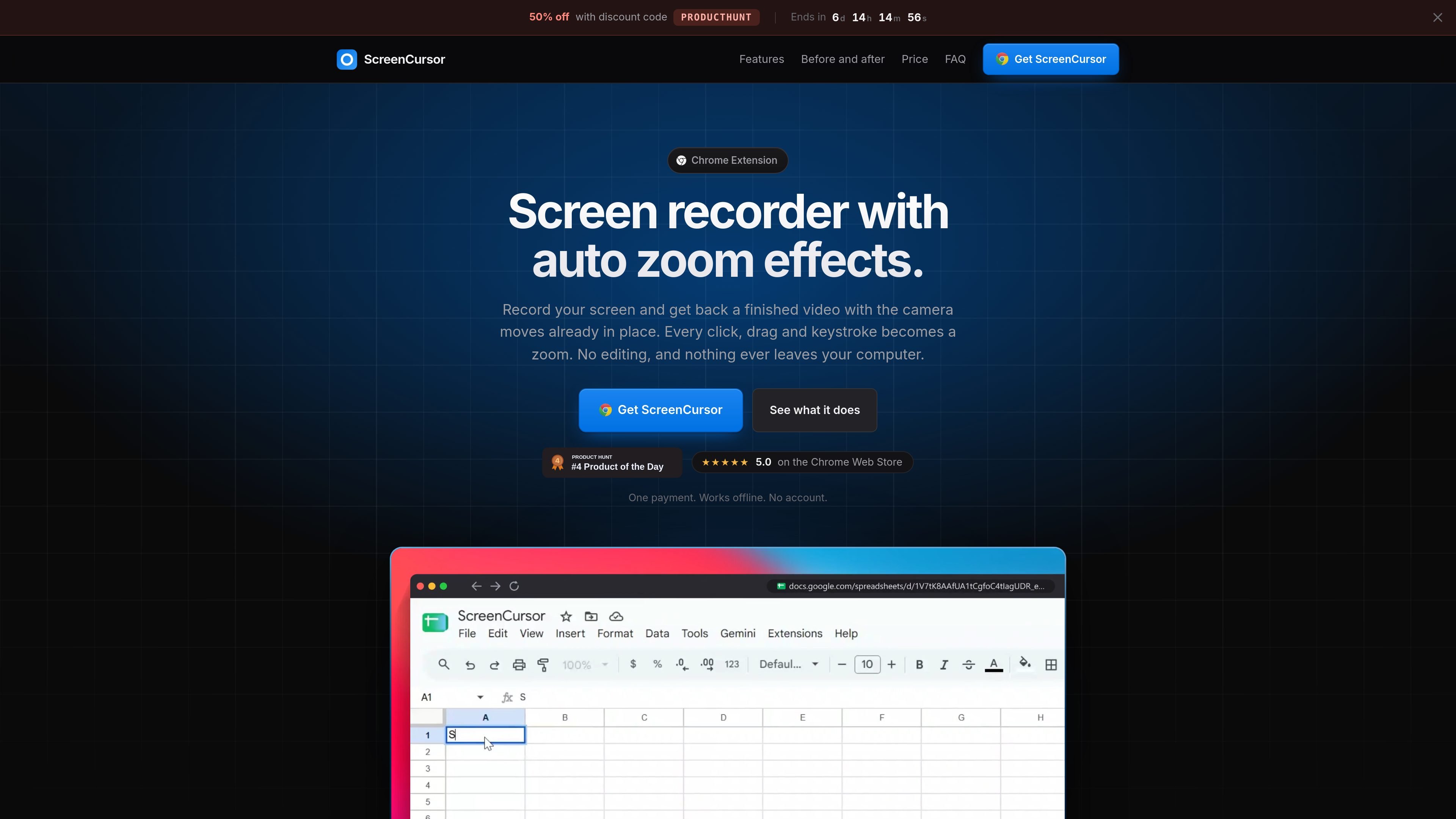
ScreenCursor is a Chrome screen recorder that automatically adds camera movement while you record. It detects clicks, drags, and keystrokes, then places zooms around those actions so a raw capture becomes a more focused demonstration without requiring a separate editing pass.
After recording, you can refine the result with controls for zoom timing, depth, position, and motion, as well as standard trim, cut, split, speed, background, framing, and aspect-ratio tools. Finished videos export as MP4 files at up to 1080p.
The extension can capture the whole screen, including other applications and the desktop, and runs on macOS, Windows, and Linux through Chrome. The source states that recordings stay on the computer and that no account is required.
During recording, clicks, drags, and keystrokes are detected and converted into zooms. Each zoom is placed slightly before the relevant action so the viewer is already focused on the area being demonstrated.
Edit zoom timing, position, depth, and motion style, remove unwanted zooms, or add your own. The camera preview rebuilds as adjustments are made.
Trim or split clips, remove dead air, and speed up slower sections. Zooms follow cuts so the camera timing stays aligned with the edited footage.
Place the recording over a wallpaper, gradient, or custom image, with optional background softening. Add a browser frame with the page title, rounded corners, and an aspect ratio suited to the destination.
Export the finished recording as an MP4 at up to 1080p directly to the Downloads folder.
The product is presented as working offline, with recording, editing, and export performed in the browser rather than on a server.
Capture a product walkthrough once and let the automatic camera moves emphasize the controls being clicked, reducing the need to arrange zooms manually afterward.
Record browser-based instructions or application tutorials that need to show a sequence of clicks, drags, and typed input clearly.
Demonstrate work in a design tool or another desktop application while capturing the full screen rather than only a browser tab.
Create short internal explanations of desktop workflows and export them as MP4 files for sharing without a separate conversion step.
ScreenCursor is a Chrome extension and runs on macOS, Windows, and Linux wherever Chrome runs. Recording performance depends on the computer having hardware video encoding; the source says this is available on almost all machines made in the last decade.
It can record the whole screen, including browser content, other applications, the desktop, and design tools. Chrome displays its own screen-sharing bar during recording, so ScreenCursor waits three seconds at the start to give you time to collapse it.
It exports MP4 files at 720p or 1080p to the Downloads folder. The files can be used without another format conversion.
No. Recording, editing, and export happen inside the browser, and the source states that the video does not leave the computer. An account is not required.
Yes. Automatic zooms can be retimed, moved, made deeper or shallower, switched between snappy and gentle motion, or deleted. You can also add zooms manually, and the editor includes trimming, cutting, splitting, and speed adjustments.

Jupitrr Cut is a free iOS and Android teleprompter app for scripted videos, with scene retakes, pause trimming, and jump-cut editing.

Ailytics is an AI-powered video analytics product for construction, manufacturing, and other heavy industries, improving safety and efficiency from site footage.

Tavus is an AI video platform for real-time face-to-face agents, digital twins, and AI companions, with APIs and multilingual workflows for developers.

HiringPartner.ai is an autonomous AI recruiting platform for sourcing, screening, and interviewing candidates 24/7 with ATS-connected workflows and bulk resume uploads.

Video Effects SDK adds real-time webcam effects like background blur, replacement or removal, denoising, framing, beautification, and color grading for live video apps.

DeepMotion is a web-based AI motion capture and 3D animation platform with Animate 3D for video-to-animation and SayMotion for text-to-animation.