
Save prompts as reusable Skills
Turn a prompt you have already written into a reusable Skill directly from your Gemini in Chrome chat history, so you do not have to re-enter the same instruction each time.

Skills in Chrome lets you save Gemini in Chrome prompts as reusable one-click workflows. It is aimed at desktop Chrome users who want to repeat browser-based AI tasks without retyping the same prompt.
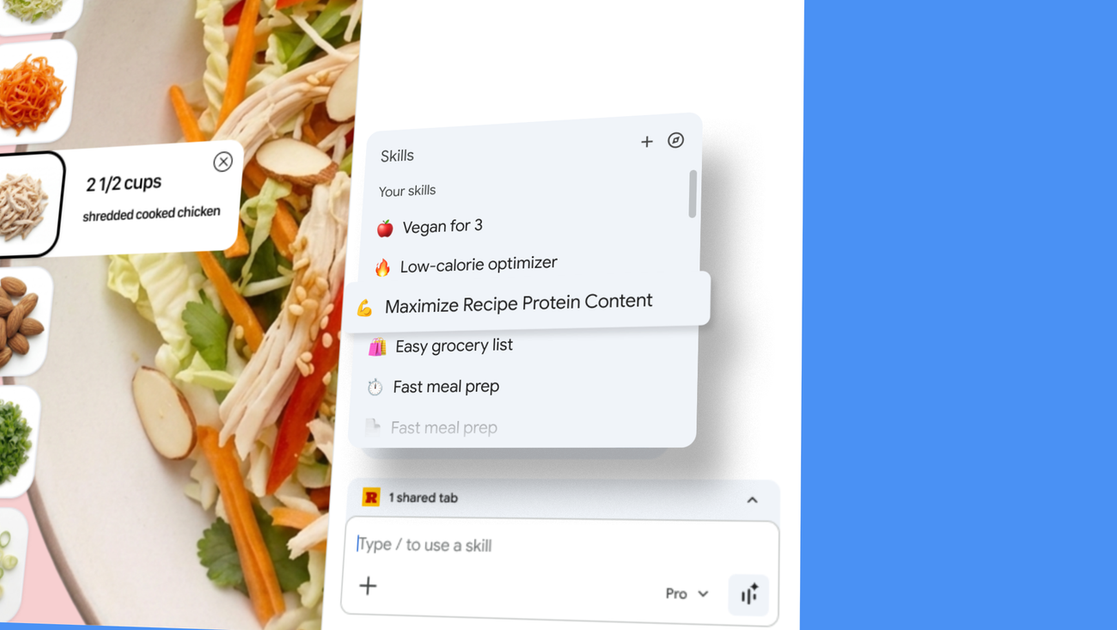
Skills in Chrome is a Chrome feature for turning prompts you already use in Gemini in Chrome into reusable tools. Instead of retyping the same instruction every time you visit a new page, you can save a prompt as a Skill and run it again with a single click.
The feature is designed for browser-based AI workflows that benefit from context: a Skill can run on the page you are viewing and, when relevant, across other tabs you select. Google is also launching a library of ready-to-use Skills for common tasks, giving people a starting point before they customize their own prompts.
Turn a prompt you have already written into a reusable Skill directly from your Gemini in Chrome chat history, so you do not have to re-enter the same instruction each time.
Trigger a saved Skill with a single action from Gemini in Chrome by typing `/` or selecting the `+` button, then run it on the page you are viewing.
Apply a Skill to the current page and, when needed, selected additional tabs, which makes it useful for tasks that pull information from multiple webpages.
Edit saved Skills and create new ones whenever your workflow changes, so the prompt behind the workflow stays customizable over time.
Start from Google’s library of ready-to-use Skills for common tasks, then save a useful one or customize it for your own workflow.
Use Skills with Chrome’s built-in safeguards, including confirmation prompts for sensitive actions and layered protections such as automated red-teaming and auto-update capabilities.
Save a prompt for ingredient substitutions or similar recipe adjustments, then rerun it on new recipe pages without typing the same request again.
Compare product specs across several tabs and use a Skill to gather the relevant details into one browser-based workflow.
Scan long documents for key points, especially when you want a reusable prompt for summarizing or finding specific information.
Start from Google’s ready-made Skills for common tasks like breaking down product ingredients or choosing a gift, then edit the prompt to match your own criteria.
Use a Skill that needs page context plus additional tabs when your task depends on multiple sources open in Chrome at the same time.
Skills in Chrome are saved from your Gemini in Chrome chat history. After saving a prompt as a Skill, you can invoke it by typing `/` or clicking the `+` button in Gemini in Chrome.
No. The source says Skills are available on signed-in Chrome desktop devices, and the initial rollout is for Mac, Windows, and ChromeOS with Chrome language set to English-US.
Skills can run on the page you are viewing and can also use other tabs you select, which makes them useful for multi-tab workflows.
Skills use the same safeguards as prompts in Gemini in Chrome. Sensitive actions such as adding a calendar event or sending an email require confirmation before they are completed.
Google says it is launching a library of ready-to-use Skills for common tasks, and you can save, edit, and customize those prompts to fit your needs.

Edgee is an AI gateway for coding agents and LLM-powered apps. It compresses token traffic, routes requests across models, and provides observability and team controls to help reduce cost and keep sessions running.

Codex Plugins bundle reusable skills, app integrations, and MCP servers into workflows you can install in the Codex app or use from Codex CLI. They help extend Codex with connected-service tasks, reusable instructions, and shared team workflows.

Struere is an AI-native platform for turning spreadsheet data into structured operational software with dashboards, alerts, and automations. It is aimed at teams that want to replace manual spreadsheet workflows without building custom tools from scratch.

Prompty Town is a web product that turns a link into a building in a small internet city. It appears to let users buy a tile, add a prompt, and publish the result alongside other buildings.

OpenFlags is an open-source, self-hosted feature flag platform for modern JavaScript teams. It supports local evaluation, targeted rollouts, and controlled launches while keeping flag data in your own infrastructure.

Creativly is a web-based AI creative studio for fast visual concepts, mockups, and stylized images from short inputs.