
Wallpaper-based clock
Cadran draws clock faces on the wallpaper layer, so the clock stays visible behind icons without opening a window or adding a widget.
Cadran is a macOS wallpaper clock app with animated faces, screen saver mode, and optional desktop complications. Free download and one-time Pro upgrade.
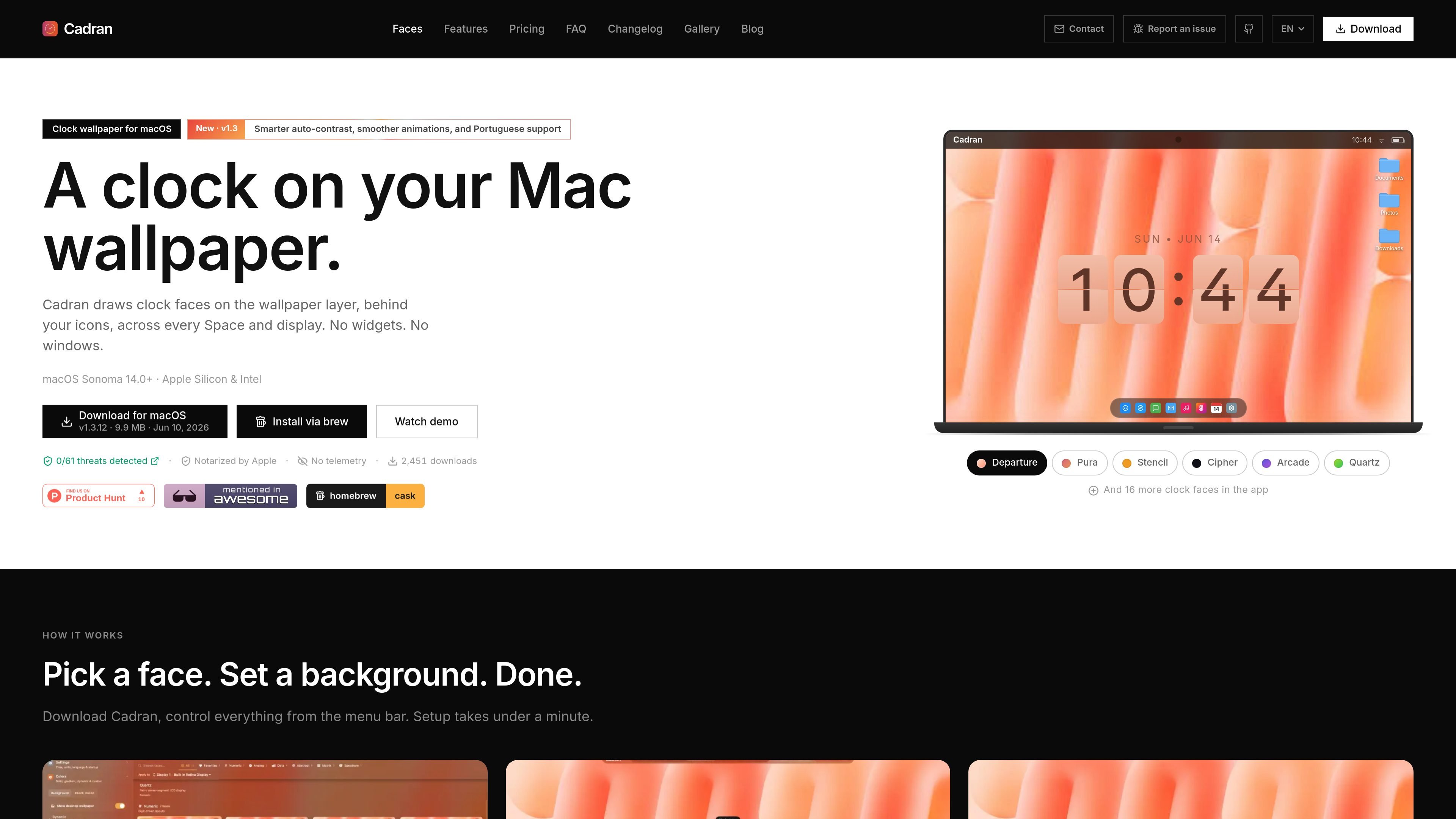
Cadran is a macOS desktop clock app that places animated clock faces directly on the wallpaper layer, behind icons and across every Space and display. It is designed to stay visible without using a window or widget, and the site positions it as a native Mac app.
The product centers on visual customization and low-friction setup: users pick a face, choose a background or transparent mode, and control the app from the menu bar. The homepage also highlights screen saver mode, automatic updates, and support for Apple Silicon, Intel Macs, and macOS Sonoma 14.0+.
Cadran draws clock faces on the wallpaper layer, so the clock stays visible behind icons without opening a window or adding a widget.
The app includes 22 animated faces, grouped into Numeric, Analog, Data, Abstract, Matrix, and Spectrum styles.
Users can choose a preset background or switch to transparent mode to keep an existing wallpaper visible.
Cadran supports per-monitor setup, including different faces and colors on each display in Pro.
Supported faces can show live data such as weather, date, battery, and moon phase, with Apple WeatherKit used for weather faces.
The app offers screen saver mode, automatic updates, multilingual clock text, and stealth options such as hiding seconds or the Dock icon.
Keep a clock visible on the desktop without adding a widget or opening a separate window.
Choose a different face, palette, or even a different face per monitor when you want each screen to look distinct.
Use the screen saver mode when you want the clock to fill the screen while the Mac is idle.
Show extra information such as date, weather, battery, or moon phase on supported faces for at-a-glance status.
Use transparent mode or background presets to keep Cadran compatible with an existing wallpaper setup.
Yes. The homepage and pricing section say Cadran is free to download, and the pricing page describes a free tier with six free clock faces, basic complications, background presets, and screen saver mode.
The homepage says Cadran works on macOS Sonoma 14.0+ and supports both Apple Silicon and Intel Macs.
The homepage says Cadran can be set to launch at login and lives in the menu bar rather than the Dock. The contact page also presents it as a native macOS app.
The pricing page says Cadran Pro license covers up to 3 devices, and the contact page says to reach support for more devices.

Goldfish is an AI memory app for macOS that helps you reply, write, summarize, and continue with context already on your Mac. It stores memory locally and writes in your tone.

ArtDeck is a visual reference board app for iPhone, iPad, and Mac. Collect mixed references on one canvas and study them with ToolBox lenses. Offline, optional iCloud sync, one-time purchase.

Biji is a versatile platform designed to enhance productivity through innovative tools and features.

Malyatko is a baby tracker for feeding, sleep, growth, teething, and milestones. Use it on iPhone, Apple Watch, and widgets offline, with iCloud sharing.

Redline is a budgeting tool for Claude Code that paces sessions by time, tokens, cost, or plan percentage, helping them end with a usable result.

Claude Overlay is a Windows desktop overlay for Claude Code that reads your screen, so you can ask questions, inspect content, and request edits without leaving the app. Uses your existing Claude subscription via Claude CLI.