

Canva AI 2.0
Canva AI 2.0 turns prompts into fully layered, editable Canva designs. Create conversational, iterative outputs with intelligent workflows.
What is Canva AI 2.0?
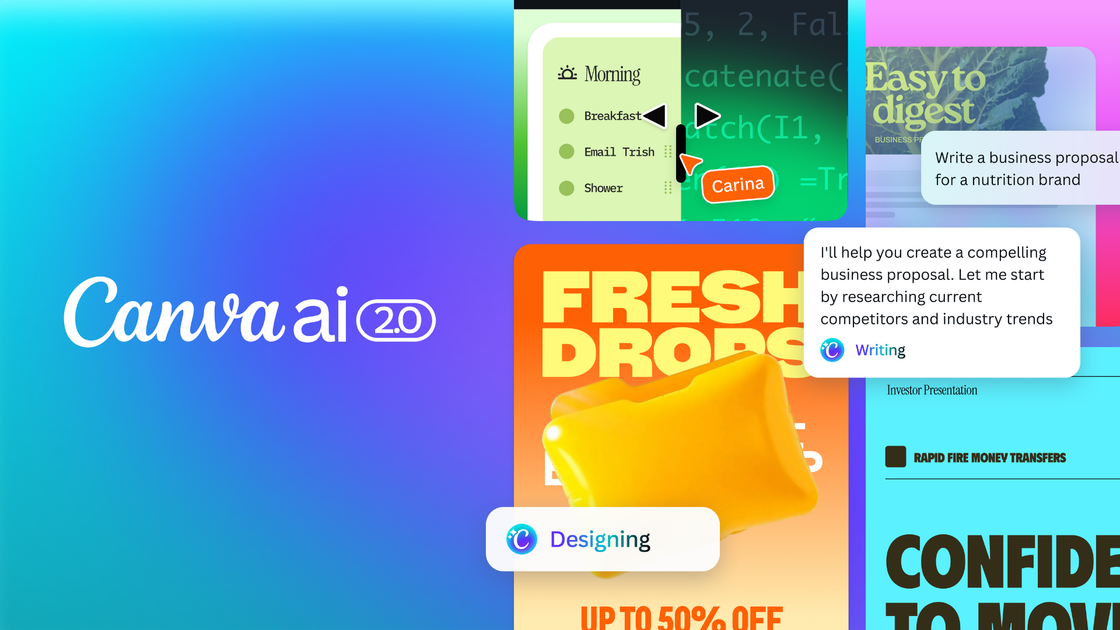
Canva AI 2.0 is Canva’s AI design platform that turns conversational prompts into fully layered, editable design outputs. It’s positioned as a major evolution of Canva’s creation workflow, helping teams move from an idea to complete, publishable work in one place.
Powered by the Canva Design Model, Canva AI 2.0 is designed to understand the structure, hierarchy, and complexity of real-world design. It generates layered objects from a single prompt and uses an architectural layer that supports conversational design, iterative editing, and persistent context as you work.
Key Features
- Conversational design: Start with an idea, goal, brief, rough sketch, or unfinished thought and generate a fully editable design with layout, hierarchy, and brand structure from the start.
- Agentic orchestration across the design engine: The AI can coordinate Canva’s tools to handle complex, multi-step requests (e.g., building campaign assets or presentations) based on your intent and provided inputs.
- Layered object intelligence: Outputs are created from individual editable objects rather than a static or locked image, so you can request targeted changes (e.g., swap an image, adjust a headline, refine a font) without affecting other elements.
- Memory Library (persistent memory): The system turns interactions into building blocks and applies a consistent working style and brand direction as you create, improving future suggestions over time.
- Intelligent workflows: Six new workflows expand what the AI can do across the creative process, including connectors, scheduling, web research, brand intelligence, Sheets AI, and Canva Code 2.0.
- Connectors for team tools: Connect Canva AI to tools such as Slack, Gmail, Google Drive, Google Calendar, Notion, Zoom, HubSpot, and more so it can draw on conversations, content, and context to generate finished, on-brand visual outputs.
How to Use Canva AI 2.0
- Start a creation in Canva and provide a prompt in natural language (for example, a goal, brief, or rough sketch description).
- Refine through conversation—request updates iteratively as your draft evolves.
- When you need manual changes, take over editing; Canva AI is described as stepping back until you need it again.
- Use relevant intelligent workflows (e.g., connectors) to pull in context from connected tools, then generate the requested outputs.
Use Cases
- Multi-channel product launch campaign: Ask Canva AI to create a campaign plan and generate content in multiple formats for each channel, with brand structure included from the first output.
- Client presentation build-and-refine: Provide a brief or sketch-like description, then request modifications (such as headline, imagery, or typography) while keeping other layout elements intact thanks to layered, editable objects.
- Meeting follow-ups from Zoom: Connect Zoom, then ask for meeting summaries from transcripts and turn them into finished, on-brand visual materials.
- Sales outreach drafts from email: Connect Gmail and request personalized sales pitches derived from customer emails.
- Team newsletter from workspace activity: Connect Slack to generate a company newsletter based on activity, producing a visual output rather than a plain text summary.
FAQ
-
Is Canva AI 2.0 generally available? The announcement states it is available today as a research preview.
-
What kinds of inputs can I start with? You can start with an idea, goal, brief, rough sketch, or even an unfinished thought, and continue refining through conversation.
-
Are the generated designs editable? Yes. Canva AI 2.0 generates fully layered, editable output, with elements built from individual objects.
-
Can I ask for specific changes without rewriting everything? The platform is described as using layered object intelligence, so you can request targeted updates like swapping an image or adjusting a headline without affecting other elements.
-
Does Canva AI 2.0 use data from other tools? Via connectors, it can connect to tools including Slack, Gmail, Google Drive, Google Calendar, Notion, Zoom, and HubSpot, and then use conversations/content/context to create outputs. The exact setup steps aren’t detailed in the provided text.
Alternatives
- Template-based design workflows in Canva (non-AI): Use Canva’s existing layouts and manual editing for users who prefer building from templates or starting from a blank page rather than conversational prompts.
- AI content generation focused on text (not design-native layering): Tools that generate copy or strategy documents can help draft messaging, but may not produce fully layered, design-engine-backed outputs directly inside a design canvas.
- General-purpose graphic design software: Traditional design tools support layered editing, but typically require users to construct layout and hierarchy manually rather than generating a design from a single prompt with coordinated editing.
- Automation/workflow platforms: Tools that automate tasks and connect apps can support similar multi-tool workflows, but they may not be designed specifically for conversational creation of layered, brand-structured designs.
Alternatives

Napkin AI
Napkin AI transforms your text into insightful visuals, making communication more effective and engaging.

Refero
Refero: UI/UX design inspiration & references for web/iOS. Find tens of thousands of screenshots with advanced search for designers.

创客贴 AI
创客贴 AI is an AI-powered design platform that includes various AI design tools to help users reduce design complexity and enhance design efficiency.

Make Real
Draw a UI and make it real using the tldraw SDK.
imgcook
imgcook is an intelligent tool that converts design mockups into high-quality, production-ready code with a single click.

Beautiful.ai
Beautiful.ai is an AI presentation maker that automates design, layout, and spacing as you build content—so individuals and teams create polished slide decks.