

CoAgentor
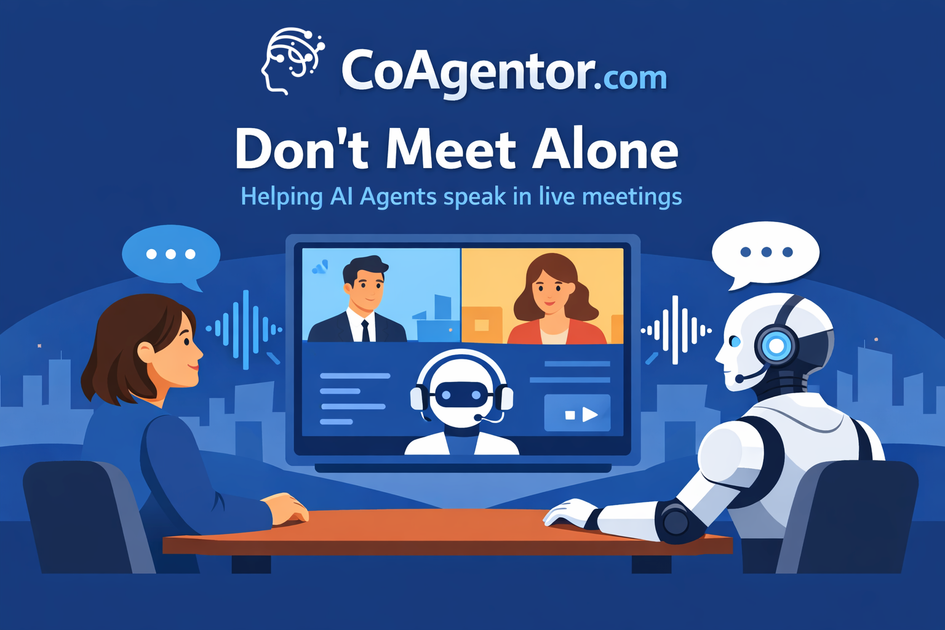
CoAgentor adds configurable AI agents to live Teams, Zoom, and Google Meet calls—listening, raising a virtual hand, and speaking answers.
What is CoAgentor?
CoAgentor is an early-access product that lets you add AI agents to live meetings. You configure an agent with your data, your rules, and your voice, and the agent joins your call as a participant—listening in, raising a virtual hand, and speaking when it has something relevant to say.
The goal is to help meetings stay focused and move forward by providing on-the-spot answers backed by connected sources, while giving you control over when the agent speaks.
Key Features
- Join live meetings as a participant (Teams, Zoom, Google Meet): the agent listens in and can be configured to wait or interrupt based on your preferences.
- Hand-raise mode with call control: the agent signals before it speaks, and you decide when to call on it so it doesn’t automatically take over the conversation.
- Live speaking with configurable voice synthesis: when the agent speaks, it uses preconfigured voice synthesis described as a natural human voice (not a robot), with configurable tone, pace, and accent.
- Multi-source data connections for meeting answers: connect tools the agent can pull from, including Google Drive, Notion, Google Sheets, GitHub, HubSpot, Confluence, Jira, and more.
- Silent mode for non-audio workflows: route insights to Slack, Microsoft Teams, or a dashboard instead of using voice in the meeting.
- Privacy-first processing as described: no raw audio is stored; transcripts are processed in-session and kept only as you configure.
How to Use CoAgentor
- Configure your agent: give it a name and role, connect data sources (Google Drive, Notion, or a file upload), and set directives such as when it should speak, what it should focus on, and how it should respond.
- Add it to a live call: invite the agent to a meeting in Teams, Zoom, or Google Meet so it joins as a participant and listens in.
- Manage when it speaks: use hand-raise mode to decide when to call on the agent, or choose silent mode if you want the agent to deliver insights without speaking.
CoAgentor is positioned as requiring “no code” and can be live in under five minutes using the three-step workflow described (click, connect, invite).
Use Cases
- Sales meeting follow-ups: an agent can pull relevant sales context from connected data (for example, a connected export file or systems like HubSpot) and raise its hand to summarize trends when the moment calls for it.
- Project status calls: during meetings about delivery or blockers, an agent can use connected sources such as Jira and Confluence to provide structured updates only when it has something worth saying.
- Research or planning sessions: teams can connect documents in Google Drive or Notion and have the agent surface key points during discussion, helping participants stay aligned without searching mid-call.
- Customer or product discussions: an agent can reference connected customer/product information from tools like HubSpot and Slack and speak up when there is relevant information to address questions raised in real time.
- Hybrid meeting workflows without voice: when voice isn’t desired, silent mode can route insights to Slack, Microsoft Teams, or a dashboard so the team still benefits from real-time answers.
FAQ
-
Is CoAgentor limited to Google Meet? No. The agent can be added to meetings in Microsoft Teams, Zoom, and Google Meet.
-
Can I control whether the agent interrupts the meeting? Yes. The agent can be configured to wait or interrupt as you choose, and hand-raise mode lets you decide when to call on it.
-
What data can the agent use to answer questions? CoAgentor supports connections including Google Drive, Notion, file uploads, Google Sheets, GitHub, HubSpot, Confluence, Jira, Google Calendar, Outlook Calendar, Slack, and Microsoft Teams, plus additional sources listed as “more soon.”
-
Does CoAgentor store meeting audio? The site states that no raw audio is ever stored, and transcripts are processed in-session and kept only as you configure.
-
What happens if I don’t want the agent to speak out loud? Use silent mode, which routes insights to Slack, Teams, or your dashboard instead of using voice in the meeting.
Alternatives
- Meeting transcription + search tools: Use tools that transcribe and let you search notes after the call. These typically don’t add a participant that can respond live and raise a hand.
- General-purpose AI chat assistants with documents: Use an AI chat tool connected to files for Q&A. Unlike CoAgentor, it usually requires manual prompting rather than joining the meeting as a participant.
- Automation/workflow assistants for collaboration platforms: Use workflow tools that summarize or route information based on triggers. These can support meeting-adjacent insights, but may not provide hand-raise + live participant behavior.
- Internal knowledge-base assistants: Tools that answer questions from a company knowledge base can support on-demand responses. They differ by focusing on retrieval in a chat or portal rather than real-time meeting participation.
Alternatives

garden-md
Turn meeting transcripts into a structured, linked company wiki with local markdown and an HTML browser view. Sync from supported sources.

Lasso
Lasso is an AI-first PIM for ecommerce teams that enriches product attributes and descriptions, processes supplier data, and monitors competitors via app or API.

LIAM
LIAM is an AI copilot that drafts email replies, organizes your inbox with auto-labels and prioritization, and schedules meetings from your calendar.

Struere
Struere is an AI-native operational system that replaces spreadsheet workflows with structured software—dashboards, alerts, and automations.

PXZ AI
An All-In-One AI Platform that combines tools for image, video, voice, writing, and chat to enhance creativity and collaboration.

Gemma AI
Gemma AI is a smart application that calls you directly with personalized, intelligent voice reminders to ensure you never miss important tasks, appointments, or deadlines.