
Auto zoom and cursor focus
Tracks the cursor and applies auto zoom so key actions stay in view without manual keyframing.

FocuSee is a screen recording tool that adds zoom tracking, subtitles, and audio cleanup to turn raw captures into polished videos for tutorials, demos, and presentations.
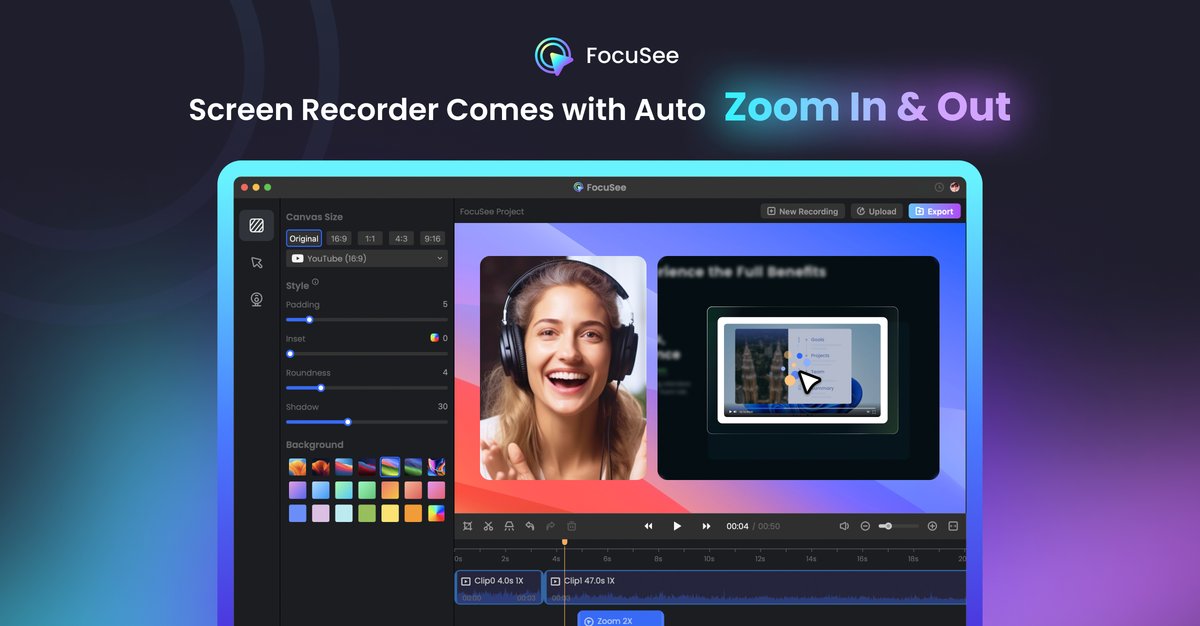
FocuSee is a screen recording tool that automatically turns raw captures into polished videos. The site presents it as a one-flow workflow where you record first and the software adds zoom tracking, cursor emphasis, background treatment, and audio cleanup with minimal manual editing.
Its feature pages extend that workflow with subtitle generation, background removal, a built-in teleprompter, mobile device recording, and annotation tools. The product is positioned for tutorial videos, product demos, marketing videos, presentations, and other screen-based explainers where the final output needs to be ready to share after recording.
Tracks the cursor and applies auto zoom so key actions stay in view without manual keyframing.
Adds 3D motion, tilt, and perspective effects to screen recordings for a more cinematic presentation.
Lets you add text, shapes, arrows, and spotlights, with the ability to stack multiple annotations for step-by-step explanations.
Generates subtitles in 55+ languages and lets you review, edit, and style them before export.
Cleans recorded audio with voice enhancement, smart cut for pauses and filler words, and noise reduction.
Supports webcam background blurring or replacement and includes teleprompter guidance plus mobile device recording via USB.
Create walkthroughs, software demos, and how-to videos where the cursor, clicks, and key moments need to stay visible without manual zoom work.
Produce marketing clips, promo videos, pitch videos, and launch videos that need a more polished look than a raw screen capture.
Record presentations or course lessons and add subtitles, audio cleanup, and a teleprompter to reduce retakes and improve clarity.
Capture mobile app screens from iOS or Android devices connected over USB, then add device frames and cleanup inside the editor.
Hide sensitive or distracting areas, blur webcam backgrounds, or remove filler words and pauses before sharing a recording.
FocuSee is centered on screen recording plus automatic enhancement. The source shows AI-assisted zoom and cursor tracking, subtitle generation, audio cleanup, background removal, teleprompter guidance, and annotation tools, but it does not document every export or collaboration option.
The source shows an AI subtitle generator that supports 55+ languages and lets you record, generate subtitles, review them, customize styling, and export in one workflow.
Yes. The site says FocuSee can blur or replace webcam backgrounds in post-production, and it notes that no green screen is needed.
The product pages mention a 60-day money-back guarantee on the home page. The pricing page itself returned a 404 in the collected sources, so plan names and billing details are not available from the evidence provided.
The homepage and feature pages present FocuSee as a streamlined recording-and-editing workflow, but they do not provide detailed limits for teams, file formats, or integrations in the collected material.

Dina is a macOS app for polished screen recordings with automatic zoom, cursor smoothing, captions, transcript editing, and presentation-ready layouts.

CAMB.AI Streams dubs live audio in real time for YouTube, Twitch, X and other platforms, using existing live workflows and no post-production.

Tavus is an AI video platform for real-time face-to-face agents, digital twins, and AI companions, with APIs and multilingual workflows for developers.

HiringPartner.ai is an autonomous AI recruiting platform for sourcing, screening, and interviewing candidates 24/7 with ATS-connected workflows and bulk resume uploads.

Bezel is a macOS app for mirroring and recording Apple devices on a Mac. Supports wireless AirPlay and USB mirroring for demos, walkthroughs, and screen recordings.

Capso is a native macOS screenshot and screen recording app for capturing, annotating, recording, and extracting text from screen content. Free forever, open source, and an alternative to CleanShot X.