
Multiple ways to capture reading material
Save content by pasting a URL, clipping the current tab with the Chrome extension, forwarding an email, uploading a .docx/.md/.txt file, using a webhook, or sharing from your phone.

Folio turns articles, newsletters, and files into one organized digest for reMarkable and Kindle, ready to save from the web or email and read later.
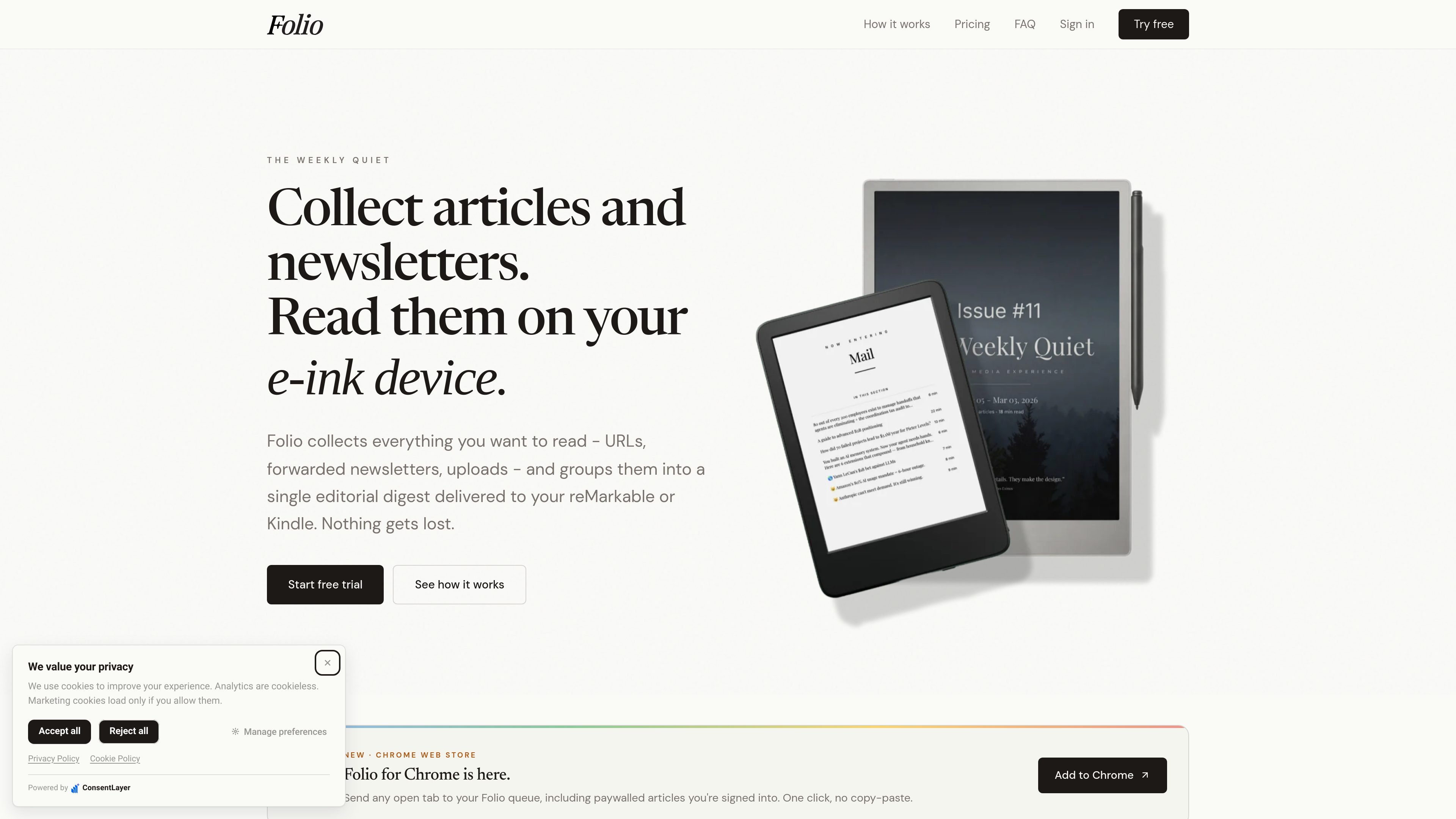
Folio is a reading workflow tool that collects articles, newsletters, and uploaded files into a single digest for e-ink devices. Instead of sending each item separately, it organizes selected reading into one editorial issue with a cover page, table of contents, section breaks, and article pages formatted for reMarkable and Kindle screens.
The product is designed for people who want a quieter reading queue: save items from the web, email, or automation tools, then generate a PDF or EPUB issue for offline reading. The site also describes browser-extension capture for logged-in or paywalled pages, email forwarding for newsletters, and device delivery to connected e-ink readers.
Save content by pasting a URL, clipping the current tab with the Chrome extension, forwarding an email, uploading a .docx/.md/.txt file, using a webhook, or sharing from your phone.
Forward newsletters to a unique @myfolio.so address, or set up Gmail, Outlook, or other forwarding rules so recurring emails arrive automatically.
Folio compiles selected items into one issue with a cover page, linked table of contents, section dividers, article pages, and inline images.
Send generated issues to reMarkable devices or Kindle models; the FAQ notes PDF delivery for reMarkable and reflowable EPUB delivery via Send-to-Kindle for Kindle.
Generated issues can be downloaded from the library or delivered to connected devices and email on demand or on a schedule.
Support for paywalled articles comes from the browser extension, which captures the content as seen in your logged-in browser session.
Save articles as you browse, including pages behind a login when opened in your own browser session, then batch them into a digest for later reading.
Forward newsletters from Gmail, Outlook, Apple Mail, or another client into one inbox and let recurring senders arrive automatically.
Select a set of saved items and generate a single issue for a reMarkable or Kindle session instead of opening many separate files.
Use a webhook from Zapier, n8n, IFTTT, Apple Shortcuts, or a custom script to feed articles into Folio from other tools.
Download the generated PDF or EPUB from your library when you do not want device delivery, or when reading on another device.
Folio supports reMarkable 1, reMarkable 2, reMarkable Paper Pro, reMarkable Paper Pro Move, reMarkable Paper Pure, Kindle Scribe, Kindle Paperwhite, and most other Kindle models. reMarkable devices receive a PDF tuned for the screen, while Kindle devices receive a reflowable EPUB delivered via Send-to-Kindle.
You can add content by pasting a URL, forwarding an email to your unique @myfolio.so address, uploading a .docx, .md, or .txt file, clipping a page with the Chrome extension, using a webhook, or sharing from your phone. The how-to pages and homepage emphasize URL capture, email forwarding, and digest creation as the main workflow.
Yes. You can set up forwarding rules in Gmail, Outlook, or another email client so newsletters are sent automatically to your Folio address. Once configured, matching emails arrive in Folio without manual forwarding.
Folio creates a single, paginated digest with a cover page, linked table of contents, section dividers, and article pages formatted for e-ink screens. Images are extracted and placed inline. Kindle and reMarkable deliveries are automatic when those devices are connected.
Your subscription starts with a 7-day free trial, and you can cancel anytime during the trial to avoid being charged. Saved articles and generated issues remain in your library.

Volanea is an email platform for transactional email, campaigns, and lifecycle automation, with sending, tracking, and deliverability monitoring in one contact graph.

Liam is an AI copilot for inbox management, email replies, prioritizing messages, and scheduling meetings. Free for individuals; custom pricing for teams and enterprise.

An AI-powered tool that summarizes PDF documents quickly and efficiently, providing clear insights and allowing users to interact with the content.

Sequenzy is an email marketing and automation platform for SaaS, stores, and AI teams, with campaigns, workflows, transactional email, segmentation, and revenue tracking.

Paperpal is an AI tool for academic writing, offering literature reading, language polishing, citations, plagiarism checks, AI detection, and pre-submission review.

Dirac is an AI email assistant for Gmail that prepares a morning brief, prioritizes important threads, and drafts replies in your voice.