
Adaptive, expanding layouts
Adaptive slide layouts expand to fit pasted content, so users can add columns, rows, buckets, or steps without manually realigning the page.

Gridd is a PowerPoint add-in and template system for creating consulting-style slides with adaptive layouts and built-in prompts. It helps users turn rough notes, AI-generated text, or spreadsheet content into polished presentation pages inside PowerPoint.
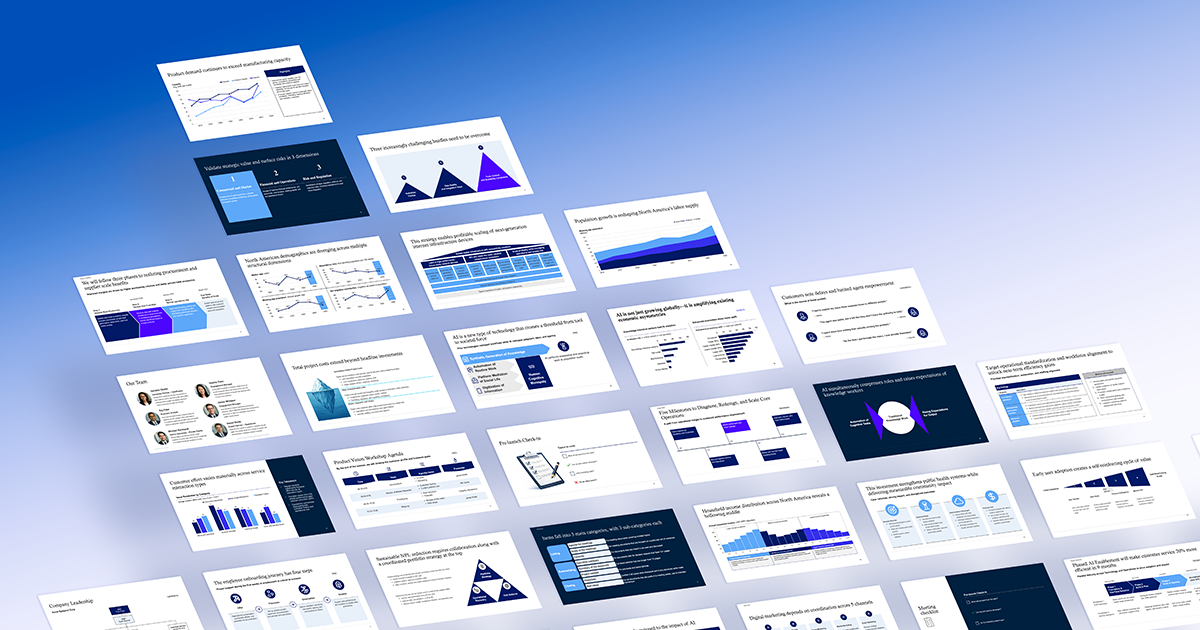
Gridd is a PowerPoint add-in and template system for creating consulting-style slides with structured layouts, built-in prompts, and adaptive formatting. It is designed to help users turn rough content, AI-generated text, or spreadsheet material into polished pages inside PowerPoint.
The product centers on an editor that keeps slides aligned as content changes, so users can add rows, columns, and sections without repeatedly fixing spacing or formatting. The site presents it as a workflow for building information-rich slides faster, especially for consulting and business communication use cases.
Adaptive slide layouts expand to fit pasted content, so users can add columns, rows, buckets, or steps without manually realigning the page.
The add-in works directly in PowerPoint and is described as a layout editor for building information-rich slides.
Each template includes a ready-to-use prompt that can be used with ChatGPT or Claude to generate content that matches the template structure.
The system includes a full library of consulting-style templates, with the paid package listing 260 templates and 60 chart layouts.
The full package includes four PowerPoint base themes that can be used to create a corporate or client template.
Users can do most of the editing inside Gridd and then convert the result to traditional PowerPoint objects for final sharing.
Create executive-style consulting slides from rough notes, then let the template expand around the text instead of rebuilding the layout manually.
Use pasted output from ChatGPT, Claude, or Excel to populate a template while preserving alignment and structure.
Build slides for strategy, market research, or operations work where the page needs to stay polished while content changes during review.
Start from one of the included base themes to build a reusable corporate or client template instead of designing each page from scratch.
Prepare a slide in Gridd, then convert it to standard PowerPoint objects when it is time to finalize or share it more broadly.
Gridd is designed to work inside PowerPoint through its layout editor add-in. The source describes it as requiring a Microsoft 365 subscription, and the template package is built to be used with the add-in rather than as a standalone slide deck file.
The source does not position Gridd as a general-purpose template pack. It is built around adaptive templates, built-in prompts, and a layout editor that keeps content aligned as you edit.
The site offers a free Pricing Sample with 24 adaptive templates, an Essentials option with the basic library of 60 templates, and the full Gridd Slide System with 260 templates, including charts and base templates.
The site’s workflow is centered on selecting a template, pasting in content generated from AI tools or Excel, expanding the layout as needed, and then converting the page to standard PowerPoint shapes for final sharing.
The source does not provide detailed team-licensing rules. It does show lifetime-use and subscription-style purchase options, so teams should check the pricing page for the exact package that fits their usage.

Slidesgo is a presentation template platform for Google Slides, PowerPoint and Canva workflows, with free and Premium templates plus AI-assisted creation.

ChatBA is a generative AI product for creating slide decks from prompts. The public site emphasizes instant presentation generation and includes help content for templates, sharing, and data sources.

Pioneer AI fine-tunes open-source language models and keeps them improving in production for classification, extraction, and other tasks.

Napkin AI turns text into editable visuals for presentations, documents, and shareable content. Text-first generation, collaboration, and export to PPT, PNG, SVG, or PDF.

Beautiful.ai is an AI presentation platform for individuals, teams, and enterprises. It helps users create branded slide decks with Smart Slides, collaborative editing, and export options while reducing manual formatting work.

MagicSlides is an AI presentation generator that turns text, topics, documents, URLs, and videos into slide decks. It creates presentations in Google Slides by default and supports PowerPoint export, with multilingual output and AI-assisted editing.