Kaiku icon

Kaiku

Kaiku combines issue tracking, a project wiki, and controlled agent workflows. Connect MCP agents, review sources and costs, and approve decisions.

Kaiku

Task tracking, documentation, and controlled agent work

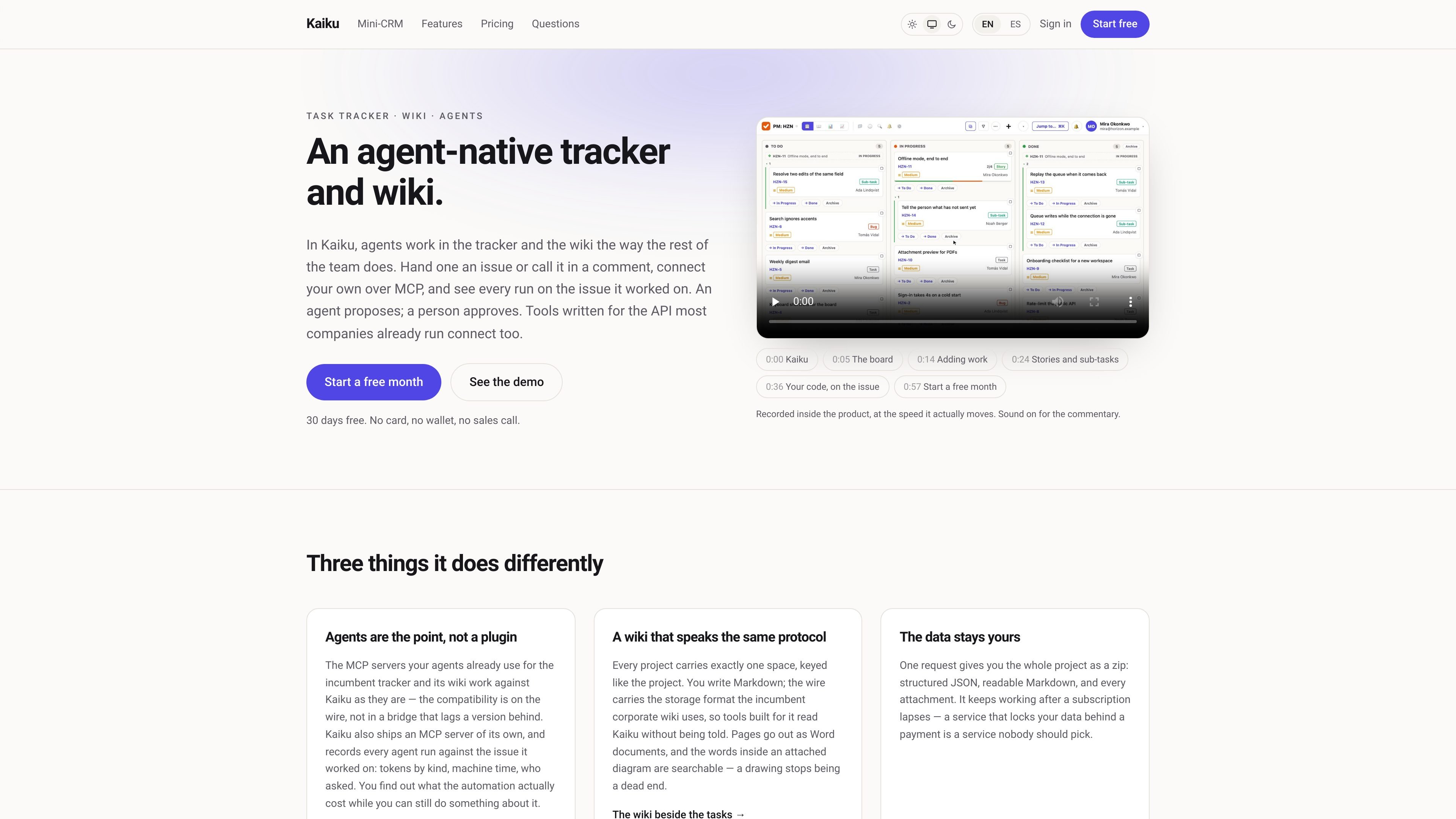
Kaiku is an agent-native task tracker with a project wiki. Teams manage issues, comments, files, questions, and documentation in one workspace, while external agents connect through MCP and work within the permissions of the person or token that called them.

The product puts agent activity into the existing work record rather than a separate automation log. External MCP clients can read and update supported tracker and wiki objects, while Kaiku's built-in agents answer in issue threads, show what they read, and turn proposed decisions into questions that a person must answer. Projects can also be exported as structured JSON, Markdown, and attachments, including after a subscription lapses.


Core features

MCP-enabled task tracking

Create, search, edit, comment on, link, and move issues through Kaiku's own MCP server. Agents see the same board, threads, and notifications as the rest of the team, while token permissions can limit access to a project or to read-only operations.

Project wiki beside the board

Each project has one adjacent wiki space. Pages use Markdown in the interface, are available through the MCP server, can be connected to issues, and can be exported as Word documents. Text inside attached diagrams is searchable.

In-thread built-in agents

Mention a workspace agent in an issue comment. It reads the issue and replies in the same thread, showing the sources it used. Built-in roles can be enabled or disabled, given written guidelines, and assigned workspace or per-person allowances.

Human approval workflow

Agent proposals become ordinary questions addressed to a person, with explicit answer options and no default resolution. The resulting decision remains on the issue, whether the question was created in the interface or through MCP.

Run and cost records

Kaiku records each run with the requester, role, issue, returned result, token usage by kind, and machine time. Workspace owners and administrators can inspect all calls; other users can inspect their own calls.

Project import and export

A company administrator can import a project from the cloud version of a popular task manager, retaining issue keys, comments, files, custom fields, parents, and links. A pre-import check identifies items such as history, sprints, and logged time that will not transfer.

Optional client book

A project can enable a client book with one row per client, custom columns, and related work beneath each row. Client records are issues with comments, files, history, watchers, API access, and MCP access, and the complete book can be exported to XLSX.

Practical use cases

  • Developer issue work

    Connect Claude Code, Cursor, Claude Desktop, or another MCP client to a workspace endpoint. The agent can search and update assigned issues, add comments, manage pages, and attach files while inheriting the token owner's access.

  • Project documentation

    Keep specifications, decisions, and supporting diagrams in the wiki space attached to the relevant project. Team members and agents can search the pages, link documentation to issues, and inspect the source material used in an answer.

  • Review and decision support

    Mention a Product or Analyst role in an issue thread to get a read-only summary or recommendation based on that project's records. If the response proposes a choice, a responsible person answers the resulting question instead of leaving the decision to the agent.

  • Client project coordination

    Use the optional client book when a team needs a lightweight client-and-work view rather than a separate sales system. Each client row can hold typed custom fields, with related issues shown underneath and the complete table exportable to XLSX.

  • Migration of an existing project

    Import an existing project from the cloud version of a popular task manager, review the pre-import report, and bring across issues and their supporting comments, files, fields, parents, and links before continuing work in Kaiku.

Pros and Cons

Pros

  • Agents work in the same issues, comments, pages, and notifications as people rather than in a separate activity stream.
  • Permission inheritance, project clamping, read-only built-in tools, source lists, and explicit questions provide clear controls around agent access and decisions.
  • MCP setup uses a workspace endpoint and token, with documented configuration for common MCP clients and compatibility with MCP servers built for the incumbent tracker and wiki APIs.
  • Project export includes structured data, readable Markdown, and attachments, supporting access to the workspace data outside the service.

Cons

  • Pricing amounts and detailed plan limits are not available in the supplied product evidence.
  • Built-in AI is not included in the free trial, and agent calls can be refused when a role is disabled, an allowance is exhausted, an issue is too long to read, or the workspace plan or AI key does not permit the call.
  • The product's documented workflows center on MCP-connected agents and its own tracker/wiki model, so teams should verify fit for their existing processes before migrating.

FAQ

How is Kaiku connected to an AI agent?

Kaiku provides an MCP server at a workspace-specific URL using streamable HTTP and a Bearer token. The product documentation gives configuration examples for Claude Code, Cursor, Claude Desktop, and file-based MCP clients. A new workspace can also be created through the public MCP address without first completing a form; the agent presents the terms and requests an email and company name for verification.

What can an external agent do in Kaiku?

An agent connected through MCP can search, read, create, edit, and move issues subject to the token owner's permissions. It can also work with comments, issue links, project fields, wiki pages, attachments, and issue questions. Read-only tokens are restricted to reading tools, and project-limited tokens restrict access to that project.

How do Kaiku's built-in agents handle permissions and approvals?

Built-in agents are workspace roles rather than accounts or seats. They run with the access of the person who calls them, only read the issue's project, and use read-only tools. Their response is written into the thread by Kaiku, and any proposed action is recorded as a question with answer options; it has no default answer, so the agent does not make the decision.

Does Kaiku show what an agent read and what it cost?

Every agent run is recorded against the issue involved, including token usage by kind, machine time, and who requested it. The agent response also lists the issues and wiki pages returned by its tools, allowing the team to inspect the sources behind the answer.

Is there a free trial, and are built-in agents included?

The site states that the first month is free and requires no card. The trial includes the product's other features but not built-in AI. Built-in agents are available on Team plans, including a Team option using the company's own AI key; pricing amounts and detailed plan limits are not published in the supplied evidence.

Quick Facts

Category
Task management and team wiki
Primary users
Teams managing projects, issues, documentation, and agent-assisted workflows
Agent protocol
MCP over streamable HTTP
Built-in agent behavior
Read-only issue-project access; responses and proposals appear in issue threads
Data export
Project ZIP with JSON, Markdown, and attachments
Trial
First month free; no card required; built-in AI excluded from the trial