
Image enhancement with natural detail
AI enhancement aims to recover real detail, improve clarity, fix color, sharpen edges, and reduce noise while keeping a natural look.

Let's Enhance is an online AI image app for enhancing, upscaling, and restoring photos. Clean up images and boost resolution with free credits or paid plans.
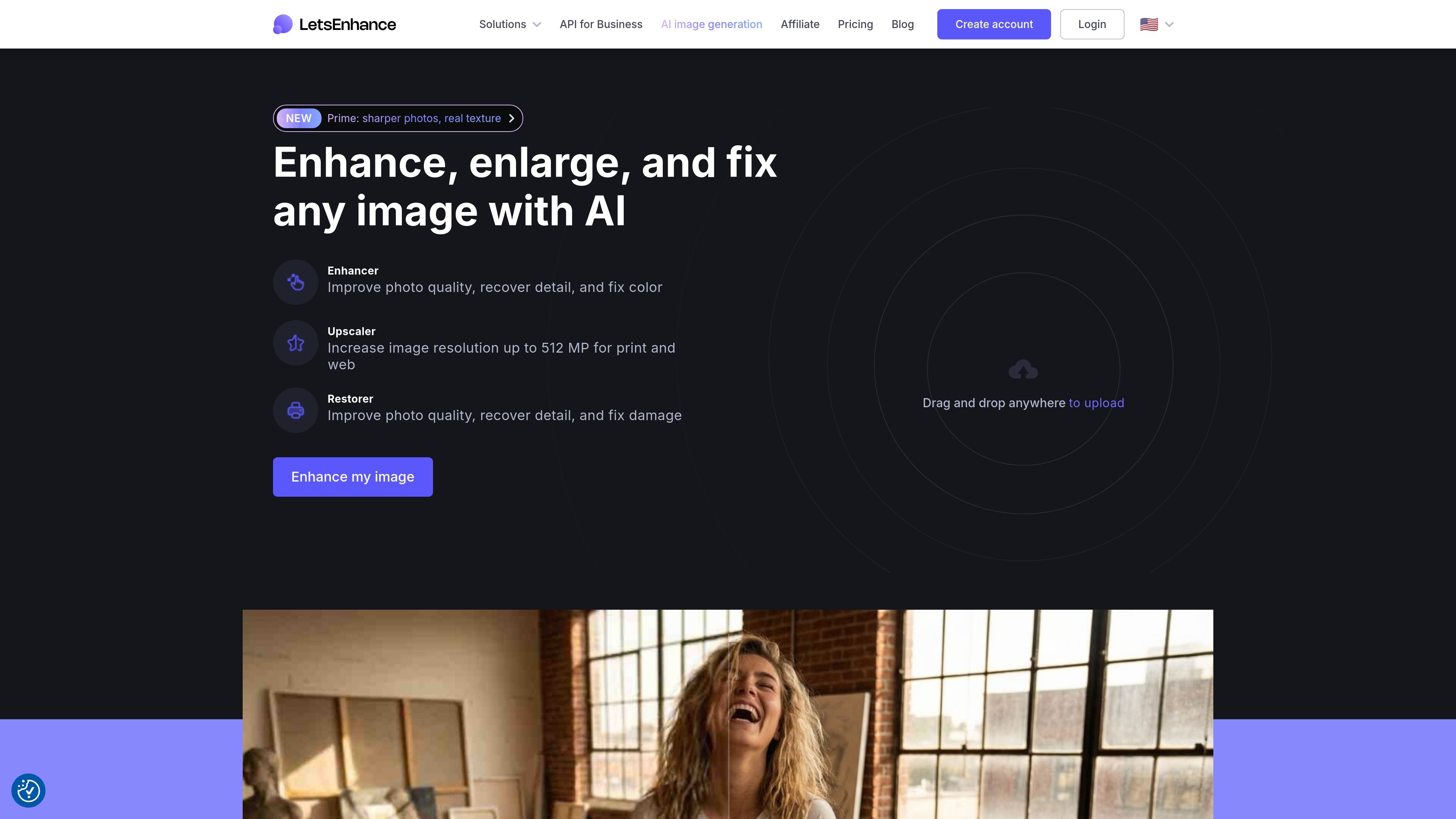
Let's Enhance is an online AI image app for improving, enlarging, and repairing images. The site presents it as a set of tools for enhancement, upscaling, restoration, and related editing workflows, with both free-start usage and paid plans.
The product is aimed at users who need to make photos clearer without heavy manual editing: recovering detail, fixing color, reducing noise, increasing resolution, and restoring older images. The pricing page also shows that it supports credit-based subscriptions and pay-as-you-go bundles, with output limits that vary by plan.
AI enhancement aims to recover real detail, improve clarity, fix color, sharpen edges, and reduce noise while keeping a natural look.
The upscaler can enlarge photos to 4K, 8K, and higher resolutions, with the pricing page stating output support up to 512 megapixels on the Max plan.
The site highlights restoration for old photos, including repair of damaged images and colorization.
The home page describes image tools for enhancer, upscaler, generator, and editor, indicating a broader editing workflow beyond one-off enhancement.
Paid plans include API access, email or chat support on higher tiers, and the ability to save results without a watermark.
Pricing pages specify monthly credit budgets, rollover for unused credits on eligible personal plans, and pay-as-you-go bundles for additional processing.
Improve phone shots, compressed JPEGs, or other files that need cleaner detail and less noise before sharing or publishing.
Increase image resolution for print or web deliverables when the original file is too small, with plan-based upscaling limits.
Repair scans and older family photos by restoring clarity and color, including the site’s old-photo restoration workflow.
Process images through recurring monthly usage when you want a predictable credit allowance, or buy extra capacity as needed.
Use the online tools or API-based workflow when you want image enhancement without building a separate editing pipeline.
Let's Enhance offers an online AI image workflow with enhancer, upscaler, and restorer tools, and the site also mentions API access. The home page describes drag-and-drop uploads and free-to-start usage.
The pricing page says free credits are available on sign-up, with subscription plans and pay-as-you-go bundles also available. Paid users can download processed images without a watermark.
Input images can be up to 64 megapixels or 50 MB on plans listed on the pricing page. Output limits vary by plan, with personal plans up to 256 megapixels and business plans up to 500 megapixels.
The pricing page states that subscriptions use credits at a rate of 1 image per credit. Unused credits roll over while you remain subscribed, and personal plans accumulate unused credits while business plans do not.
The home page and pricing page describe online tools, and the pricing page references support by email and chat. Beyond that, the source does not provide detailed platform compatibility or integration lists.

Upscale.media is an AI image upscaling and enhancement tool by Pixelbin that sharpens low-resolution images in the browser, with bulk processing and API support.

ImgUpscaler is a browser-based AI image upscaler that enlarges photos, anime, product images, portraits, and old pictures by 2x or 4x.

Pixelcut is an AI photo editor for product images, social content and video assets. Free and paid plans; mobile app and browser access for individuals and teams.

Free browser-based AI image enlarger by PhotoAid for upscaling JPEG, WEBP, and PNG photos, especially portraits, without heavy blur.

Upscale.media by PixelBin is an AI image upscaling and enhancement tool that enlarges low-resolution images and improves quality online.

Airbrush is an AI photo and portrait editor for web, desktop, and mobile. Retouch portraits, remove backgrounds, and enhance images with credit-based AI tools.