
Live translated subtitles
Shows live translated subtitles while a meeting is in progress, with Japanese and English as the starting language pair and support for nine languages in any pair.

Nani? displays live translated subtitles for meetings, focused on Japanese–English conversations, with nine-language support, nuance notes, alerts, transcripts, and summaries.
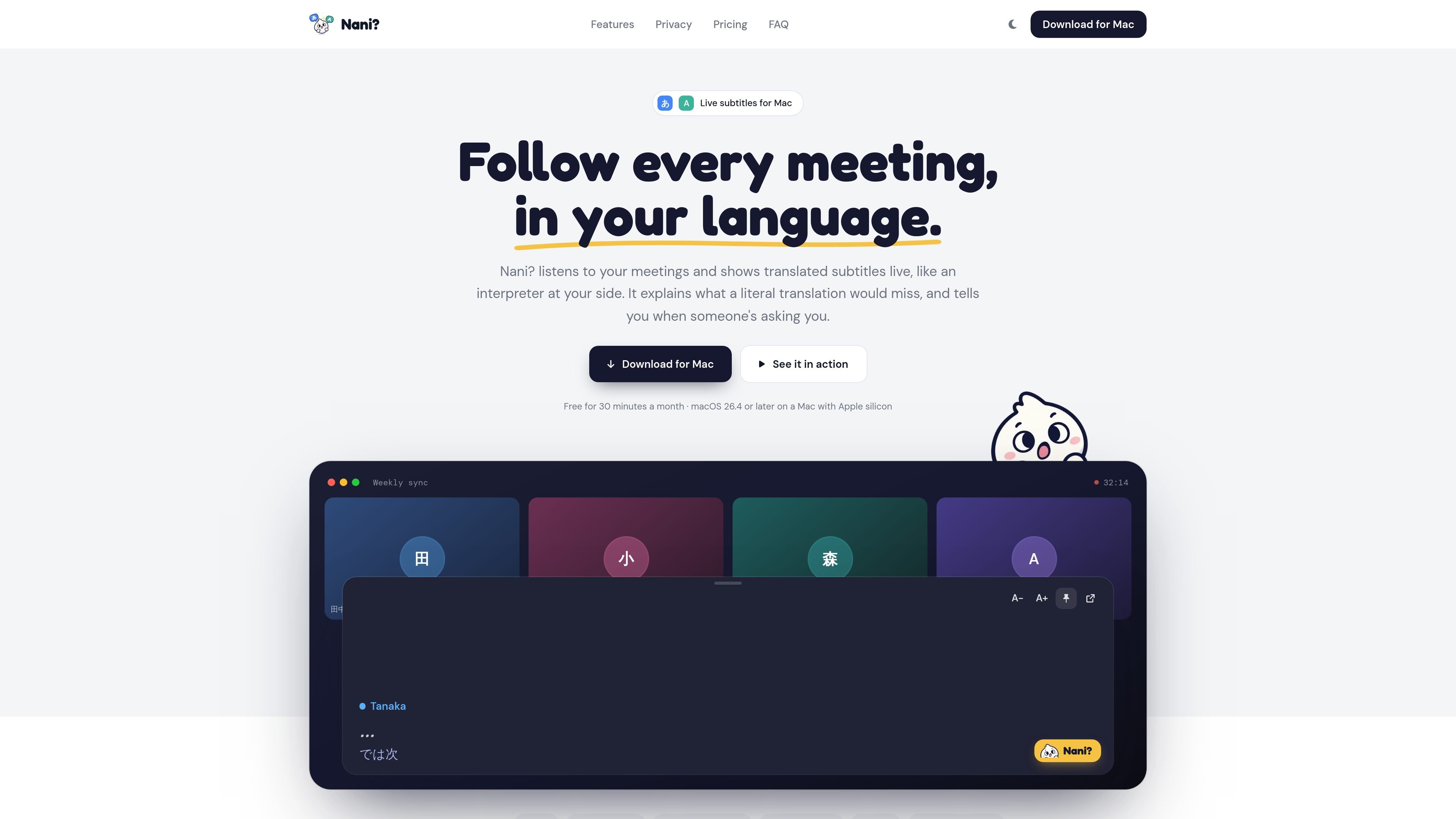
Nani? is a Mac application for live translated subtitles during meetings. It listens to the audio played by your computer and displays the conversation in the language you choose, functioning as an on-screen interpreter rather than a participant that joins the call.
The product is built around Japanese–English meetings and supports nine languages in any pair. Alongside translation, it adds nuance notes, alerts when a question appears to be directed at you, catch-up summaries, speaker labels, transcripts, and on-demand meeting summaries. It is intended for people who need to follow multilingual discussions and retain decisions or action items afterward.
Shows live translated subtitles while a meeting is in progress, with Japanese and English as the starting language pair and support for nine languages in any pair.
Provides a quick draft while someone is speaking and an enhanced translation after the speaker finishes, helping preserve context beyond a literal rendering.
Flags situations such as a polite refusal and gives a soft alert when a question appears to be directed at you, with suggested replies you can say back.
Summarizes the last few minutes when you lose track of a discussion, so you can catch up without stopping the meeting.
Creates a speaker-labeled transcript and on-demand meeting summary with decisions, open items, and action items that can be copied or shared.
Works with Zoom, Google Meet, Microsoft Teams, Slack huddles, Webex, and audio from any browser tab. Subtitles float above windows, including full-screen calls.
Follow a recurring sync when some participants speak Japanese and others read English. Live subtitles, language selection, and nuance notes help clarify the discussion without requiring a separate interpreter on the call.
Use the transcript and summary after a design review to locate decisions, unresolved questions, and assigned tasks. Speaker labels make it easier to connect comments with the right participant.
Keep up with a vendor or partner call when the conversation moves quickly or includes unfamiliar phrasing. Catch-up can summarize the last few minutes, while “Asked you” alerts help identify when a response is expected.
Nani? runs on macOS 26.4 or later on a Mac with Apple silicon. There is no Windows or iPhone version currently.
Download the Mac app, sign in with Google or email, choose the spoken and reading languages, and optionally add speaker names. During a meeting, press Control-Option-T to show floating subtitles above other windows.
No. Nani? does not join the meeting. It listens to audio played by your Mac, so other participants do not see a meeting bot. Follow applicable workplace and local rules about notifying people when a meeting is transcribed.
The app provides live machine translation, but names, numbers, and quiet speakers can be transcribed or translated incorrectly. Important information such as contracts, figures, or medical and legal advice should be checked with the speaker.
The Free plan includes 30 minutes of meetings per month with all features. Pro provides 20 hours per month and Max provides 50 hours per month; paid plans can add five hours for $5. Subtitles stop when the allowance is used, and the allowance resets at the start of the next month.

CAMB.AI Streams dubs live audio in real time for YouTube, Twitch, X and other platforms, using existing live workflows and no post-production.

Tavus is an AI video platform for real-time face-to-face agents, digital twins, and AI companions, with APIs and multilingual workflows for developers.

SpeakoFlow is a free, open-source desktop voice-to-text app for Windows, macOS, and Linux. Dictate into any app, use Flow, cleanup, translation, and a screen-aware assistant.

Sanota turns spoken memories and interviews into clear written stories for personal storytelling, family history and shared memories, with guided prompts and subscriptions.

Carbon Voice is an async voice messaging app for teams and individuals, with transcripts, AI catch-up, and cross-device access.

Talkpal is an AI language learning app for web and mobile with speaking, listening, writing, pronunciation practice, guided courses, roleplays, and 130+ languages.