
Screen and webcam capture
Record your screen, camera, or both from a single Windows app. It supports specific windows or areas as well as multi-monitor setups.

Pane Studio is a Windows screen recorder and editor for polished demos, tutorials, and walkthroughs. Record screen, webcam, mic, and system audio locally.
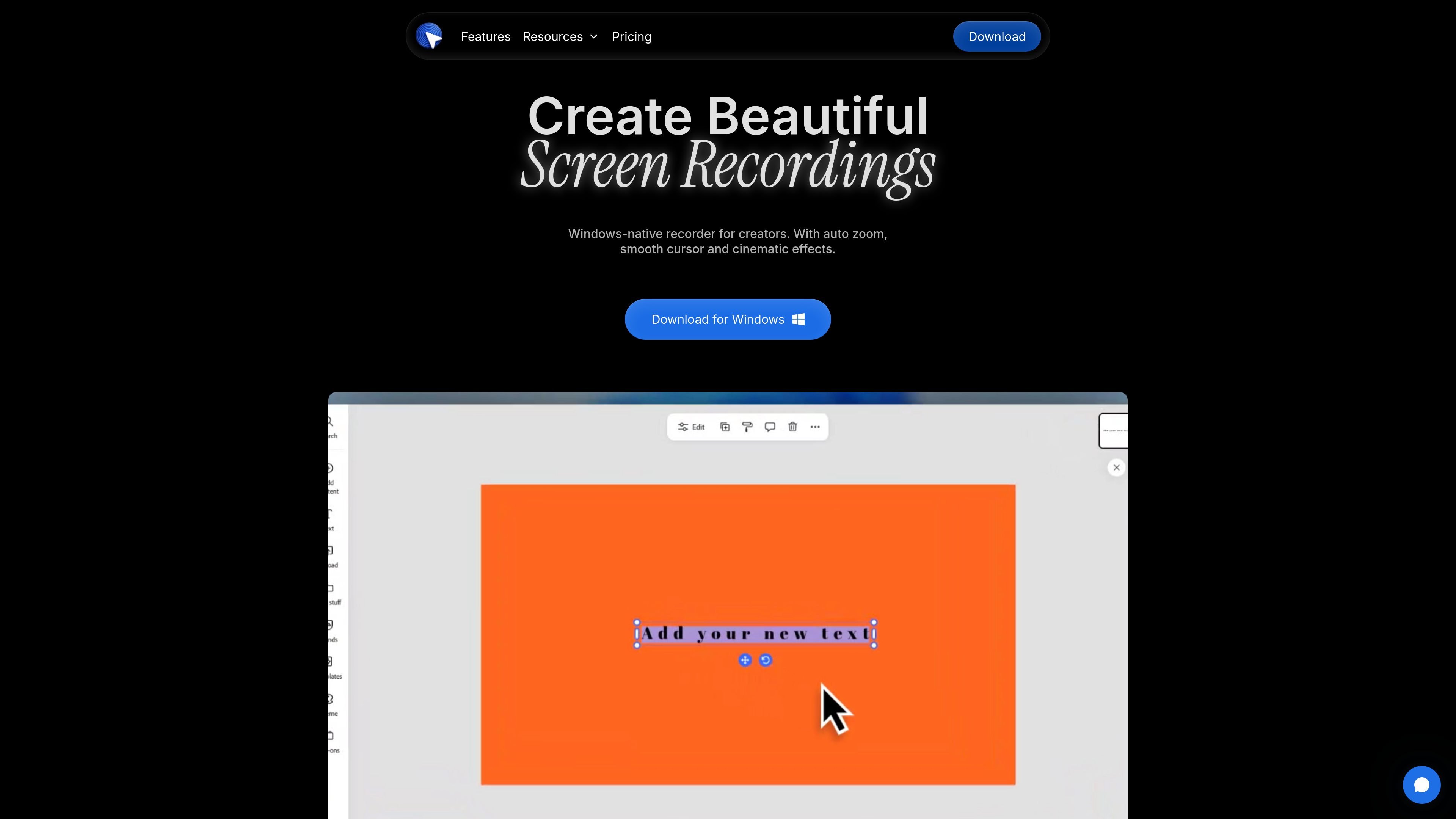
Pane Studio is an independent screen recorder and editor for Windows 10 and Windows 11. It is built for people who need to show screen activity clearly and turn a recording into a polished video without moving between separate capture and editing tools.
The app records screen, webcam, microphone, and system audio, then adds post-recording controls for trimming, cropping, zooming, cursor refinement, layouts, backgrounds, transcripts, and export preparation. The workflow is aimed at product demos, tutorials, onboarding videos, walkthroughs, support clips, and course lessons.
Record your screen, camera, or both from a single Windows app. It supports specific windows or areas as well as multi-monitor setups.
Guide attention with automatic zooms around clicks and refine zooms after recording. The effect is designed to reduce manual editing.
Adjust the cursor after recording by resizing it, smoothing motion, hiding idle moments, and controlling click-related motion.
Trim, cut, crop, change playback speed, and prepare exports inside the app. The editor also supports aspect ratio changes for wide, square, and vertical outputs.
Style recordings with wallpapers, gradients, blur, shadows, corners, padding, and brand colors. Camera layouts can also be adjusted for presenter-plus-product videos.
Capture microphone and system audio together, then generate private on-device transcripts and clean up voice tracks locally.
Record product demos, feature walkthroughs, and launch clips with screen capture, webcam framing, and automatic zoom on key interactions.
Create lessons and tutorials where narration, system audio, and cursor motion all need to stay clear and readable after the take.
Capture onboarding, troubleshooting, and support explanations while keeping the recording local and polishing it with trims, cursor changes, and callout-friendly layouts.
Record code walkthroughs, API explainers, and bug reports with screen capture, shortcut overlays, and post-recording cleanup.
Make social clips and platform-specific cuts by exporting in wide, square, or vertical aspect ratios and adjusting the framing after recording.
Pane Studio is a Windows screen recorder and editor for polished product demos, tutorials, onboarding videos, and walkthroughs. It records your screen, cursor, webcam, microphone, and system audio, then lets you refine the result after recording.
No. You can download Pane Studio, install it, and start recording without creating an account first.
Yes. Pane Studio is built for Windows 10 and Windows 11 users and is designed as a native Windows workflow.
Yes. Pane Studio records both microphone audio and system audio, so you can narrate while also capturing app sounds or browser audio.
No. Pane Studio keeps recordings local on your device by default. The pricing page says footage is never uploaded unless you explicitly share a link.

Lumox is a Mac app for wireless screen mirroring from iOS devices, with screenshots, video recording, multiple devices, and fullscreen or transparent display modes.

Slidesgo is a presentation template platform for Google Slides, PowerPoint and Canva workflows, with free and Premium templates plus AI-assisted creation.

Tavus is an AI video platform for real-time face-to-face agents, digital twins, and AI companions, with APIs and multilingual workflows for developers.

HiringPartner.ai is an autonomous AI recruiting platform for sourcing, screening, and interviewing candidates 24/7 with ATS-connected workflows and bulk resume uploads.

Spotit is a macOS app that reads your screen and highlights exactly where to click, using voice questions and on-screen guidance.

TubeKit turns public YouTube videos and playlists into AI-powered tools creators can customize and share. Free to try, no signup needed.