
Crystal-clear screen mirroring
Servey streams a custom hardware-HEVC feed of your Mac on the same network, aiming for sharp text and low latency. The interface supports pinch-to-zoom so you can inspect small details.

Servey mirrors and controls a Mac from iPhone or iPad with a real terminal and automatic local or remote connectivity, no VPN or port forwarding.
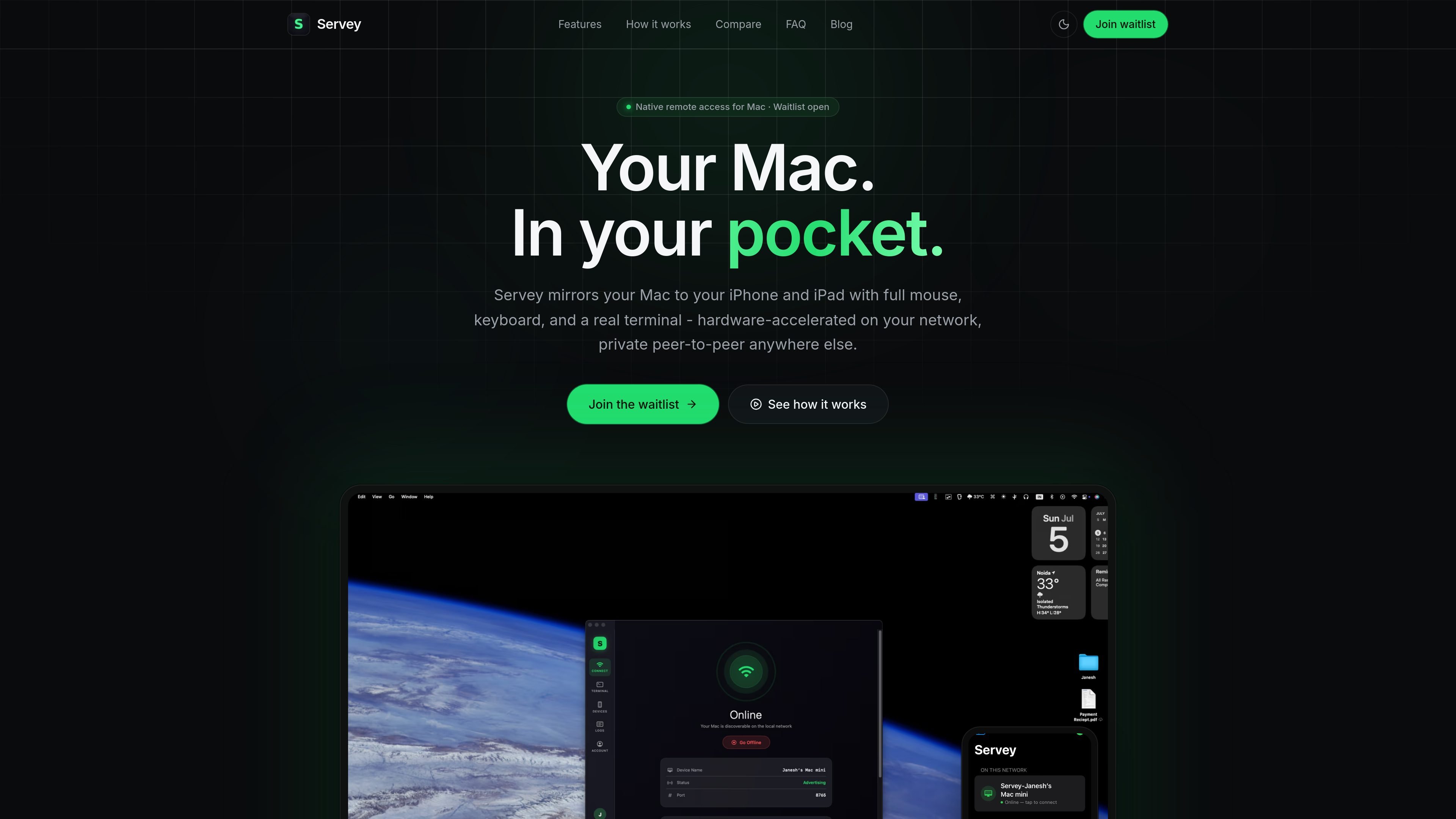
Servey is a remote access app for Mac that lets you view and control your computer from an iPhone or iPad. Its core job is to make a Mac usable from a pocket-sized device without relying on a browser-based remote desktop.
On the same network, Servey uses a direct hardware-HEVC stream for crisp screen mirroring and low latency. When the devices are on different networks, it falls back to a private peer-to-peer WebRTC connection, while keeping the terminal and input controls available in both modes.
The product is positioned for people who want to work on a Mac away from the desk: browsing the full desktop, entering keyboard shortcuts, moving a pointer with a virtual trackpad, and opening a real shell from the mobile device.
Setup is presented as simple account pairing: install the app on the Mac and the iPhone or iPad, sign in with Google on both devices, and tap the Mac when it appears. The source says no VPN or port forwarding is required.
Servey streams a custom hardware-HEVC feed of your Mac on the same network, aiming for sharp text and low latency. The interface supports pinch-to-zoom so you can inspect small details.
The app includes a purpose-built virtual trackpad with relative movement, left and right click, drag, and scrolling. It is designed to reach every edge of the screen from an iPhone or iPad.
A built-in keyboard provides common system shortcuts such as Copy, Paste, Escape, Tab, Return, and Backspace, so you can work without switching back to the Mac.
Servey exposes a real shell on the Mac rather than a web console. The terminal works over both the local and remote connection paths.
When devices are on the same Wi-Fi network, Servey uses a direct hardware-HEVC path. When they are on different networks, it automatically falls back to private peer-to-peer WebRTC.
The app tunes resolution and bitrate to the live network path and keeps the screen uncropped, so the image adapts without cutting off part of the desktop.
Open the Mac desktop on an iPhone or iPad and keep working when you are away from the machine. The mirrored view preserves the full screen and supports pinch-to-zoom for detail work.
Use the built-in terminal to run commands, inspect logs, or address a build problem without needing a laptop in front of you. The source says the terminal works on both LAN and remote connections.
Move the pointer, click, drag, scroll, and enter keyboard shortcuts from a touch device when a mouse and keyboard are not available. The virtual trackpad is designed to reach every edge of the screen.
Let the app choose the best connection path automatically when you move between home Wi-Fi, office networks, and remote locations. The source describes a direct local path and a private P2P fallback.
Servey is designed to switch automatically between a direct LAN path and a private peer-to-peer remote path. The source says the app uses hardware HEVC on the same network and falls back to private P2P WebRTC when the devices are on different networks.
The source describes Servey as private by design. On remote connections, the screen video is peer-to-peer and end-to-end encrypted, and the cloud is used only to broker the initial handshake.
Yes. The source states that the remote path works over private peer-to-peer WebRTC, and that the app can use STUN/TURN traversal even on CGNAT.
The product is described for Mac on one side and iPhone or iPad on the other. Sign-in is done with Google on both devices, and the Mac is then available on the mobile device.
No. The source explicitly says there is no VPN or port forwarding required; Servey handles the connection path automatically.

MacSpoof is a macOS MAC address changer that lets you change or randomize your Wi‑Fi MAC to reconnect and limit device logging on public Wi‑Fi.

NomNak is a free iPhone app for discovering restaurants through friends’ recommendations, with saved spots, a food passport and city search.

Ctrl+Shift+3 is a calm, text-first community platform with chronological feeds, profiles, RSS, and private Clicks for smaller communities.

Hexel Editor is a macOS hex editor for opening, searching, inspecting, and editing binary files. Built for developers, reverse engineers, and security researchers.

TyeGit is a native Git client built with Rust and Tauri for fast, precise control over staging, commits, branches, and remotes on Windows, macOS, and Linux.

Terminal Candy is a native macOS terminal app for a real shell in custom skins, with community skins, image-based custom skins, and a free trial plus one-time license.