
Unified skill view
See every installed skill across your supported agents in one place so you do not have to check multiple config directories by hand.

Skills Manager is a free, open-source desktop app for managing AI coding skills across agents like Claude Code, Cursor, GitHub Copilot, and more.
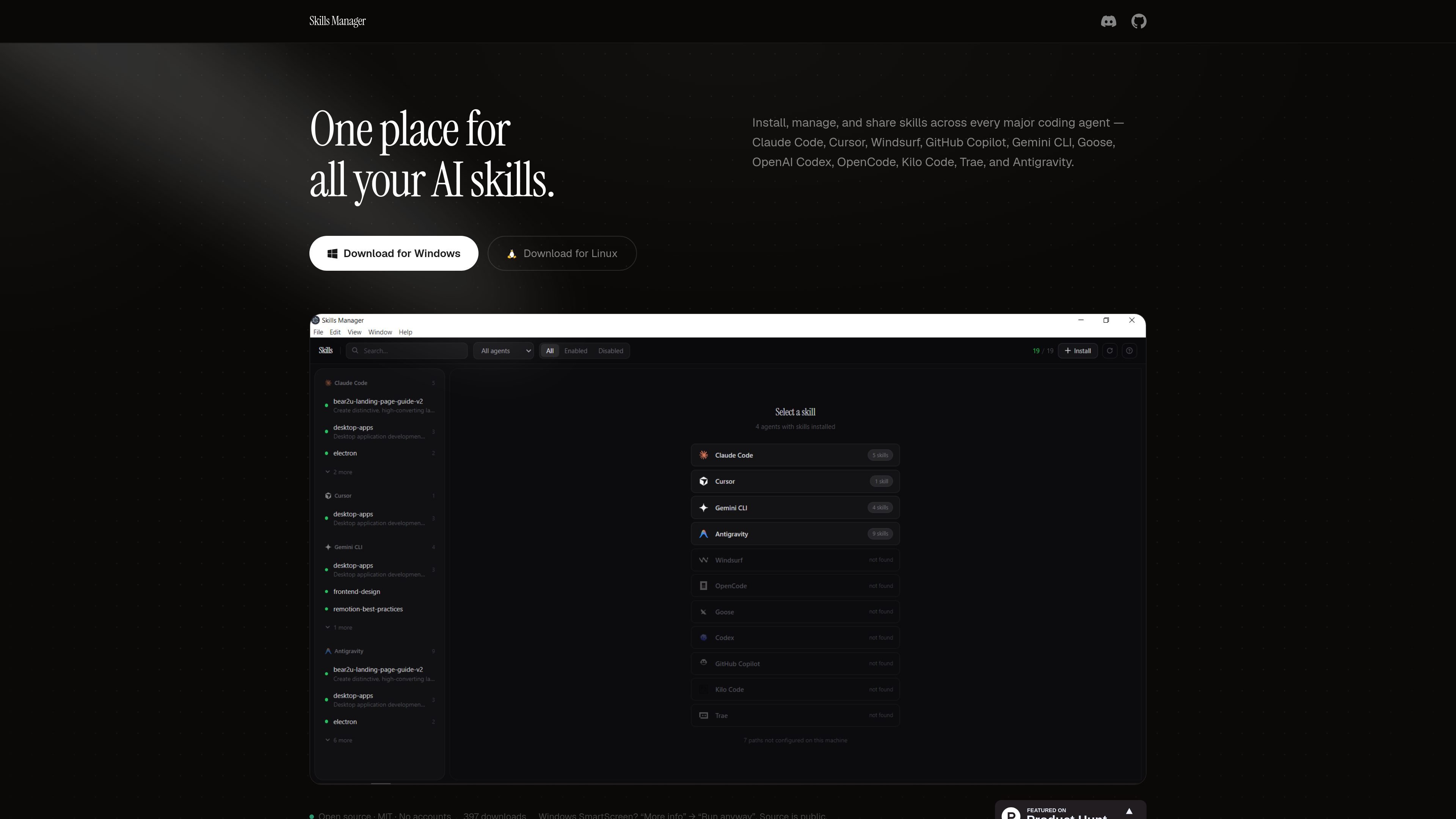
Skills Manager is a universal AI agent skills manager for coding assistants such as Claude Code, Cursor, Windsurf, GitHub Copilot, Gemini CLI, Goose, OpenAI Codex, OpenCode, Kilo Code, Trae, and Antigravity. It is built to give users one place to install, manage, and share skills across these tools.
The product focuses on reducing manual file handling and config-directory hunting. It lets you view installed skills in a single interface, install from GitHub, move skills between agents, and enable or disable them without deleting files.
See every installed skill across your supported agents in one place so you do not have to check multiple config directories by hand.
Install skills directly from a GitHub repository URL with one click. The site says this works with public repositories and custom registries.
Push a skill from one agent to another, such as from Claude Code to Cursor or Copilot, without manually copying files.
Turn a skill on or off without deleting it, which lets you test changes and roll back later without losing the setup.
Free and open source distribution with no account requirement, plus downloads for Windows and Linux and a note that Mac support is coming soon.
Keep skills from multiple agents visible in one place instead of checking each tool’s config directory separately.
Install a skill from a GitHub repository URL when you want to try a new workflow or reuse a shared repo.
Move a skill from one agent to another when you want the same behavior available in a different coding assistant.
Temporarily disable a skill to test alternatives or isolate a setup problem without removing the underlying files.
Use the desktop app on Windows or Linux when you want a local utility for managing skills without creating an account.
Skills Manager is designed to install, manage, and share skills across supported AI coding agents from one place. The homepage lists Claude Code, Cursor, Windsurf, GitHub Copilot, Gemini CLI, Goose, OpenAI Codex, OpenCode, Kilo Code, Trae, and Antigravity as supported agents.
The homepage offers downloads for Windows and Linux and says Mac is coming soon. The product page also notes that it is open source, uses the MIT license, and does not require an account.
The homepage presents installation from GitHub as a core workflow: you can paste a GitHub repo URL and install skills with one click, including public repos and custom registries.
The homepage says you can copy a skill from one agent to another and enable or disable skills without deleting them. That makes it useful for moving skills between tools while keeping the original setup intact.
The page includes a pricing link, but the fetched pricing URL returned a 404, so the source does not confirm a paid plan or pricing details. The homepage does state that the product is free and open source.

Falconer is an AI-powered company brain that keeps internal documentation accurate, searchable, and up to date by syncing with tools like GitHub, Slack, and Linear. It helps engineering and cross-functional teams centralize knowledge and answer questions from a shared source of truth.

Skills Janitor is a GitHub-hosted set of slash commands for auditing, tracking, and cleaning up Claude Code and OpenAI Codex skills.

Goldfish is an AI memory app for macOS that helps you reply, write, summarize, and continue with context already on your Mac. It stores memory locally and writes in your tone.

Lasso is an ecommerce product data platform for enriching catalog records, processing supplier files, generating product content, and monitoring competitors. It combines a web app with a REST API, SDK, and MCP server for teams and developers.

Codex Plugins bundle reusable skills, app integrations, and MCP servers into workflows you can install in the Codex app or use from Codex CLI.

Struere is an AI-native platform for turning spreadsheet data into structured operational software with dashboards, alerts, and automations. It is aimed at teams that want to replace manual spreadsheet workflows without building custom tools from scratch.