
On-device food detection
Recognizes food in supported videos and selected visible regions of webpages using local browser-based processing, without sending video frames or selected images elsewhere.

CraveLens identifies dishes in supported videos or webpage areas with on-device AI, matches them to nearby Swiggy listings, and prepares a cart to review.
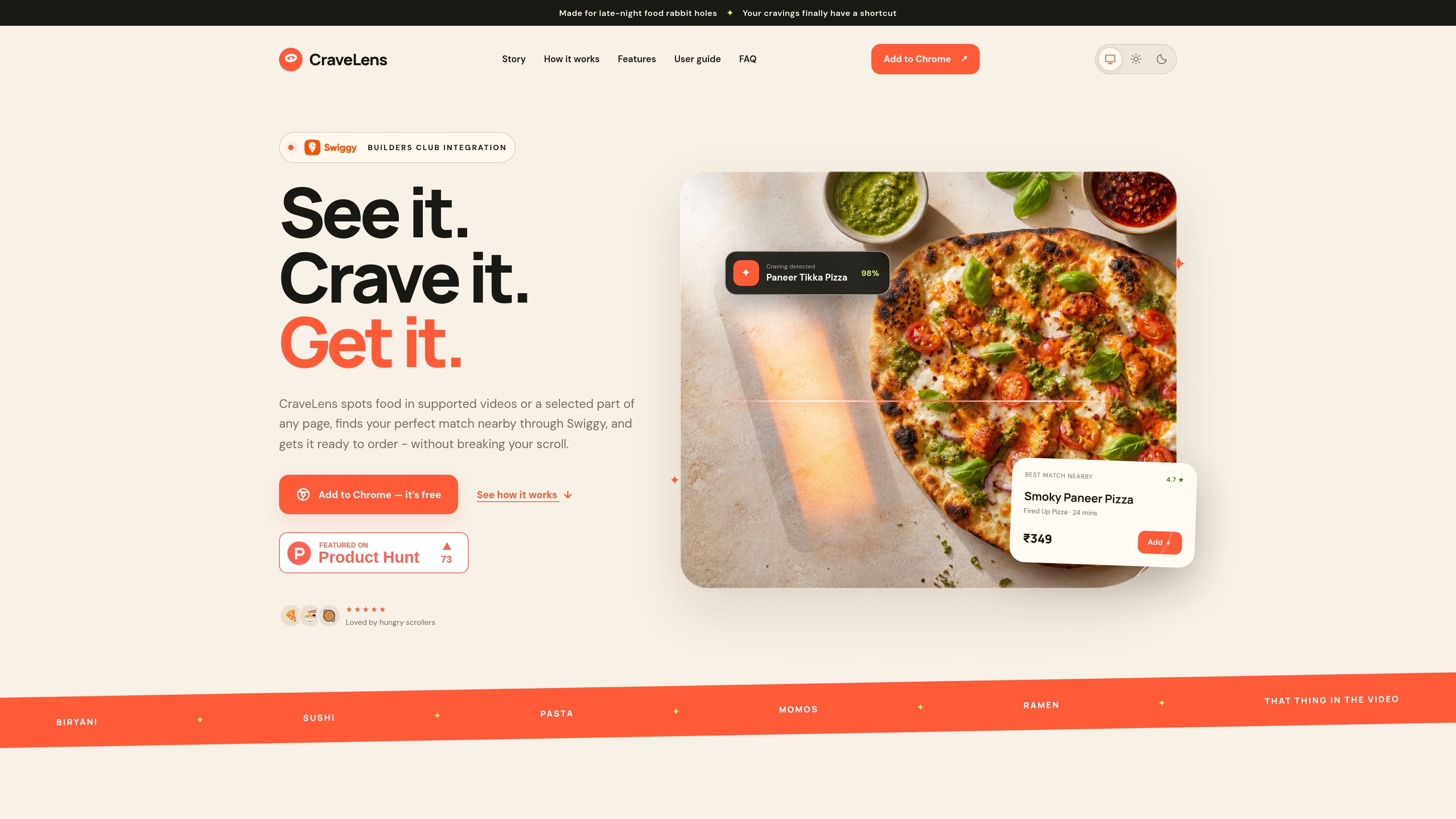
CraveLens is a Chrome-based food discovery assistant that identifies dishes appearing in supported videos or in a user-selected region of a webpage. It uses on-device AI to recognize the food, then connects the result with nearby Swiggy listings and prepares a personalized cart.
The product is designed for people who discover food while watching videos or browsing the web and want to move from visual inspiration to an order without manually reconstructing the dish search. Users can review the suggested match and cart before deciding whether to continue through Swiggy. Detection can be explored without connecting Swiggy, while Swiggy access is required for personalized listings, menus, offers, addresses, cart preparation, and checkout.
Recognizes food in supported videos and selected visible regions of webpages using local browser-based processing, without sending video frames or selected images elsewhere.
Local vision-language model options can identify multiple visible dishes and provide cuisine, ingredient evidence, and confidence for each detection.
A food-focused agent maps detected cravings to menus, coupons, dietary constraints, and available Swiggy listings.
Uses entered preferences, allergy warnings, and—when preferences are empty—tentative preferences derived from verified order history for the relevant address.
Prepares a Swiggy cart with available restaurant, menu, price, offer, fee, and delivery information for the user to review.
Supports local VLM paths including Gemini Nano, browser-downloaded Gemma 3n, or an Ollama vision model where supported by the browser setup.
While watching a YouTube video, Short, Instagram Reel, or Facebook video page in Chrome, CraveLens can identify a dish without requiring the viewer to pause and search for it manually.
When food appears on a page outside the listed video platforms, select the visible dish region with the keyboard shortcut to run a local scan.
Use entered dietary preferences and allergy warnings to narrow the recommendation before reviewing a nearby Swiggy listing and its menu details.
Move from a detected dish to a prepared Swiggy cart containing available listing, pricing, offer, fee, and delivery information, then decide whether to proceed.
Explore dish detection without connecting Swiggy, then connect the service only when you want nearby listings, personalized recommendations, cart preparation, or checkout.
CraveLens supports YouTube videos and Shorts, Instagram Reels, and Facebook Watch or video pages in Chrome. On other pages, you can use a keyboard shortcut to select and scan a visible food region.
Food detection runs locally in the browser. For lasso scans, only the selected visible region is captured for local verification; browsing history and full-page activity are not uploaded.
You can explore food detection without connecting Swiggy. A Swiggy connection is needed for saved addresses, nearby listings, menus, offers, cart preparation, and checkout.
No. CraveLens prepares a cart, but the final order always requires your explicit confirmation. Review the final Swiggy checkout details before confirming.
CraveLens can use entered dietary preferences and allergy warnings to guide recommendations, but you should verify item details with Swiggy and the restaurant before ordering.

Snapmark is a VS Code extension for annotating clipboard screenshots before pasting them into AI chats. Blur sensitive details, add numbered callouts, and auto-resize large images.

Arduino VENTUNO Q is an edge AI computer for AI and robotics, combining AI inference and deterministic control on one board with Arduino App Lab support.

Free C++ project for real-time person pixelation in video with OpenCV and neural network segmentation, for privacy-focused live video and browser apps.

Faceswapai.Online is a web-based AI face swap tool for photos and videos, with multiple-face workflows, free trial access and credit-based VIP upgrades.

Muse Spark Open is a Meta vision-language model on Hugging Face for image-text prompts, visual question answering, image descriptions, and licensed model adaptation.

Revy is a fashion app for organizing your wardrobe, generating outfit ideas, and recreating looks with clothes you already own.