
Native Quick Look previews
Registers as a macOS Quick Look extension so you can preview Markdown files from Finder with Space, using the system preview flow instead of opening an editor.

showmd is a free, open-source macOS Quick Look extension for previewing Markdown files in Finder with rendered output, dark mode, and source toggle.
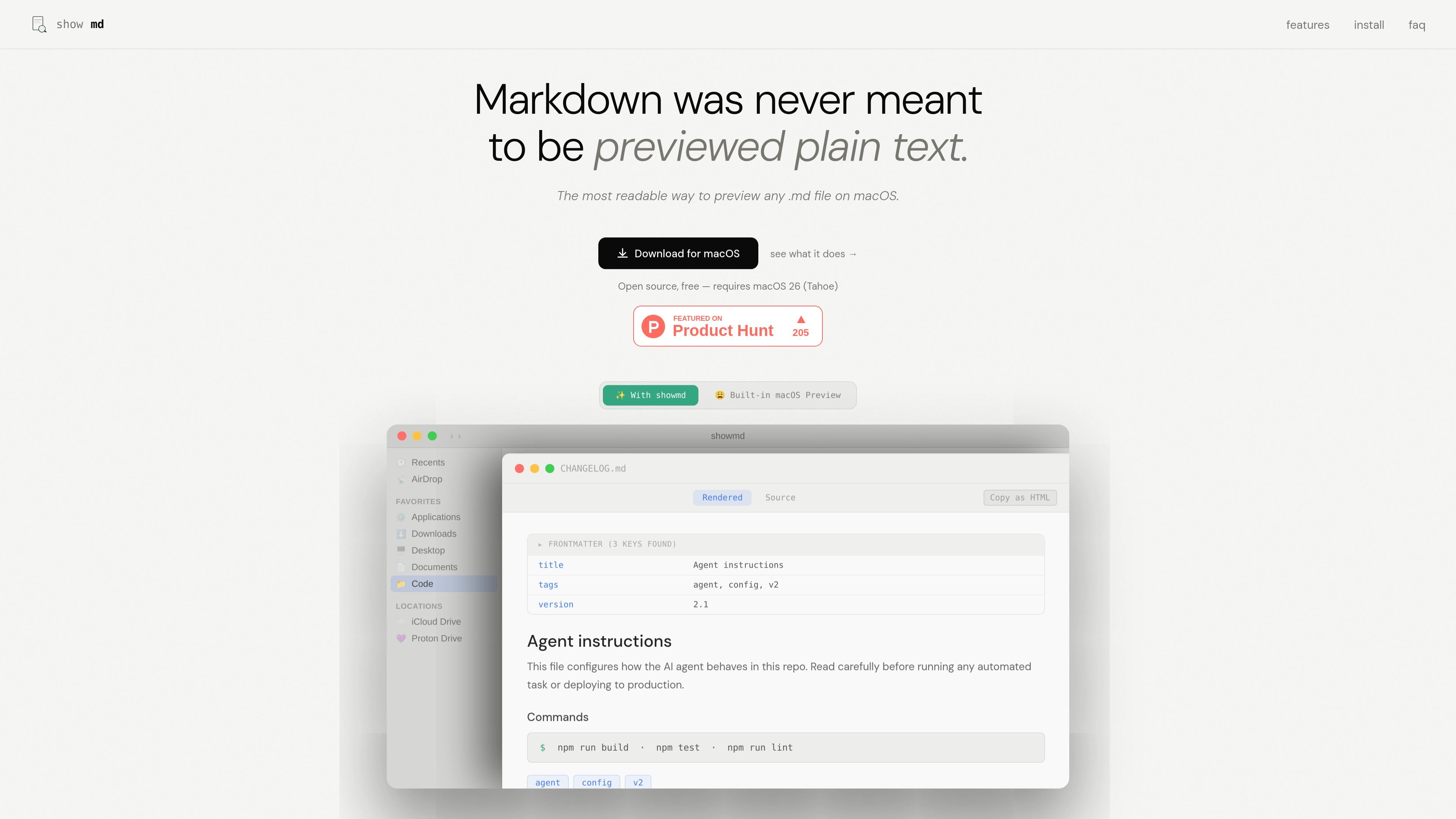
showmd is a native macOS Quick Look extension for previewing Markdown files in Finder. It is positioned as a more readable way to view .md files than the built-in Preview app, with rendered Markdown instead of raw source text.
The preview includes support for YAML frontmatter, a rendered/source toggle, dark mode, syntax highlighting, math, Mermaid diagrams, inline images, and several Markdown-related file extensions. The site says it is open source, free, and requires macOS 26 (Tahoe) or later.
Registers as a macOS Quick Look extension so you can preview Markdown files from Finder with Space, using the system preview flow instead of opening an editor.
Renders YAML frontmatter as a collapsible metadata table, collapsed by default, so file metadata stays available without taking over the preview.
Lets you switch between rendered Markdown and the raw source, and copy the file as HTML from the rendered view.
Supports GitHub Flavored Markdown, including tables, task lists, strikethrough, fenced code blocks, alerts, footnotes, autolinks, and more.
Renders code blocks with language-aware syntax highlighting and supports more than 190 languages out of the box.
Handles inline and block LaTeX math, Mermaid diagrams, relative images, and common Markdown-related file extensions such as .md, .markdown, .mdx, .mdc, .rmd, and .qmd.
Preview .md files in Finder with a rendered layout, so you can scan content quickly without opening a separate editor.
Inspect AI prompt files such as AGENTS.md, CLAUDE.md, and similar Markdown-based instructions with formatting preserved instead of raw text.
Check documents that rely on frontmatter, diagrams, or math and see those elements rendered inline inside Quick Look.
Compare the rendered version and the original source when you need to verify formatting or copy the file as HTML.
Download showmd, open it once, then enable it in System Settings → Privacy & Security → Extensions → Quick Look. On first launch, macOS may ask to access data from other apps so the app and extension can share settings.
showmd parses the YAML frontmatter block and renders it as a collapsible metadata table, collapsed by default. The source shows support for plain values, quoted strings, arrays, and multi-line folded blocks.
Yes. Every preview includes a Rendered / Source toggle, and the rendered view also offers a Copy as HTML option.
Yes. showmd follows the macOS appearance setting automatically, and its settings let you choose Light, Dark, or Auto.

Codex Plugins bundle reusable skills, app integrations, and MCP servers into workflows you can install in the Codex app or use from Codex CLI.

Snapmark is a VS Code extension for annotating clipboard screenshots before pasting them into AI chats. Blur sensitive details, add numbered callouts, and auto-resize large images.

Open Computer Use is an open-source Computer Use service wrapped as MCP for macOS, Linux, and Windows. It helps AI agents and MCP clients run desktop automation workflows through client setup commands or manual MCP configuration.

Privacy-First Toolbox is a free browser-based collection of file and text conversion tools that processes data locally on your device. It is designed for users who want common utilities without uploading files or creating an account.

Optimo is a free, open-source CLI for optimizing and converting images and videos with format-specific commands built on ImageMagick and FFmpeg. It helps developers prepare web assets, batch process media, and automate compression from the shell or a Node.js script.

Converleon is an offline Mac file converter for images, video, audio, documents, PDFs, and archives, with batch conversion and no uploads.