
Automatic keywording
Analyze a photo library automatically on the Mac and generate keyword suggestions from the images in the library.

Tag Your Photos is a macOS app that automatically keywords Apple Photos with on-device AI, keeping analysis local on your Mac.
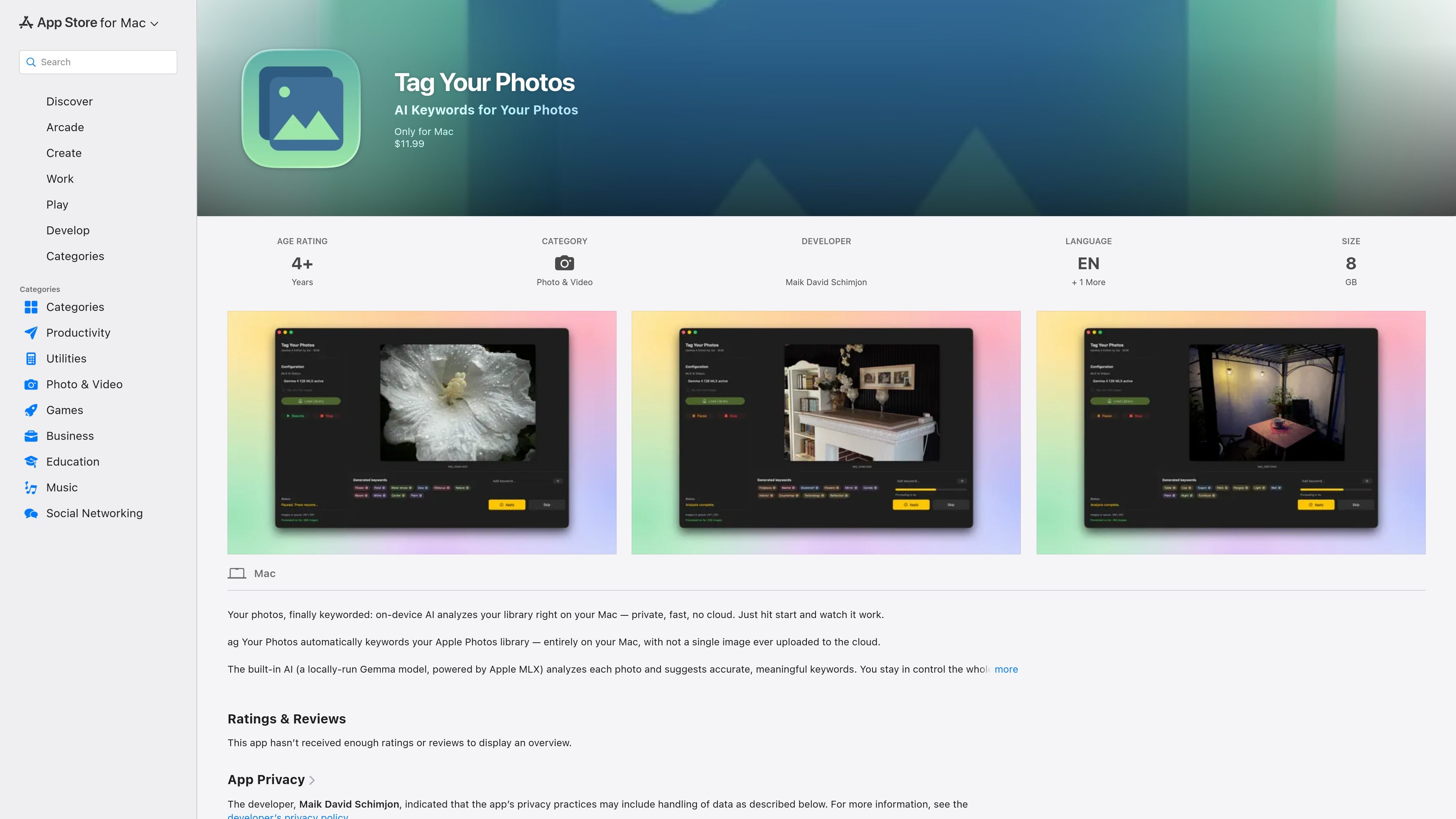
Tag Your Photos is a macOS app for automatically keywording an Apple Photos library on the user’s Mac. The app is positioned as a privacy-focused tool that analyzes images locally, using a locally run Gemma model powered by Apple MLX, rather than uploading photos to the cloud.
Its main job is to turn photo content into structured keywords that can be written directly into Apple Photos. The listing says those keywords remain searchable in Apple Photos and can also be embedded into exported images for use in other apps such as Lightroom or Capture One. Users can let the app run in autopilot, pause or resume the process, and review or edit suggested keywords along the way.
Analyze a photo library automatically on the Mac and generate keyword suggestions from the images in the library.
Use a locally run Gemma model powered by Apple MLX, with processing kept on-device instead of being sent to a cloud service.
Pause, resume, or interrupt the tagging run at any time, which makes it easier to stop for review or to handle other work on the Mac.
Review individual keywords, apply suggestions, edit them, or skip them before continuing the workflow.
Track progress with queue, status, and total duration indicators while the app works through the library.
Save real structured keywords into Apple Photos so they remain searchable there and can also be embedded on export for use in other apps.
For people with large Apple Photos libraries who want a faster way to add searchable keywords without doing manual tagging image by image.
For users who want the analysis to stay on their Mac and avoid sending private photos to a cloud service.
For photographers who need keywords that can be used outside Apple Photos after export, including in tools such as Lightroom or Capture One.
For users who want some automation but still want to inspect suggestions before they are applied to the library.
For long tagging jobs where it helps to monitor queue state and stop or resume the process when needed.
It runs entirely on your Mac and analyzes your Apple Photos library locally. The listing says no images are uploaded to the cloud.
The app is designed to save keywords directly into your Apple Photos library and notes that it works together with the Apple Photos app in the background.
The App Store listing says it is a native macOS app built for Apple Silicon, with Intel Macs not supported.
The listing states the app requires macOS 26.5 or later and recommends 16 GB of RAM, with 24 GB described as ideal.
Yes. The app description says you can apply suggested keywords, edit them, or skip them while the autopilot continues once you finish reviewing.

Faceswapai.Online is a web-based AI face swap tool for photos and videos, with multiple-face workflows, free trial access and credit-based VIP upgrades.

Pixelcut is an AI photo editor for product images, social content and video assets. Free and paid plans; mobile app and browser access for individuals and teams.

Petalica Paint is a web service for automatic line-art coloring and tracing drawings from photos, with commercial use allowed under stated terms.

Snapmark is a VS Code extension for annotating clipboard screenshots before pasting them into AI chats. Blur sensitive details, add numbered callouts, and auto-resize large images.

Wearvue AI generates personalized outfit previews from a photo, refines styles for any occasion, and shows similar real products to shop.

Upscale.media is an AI image upscaling and enhancement tool by Pixelbin that sharpens low-resolution images in the browser, with bulk processing and API support.