

Zush
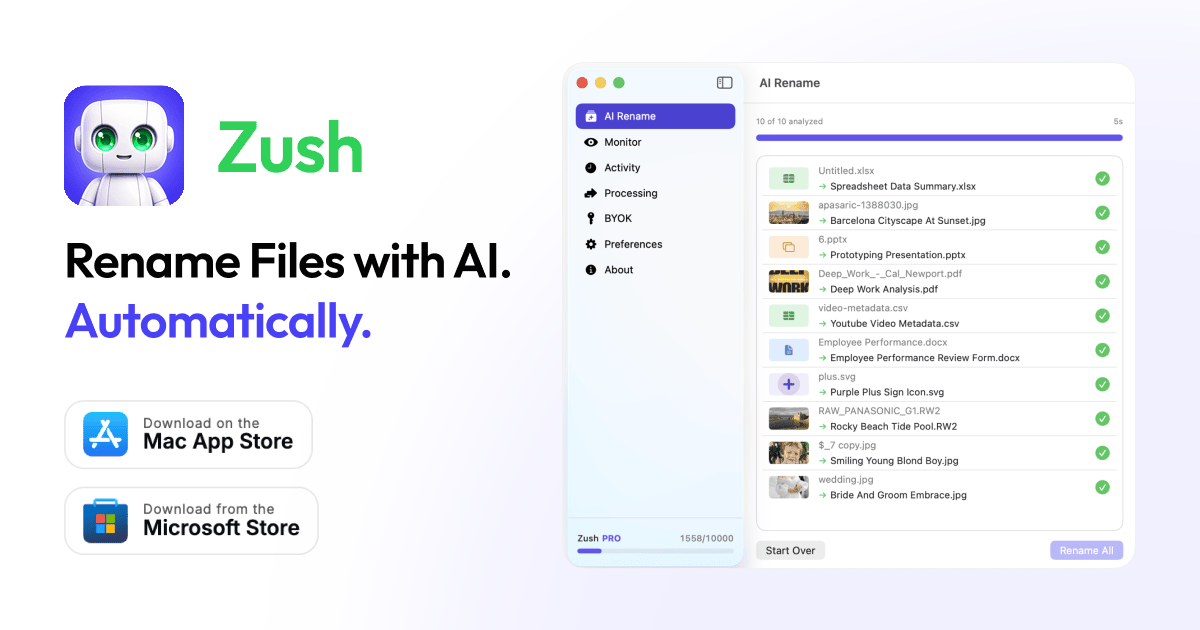
Zush is an AI-powered file renamer for macOS and Windows that generates meaningful names for screenshots, PDFs, photos, and documents.
What is Zush?
Zush is an AI-powered file renamer for macOS and Windows. It helps you rename files like screenshots, PDFs, photos, and documents by generating more meaningful names based on the file’s content and metadata.
The core purpose of Zush is to reduce manual cleanup of messy filenames (for example, IMG_... or generic “scan” names) by supporting batch renames, background folder monitoring, and rollback if you want to revert a change.
Key Features
- AI analysis for renaming (screenshots, documents, PDFs): Uses AI to propose descriptive filenames from supported images and document content, including PDFs.
- Batch rename: Select and rename multiple files at once, applying AI-generated names across a set.
- Folder monitoring: Choose one or more folders; Zush runs in the background and processes new files automatically.
- Custom naming patterns: Build your own filename structure using variables such as
{title},{original},{date},{time}, and{category}. - Smart metadata (Finder tags / Spotlight metadata): Automatically adds Finder tags and Spotlight metadata to help with later retrieval via search.
- Rename history with one-click rollback: Track every change and revert to the original filename when you want a different result.
- Custom prompts (rule-based): Set prompt rules to control how AI outputs rename, tagging, and metadata in a way that matches your workflow.
- Bring Your Own Key (PRO): Connect your own API key from Gemini, Groq, OpenAI, or Claude; keys are stored locally using secure platform storage.
- Offline AI mode (PRO): Use local models via Ollama to process supported files offline without sending analysis content to Zush cloud or external AI providers.
- Supported formats: Images (PNG, JPG, JPEG, WEBP, GIF, BMP, TIFF/TIF, HEIC/HEIF, SVG, CR2/NEF/ARW/DNG/RAF/RW2), documents (PDF, TXT, MD, JSON/EML/CSV/ DOC/DOCX/PPT/PPTX/XLS/XLSX) and more listed in the site content.
How to Use Zush
- Download and install Zush for your platform (macOS .dmg / Windows via Microsoft Store).
- Start a rename job by selecting files (batch rename) or adding folders for background monitoring.
- Review the proposed names produced by AI and apply them in seconds.
- If needed, adjust naming patterns or prompt rules to better match your preferred format.
- Use rename history to revert any filenames with one click.
Zush offers a free trial for up to 50 files with no signup and no credit card (as stated on the site). The site also mentions a one-time purchase model after the trial.
Use Cases
- Renaming screenshot downloads: Automatically rename image files (for example,
Screenshot 2024-08-08...png) into descriptive names so your downloads and screenshots folder stay searchable. - Organizing scan and PDF archives: For PDFs and related document files, generate meaningful filenames and optionally add Finder tags / Spotlight metadata to speed up later searches.
- Batch cleanup for project folders: Select multiple files in one go (e.g., “budget export” spreadsheets and decks) and apply AI renaming consistently across the set.
- Ongoing ingestion with folder monitoring: Point Zush to an “incoming” folder; as new files arrive, Zush renames them automatically without requiring repeated manual selection.
- Photographer workflow for camera imports: Rename RAW and other camera image formats (e.g., CR2/NEF/ARW/DNG/RAF/RW2) based on image content, reducing reliance on generic
IMG_filenames.
FAQ
-
Is Zush available on both macOS and Windows? Yes. The site states Zush is available on macOS (signed and notarized .dmg) and Windows (Microsoft Store install).
-
Does Zush support batch renaming and folder monitoring? Yes. Zush supports renaming multiple files at once and monitoring one or more folders to process new files automatically.
-
Can I control how filenames are generated? Yes. You can use custom naming patterns with variables (like
{title},{date},{category}) and configure custom prompt rules. -
What happens if I don’t like a rename result? Zush includes rename history and supports rolling back to the original filename with one click.
-
Is offline renaming available? Offline AI mode is described under PRO, using local models via Ollama. It is intended to process supported files offline without sending analysis content to Zush cloud or AI providers.
Alternatives
- Built-in OS rename tools (macOS Finder rename / Windows rename utilities): These can handle deterministic renaming rules but won’t generate descriptive names from content.
- General-purpose photo/document managers with tagging and search: Useful for organizing and finding files, but may not provide AI-based filename generation and rollback in the same workflow.
- Other AI file organization tools: Look for tools that support batch operations and “undo”/history. The key differences to compare are whether they include folder monitoring, custom naming patterns, and metadata/tagging automation.
- Local OCR/metadata pipelines followed by rule-based renaming: For users who want fully offline or self-managed processing, a separate OCR step plus templated renaming can replicate some workflows, but typically requires more setup than an integrated renamer.
Alternatives

Lasso
Lasso is an AI-first PIM for ecommerce teams that enriches product attributes and descriptions, processes supplier data, and monitors competitors via app or API.

Codex Plugins
Use Codex Plugins to bundle skills, app integrations, and MCP servers into reusable workflows—extending Codex access to tools like Gmail, Drive, and Slack.

Struere
Struere is an AI-native operational system that replaces spreadsheet workflows with structured software—dashboards, alerts, and automations.

garden-md
Turn meeting transcripts into a structured, linked company wiki with local markdown and an HTML browser view. Sync from supported sources.

Falconer
Falconer is a self-updating knowledge platform for high-speed teams to write, share, and find reliable internal documentation and code context in one place.

Snapmark for VS Code
Snapmark for VS Code helps you annotate screenshots before pasting into AI chat tools—blur sensitive areas, add numbered steps, auto-compress large images.