

Afterpage
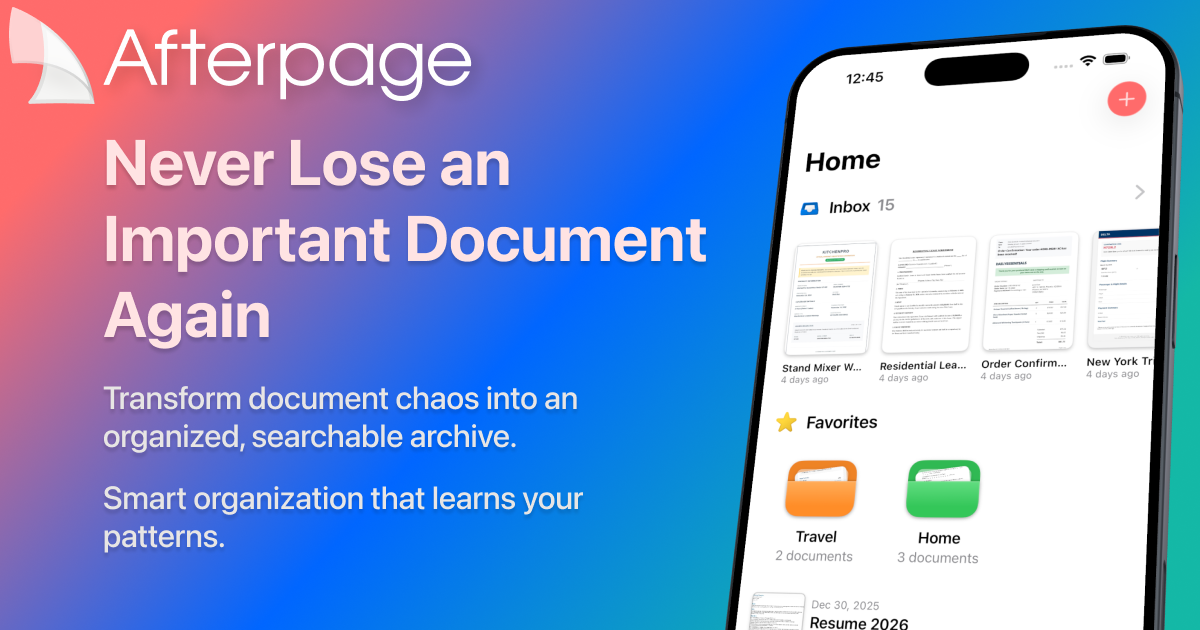
Afterpage is a smart document organizer for iPhone and iPad. Capture, auto-organize, and search—also search text inside PDFs with on-device OCR.
What is Afterpage?
Afterpage is a smart document organizer for iPhone and iPad that helps you bring documents in from multiple sources, organize them, and quickly find them later. The app focuses on making documents searchable by using on-device text recognition and providing organization suggestions as you use it.
The core purpose is to reduce document chaos: instead of storing receipts, contracts, and forms in scattered places, Afterpage lets you capture, tag, and retrieve documents by text, document type, and contacts.
Key Features
- Smart Organization that learns your patterns to suggest where documents belong (including suggested tags, document types, and contacts).
- Full-text search that can search the words inside documents, including results driven by on-device OCR.
- Fast filtering during search by tags, document types, or contacts to narrow results without manually opening files.
- Capture tools for getting documents into the app: scan with your camera, import from Photos, or drag from Mail (with multi-page support).
- Exportable searchable PDFs with embedded text, so documents remain searchable outside the app.
- Inbox workflow for triage: documents land in an Inbox for quick processing, with tagging and metadata updates.
- On-device privacy approach: processing happens on your device, with no third-party accounts or cloud uploads described for document processing.
- iCloud Drive storage and sync across iPhone and iPad.
How to Use Afterpage
- Start with the free tier from the App Store and begin capturing documents.
- Import documents by scanning with your camera, importing from Photos/Files, or sharing from Mail; multi-page documents are supported.
- Review items in your Inbox and organize them by adding tags, setting document types, and specifying contacts—allowing Smart Organization to suggest organization based on your patterns.
- Find documents later by searching text inside the document or filtering by tags, document types, and contacts.
- When you need to share, export searchable PDFs (with embedded text) via AirDrop, email, or save to Files.
Use Cases
- Searching for a specific receipt by the vendor name or other text: capture the receipt, then use full-text search to locate it quickly.
- Managing multi-page contracts: import a full contract as a multi-page document, apply document type and contact info, and later retrieve it via search or filters.
- Organizing forms across devices: capture documents on your iPhone and continue searching on your iPad using iCloud sync.
- Reducing clutter from email attachments: drag or share documents from Mail into Afterpage, triage them in the Inbox, and add the right tags and metadata.
- Preparing documents for sharing while preserving searchability: export searchable PDFs when sending to someone else or saving for later use.
FAQ
-
Where are my documents stored? Afterpage stores documents in iCloud Drive or locally on your device, based on your choice during setup.
-
Is text recognition performed on-device? Yes. The app uses on-device OCR powered by Apple Vision, enabling search by words inside documents without needing internet.
-
Can I search by content inside scanned documents? Yes. Afterpage supports full-text search across document contents, and you can also filter results by tags, document types, and contacts.
-
What can I do when I need to share a document? Afterpage can export searchable PDFs with embedded text, which you can share via AirDrop, email, or save to Files.
-
Does it work on iPad? Yes. Afterpage syncs across iPhone and iPad through iCloud.
Alternatives
- General-purpose document scanners and PDF organizers: These can capture and manage PDFs, but may not emphasize organization-first workflows (Inbox triage) and on-device text search with embedded-text exports.
- iOS Files and folder-based organization: Storing PDFs in Files is flexible, but typically requires manual organization and provides less integrated content search and metadata-driven filtering.
- Note-taking apps with OCR/search: These can offer searchable scanned documents, but document-specific metadata workflows (tags, document types, contacts) and PDF export with embedded text may differ.
- Dedicated document management tools (non-Apple-focused or cross-platform): These may include advanced workflows, but the setup and on-device/privacy approach described for Afterpage may not match.
Alternatives

Lasso
Lasso is an AI-first PIM for ecommerce teams that enriches product attributes and descriptions, processes supplier data, and monitors competitors via app or API.

Codex Plugins
Use Codex Plugins to bundle skills, app integrations, and MCP servers into reusable workflows—extending Codex access to tools like Gmail, Drive, and Slack.

Struere
Struere is an AI-native operational system that replaces spreadsheet workflows with structured software—dashboards, alerts, and automations.

garden-md
Turn meeting transcripts into a structured, linked company wiki with local markdown and an HTML browser view. Sync from supported sources.

Falconer
Falconer is a self-updating knowledge platform for high-speed teams to write, share, and find reliable internal documentation and code context in one place.

Nolain OCR
Nolain OCR is an advanced Optical Character Recognition solution designed to accurately extract text and data from various document formats, streamlining document processing workflows.