
Private, bot-free live overlay
Assistly listens to the call audio from your computer and displays guidance in a private overlay that only you can see. Nothing joins the participant list, and the overlay is excluded from screen shares and recordings.

Assistly is a live meeting assistant for macOS and Windows with private in-call guidance, post-call summaries, action items, and read-only MCP meeting history.
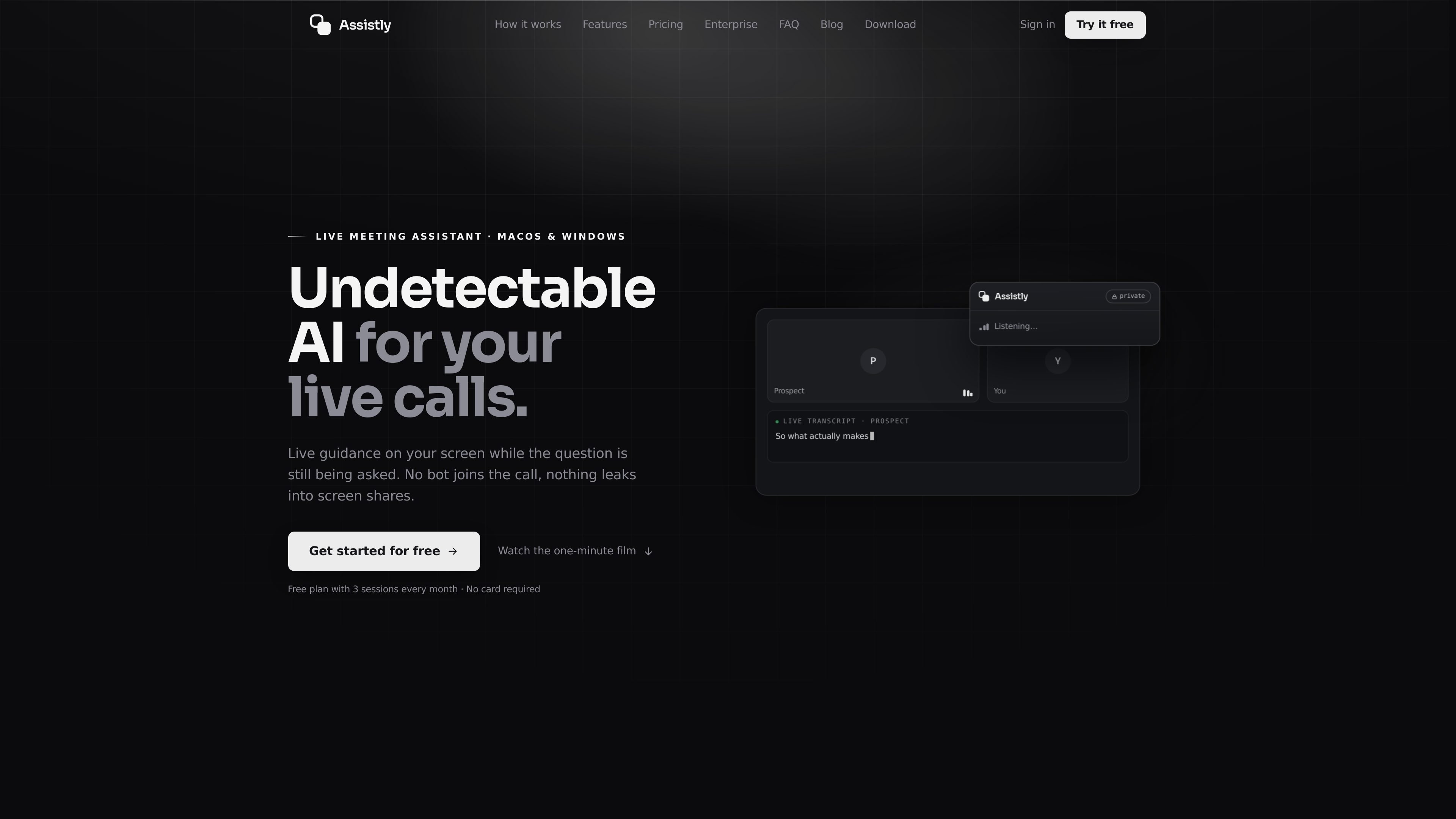
Assistly is a live meeting assistant for macOS and Windows that provides guidance while a conversation is happening. It works from your computer’s audio, so no bot joins the call, and it places answers and talking points in a private overlay that stays off screen shares and recordings.
The product is built for people who want both in-call support and a usable follow-up record. It transcribes the meeting, tracks speakers, generates a recap with decisions and action items after the call, and can organize sessions by project so context carries from one conversation to the next.
Assistly also connects to external context and tools. The site says it can pull from Google Calendar, Notion, Linear, and MCP servers, and that its own MCP server lets connected apps such as Claude, ChatGPT, Cursor, or Claude Code read meeting history, transcripts, and action items without write access.
Assistly listens to the call audio from your computer and displays guidance in a private overlay that only you can see. Nothing joins the participant list, and the overlay is excluded from screen shares and recordings.
The app transcribes the full call, including your mic and the call audio, and tracks every speaker. Guidance is available while the conversation is still happening, not only afterward.
When a question comes up, Assistly streams talking points and structured responses token by token so you can read them while still speaking. The interface is designed to avoid hotkeys and interruptions.
At the end of each session, Assistly writes a summary and action items with owners and stores them in searchable notes. The recap is tied to the session timeline for later review.
Assistly can organize calls into projects by client, deal, or workstream. It uses calendar context to file sessions and keeps answers scoped to the active project or account.
Assistly connects to Google Calendar, Notion, Linear, and any MCP server so live guidance can use your existing context. It also runs an MCP server that lets Claude, ChatGPT, Cursor, and similar tools query your call history read-only.
Use Assistly in client calls when you need live prompts, speaker tracking, and a recap that keeps each client’s history separate in its own project.
Use it on sales calls when pricing, objections, or competitor comparisons can surface mid-conversation and you want talking points without breaking eye contact.
Use it in internal team meetings when you need decisions, owners, and action items captured automatically and searchable after the call.
Use it across a workstream or account when several calls build on one another and you want the next session to inherit the context from previous ones.
Use the MCP server after a meeting when you want Claude, ChatGPT, Cursor, or another connected app to read recaps and transcripts and help turn them into next steps.
Assistly is installed on macOS or Windows and works from the computer’s audio. The site says you sign in and start using the desktop app; the MCP server is then connected afterward from your terminal or editor.
The site presents Assistly for individual use and for teams. Enterprise adds workspace controls, SSO, roles and permissions, and retention settings so a team can share context and manage access centrally.
During a call, Assistly shows live guidance, talking points, and structured responses in a private overlay. After the call, it creates a summary and action items with owners, and it also stores transcripts and recaps for later search.
Assistly works with Zoom, Google Meet, Teams, Webex, Slack huddles, and ordinary phone calls because it runs from system audio rather than a meeting plugin. It does not require a bot to join the call.
The MCP server exposes read-only access to transcripts, recaps, meetings, projects, and action items. Connected apps can read your own workspace data, but they cannot start sessions, edit recaps, or delete anything.

QuickQuill is a local-first macOS dictation and transcription app to record meetings, summarize audio, and export notes without the cloud.

Tactiq is an AI note taker for Google Meet, Zoom, and Microsoft Teams that transcribes meetings live into summaries, action items, and follow-up outputs.

Notewarp is an AI note-taking tool that turns voice notes, uploads, or pasted text into cleaner notes, transcripts, summaries, and action items.

Scripta is a privacy-first AI notetaker that records, transcribes, and summarizes meetings on your device. Mac beta download available; Windows waitlist.
Parrot is a free, open-source AI meeting recorder and live assistant for macOS 14+ on Apple Silicon. Record, search, and act on calls without a meeting bot.

MeetStream is a meeting bot API for Zoom, Google Meet, Microsoft Teams, and Webex. Record, stream, and analyze meetings with usage-based pricing and $5 free credit.