UStackUStack
Logo Diffusion icon

Logo Diffusion

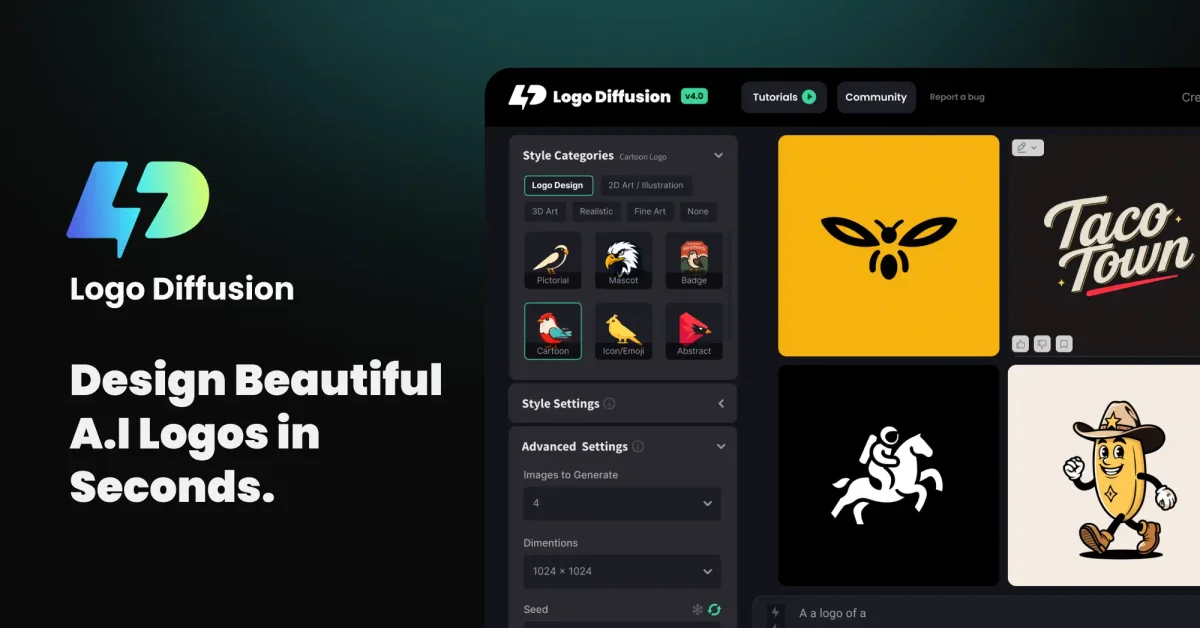
Logo Diffusion is an AI logo maker that creates logo concepts from text prompts or sketches, with SVG vector exports and transparent PNG background removal.
Logo Diffusion

What is Logo Diffusion?

Logo Diffusion is an AI logo maker that generates logo concepts from text prompts, and can also redesign logos using prompts. It’s designed for users who want to create professional-looking logo outputs quickly without starting from advanced design skills.

Beyond logo generation, Logo Diffusion includes supporting design tools such as a built-in sketch-to-logo workflow, vector export options, and background removal for transparent PNGs.

Key Features

  • Text to logo generation: Type an idea and generate up to 4 unique logo options per prompt; you can request additional versions until you find a result you like.
  • Logo-to-logo redesign: Use text prompts to create a fresh twist or transformation of an existing logo.
  • Sketch to logo workflow: Start with a basic sketch and use the in-app editor to refine it into polished logo designs.
  • Vector output and vectorization: Export creations as vectors and convert images into a clean vector SVG file for use in online or vector editing workflows.
  • Transparent background export: Create transparent PNG files suitable for websites, presentations, and product catalogs.
  • Design style library (45+ styles): Use curated styles intended to cover common logo/graphic design themes and trends.
  • Color customization: Adjust brand colors and themes with controls intended to support consistent results.

How to Use Logo Diffusion

  1. Choose a starting method: text to logo, logo to logo, or sketch to logo.
  2. Provide your prompt (or sketch) and generate logo options (up to 4 per prompt).
  3. Review results and keep generating more versions as needed.
  4. Use the in-app editor to refine sketches when starting from a rough draft.
  5. Export your selected design using vector outputs (SVG/vector) and/or transparent PNG background removal.

Use Cases

  • Concepting a logo from a text description: A founder can describe the brand idea and iterate through multiple generated options until one matches the intended direction.
  • Updating an existing logo: A business can apply a transformation request via text prompts to create variations of a current mark.
  • Turning a rough sketch into a polished design: A designer (or non-designer) can begin with a hand-drawn concept and use the editor to refine it into a logo.
  • Preparing production-ready assets: A creator can export SVG/vector files for downstream use with vector image editors.
  • Creating web-ready images with transparent backgrounds: A marketer can download transparent PNG versions for placement in slides, product listings, and web pages.

FAQ

  • How many logo options can I generate per prompt? The site states that Logo Diffusion can generate up to 4 unique options per prompt.

  • Can I redesign an existing logo with AI? Yes. The website describes a logo-to-logo workflow where you can use text prompts to redesign or transform a logo.

  • Can I start from a sketch instead of text? Yes. Logo Diffusion supports a sketch-to-logo approach, with an in-app editor to refine sketches.

  • What file formats can I export? The site mentions vector output (including SVG) and transparent PNG exports.

  • Does the tool include multiple design styles? Yes. It lists 45+ design styles that you can use as part of the generation workflow.

Alternatives

  • General image-to-vector tools: If your main need is converting existing logo artwork into SVG/vector, you can consider vectorization tools (typically less focused on AI-driven logo concepting).
  • Other AI logo generators: Alternatives in the AI logo space often also provide text-to-logo generation; compare outputs, iteration controls, and whether they include vector export and background removal.
  • Design suites with logo templates (non-AI or template-based): These can help you assemble and edit logos using templates and manual tools, but may require more manual work than prompt-based generation.
  • Raster graphic editors with transparency workflows: If you primarily need transparent PNG assets, raster editing tools can offer manual control, though they won’t necessarily generate logo concepts from prompts.