
Screen-region capture
Press Win+Shift+Q by default, drag around an on-screen region, and receive the answer beside the selection without opening another app or uploading a file manually.

Squint is a desktop AI tool that explains selected screen areas, interfaces, documents, images, and code without a separate chat window or manual screenshot uploads.
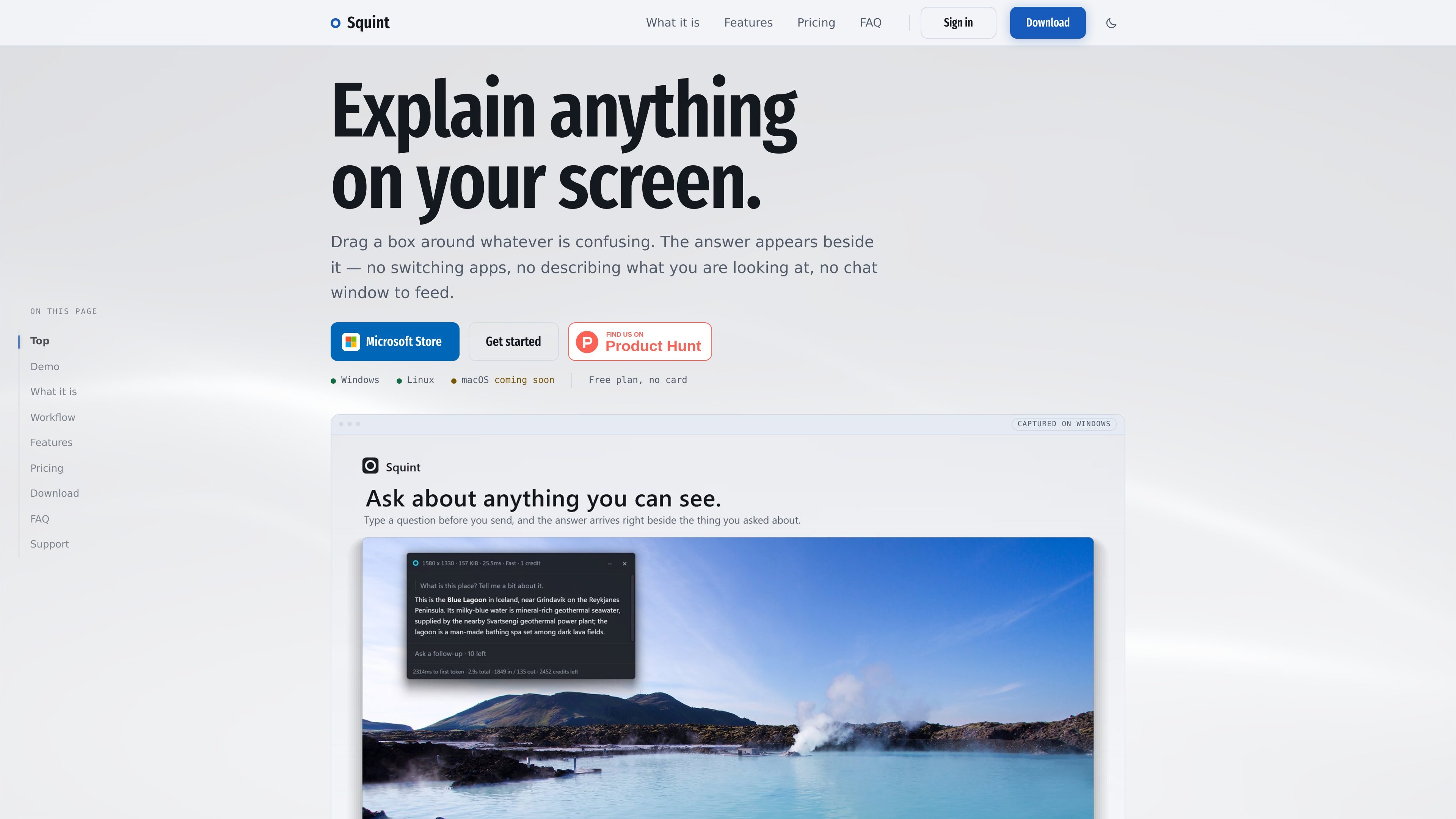
Squint is a desktop screen-understanding app for Windows and Linux. It stays in the system tray until activated, then lets you drag a box around anything visible on your screen and receive an AI-generated explanation beside the selected area.
The workflow is designed to keep the source material in view: press the hotkey, select a region, optionally add a prompt, and read the streamed response in the on-screen panel. Follow-up questions can be asked from that panel, while the selected crop—not the rest of the screen—is sent to OpenAI's API for processing.
Press Win+Shift+Q by default, drag around an on-screen region, and receive the answer beside the selection without opening another app or uploading a file manually.
Responses appear progressively, and the streaming speed can be configured in the app settings.
Continue asking questions in the response panel without taking another screenshot or describing the same context again.
Choose between Fast and Best per capture. The Fast model is the default, while Best is intended for more difficult material such as dense fine print.
Responses support Markdown, mathematical expressions, and code blocks, with 16 available visual themes.
Search locally stored conversations, resume previous captures, and select up to four separate screen regions in one capture by holding Shift.
Select an unfamiliar control, dialog, or interface element and ask what it does without leaving the application you are using.
Capture a chart, diagram, screenshot, or visual reference and ask for an explanation while keeping the original material on screen.
Highlight dense fine print or a document excerpt and use the Best model when the text requires more careful reading.
Select code or an error message, request an explanation, and continue with follow-up questions in the same response panel.
Capture up to four separated regions when context is distributed across different parts of the same display.
Install Squint on Windows or Linux, create an account with an email address, and activate the default hotkey, Win+Shift+Q. You can change the hotkey later in settings.
No. Squint remains in the system tray until you press the hotkey or click Squint Capture. It does not record, poll, or capture the screen in the background.
The selected region is sent to OpenAI's API for processing. The rest of the screen remains on your machine. Squint says the captured region is removed from its side after the answer returns; OpenAI may retain API data in abuse-monitoring logs for up to 30 days and does not use API submissions for training.
Squint requires a network connection because the answer is generated by an online model. The hotkey, screen freeze, selection, and crop happen locally before the request is sent.
Squint supports multiple monitors, 4K displays, and portrait-oriented monitors. It captures the display where the cursor is located and adjusts rotated displays before processing.

Snapmark is a VS Code extension for annotating clipboard screenshots before pasting them into AI chats. Blur sensitive details, add numbered callouts, and auto-resize large images.

Arduino VENTUNO Q is an edge AI computer for AI and robotics, combining AI inference and deterministic control on one board with Arduino App Lab support.

Free C++ project for real-time person pixelation in video with OpenCV and neural network segmentation, for privacy-focused live video and browser apps.

Faceswapai.Online is a web-based AI face swap tool for photos and videos, with multiple-face workflows, free trial access and credit-based VIP upgrades.

Muse Spark Open is a Meta vision-language model on Hugging Face for image-text prompts, visual question answering, image descriptions, and licensed model adaptation.

Vectorizer.AI turns raster images into editable SVG, PDF, EPS and DXF in your browser, with developer tools for automated workflows.