Daisy icon

Daisy

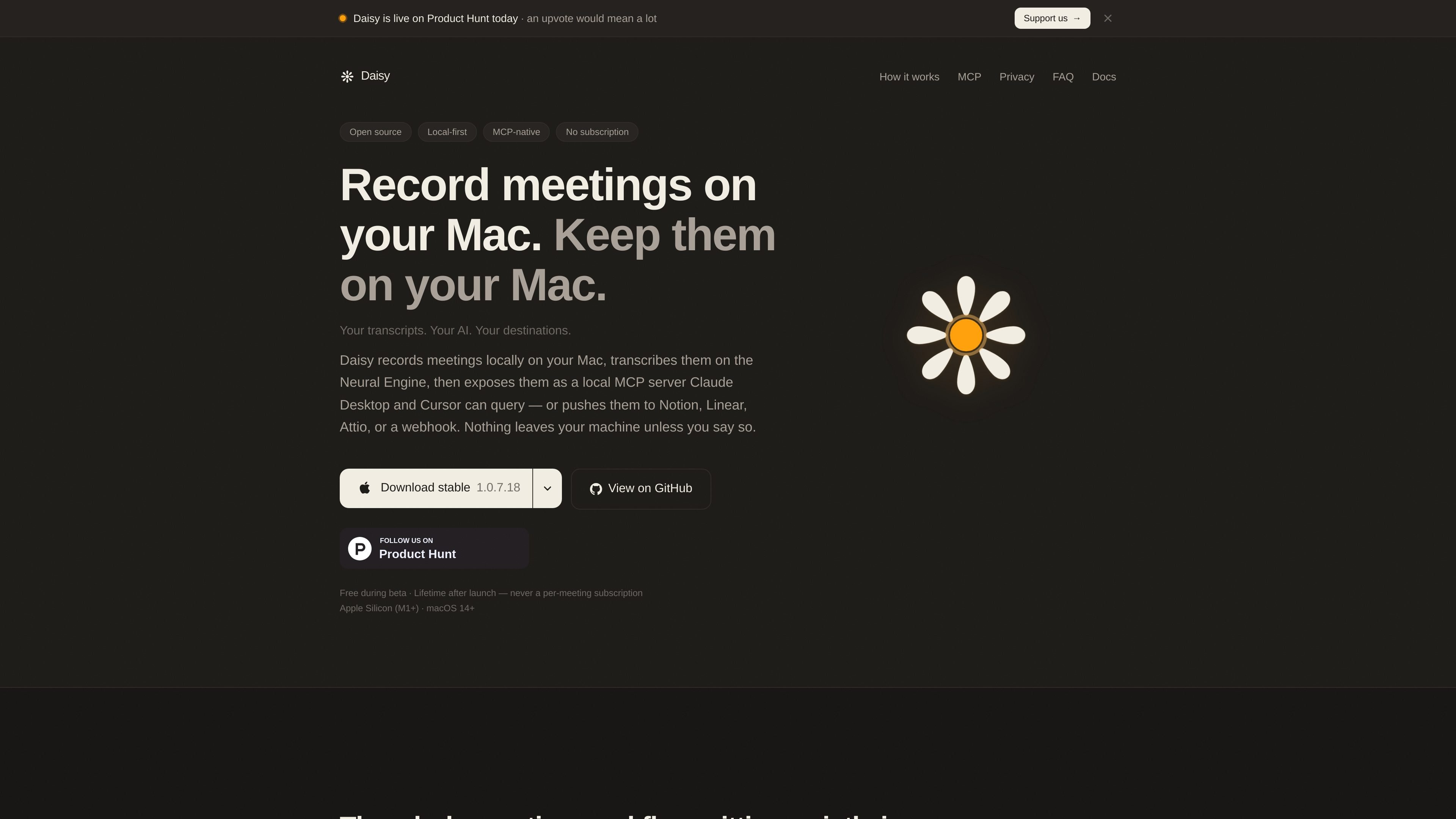
Daisy is an open-source meeting recorder and push-to-talk dictation app for Mac. It records locally, transcribes on-device, and can expose transcripts through a local MCP server for Claude Desktop, Cursor, and other compatible clients.

Daisy

Open-source local meeting recorder and dictation for Mac

Daisy is an open-source meeting recorder and push-to-talk dictation app for Mac. It keeps recordings, transcripts, and AI interactions local to your machine, using on-device transcription and a local MCP server instead of a cloud-only workflow.

The app records both sides of a call on your Mac, transcribes audio with WhisperKit on Apple Silicon, and writes the output as Markdown files in a folder you choose. It also supports a separate dictation mode and quick voice notes, so the same app can handle meetings, typing by voice, and short capture tasks.

For AI workflows, Daisy exposes a local Model Context Protocol server that Claude Desktop, Cursor, and other compatible clients can query from the same Mac. Those clients can search and read recordings, summarize them again, rename speakers, and route finished sessions to destinations such as Notion, Linear, Slack, or a webhook.

Core features

Local meeting recording

Daisy records meetings on your Mac without adding a bot to the call. It captures your microphone and the other side of the call together, and the site says it works with Zoom, Meet, Telegram, or any audio playing on the machine.

On-device transcription

Transcription runs on-device with WhisperKit on the Neural Engine. The site also says Daisy uses a Silero VAD pre-pass to avoid filling silence with hallucinated text.

Speaker labeling and correction

Daisy supports offline diarisation so remote speakers are labeled as separate voices, and it can attribute your own display name when mic-side diarisation is enabled. Speaker names can be corrected later and remembered for future recordings.

Local Markdown transcripts

Transcripts are saved as Markdown files in a folder you choose, such as an Obsidian vault or iCloud Drive. That keeps the data in your own files instead of a server you do not control.

Local MCP access

Daisy includes a local MCP server for same-Mac AI clients. Claude Desktop, Cursor, and other MCP-compatible apps can list, search, read, re-summarize, rename speakers, and route sessions through the server.

Send-to destinations

Finished sessions can be pushed to destinations including Notion, Linear, Slack, or a webhook. The docs also mention export targets can include another MCP server.
Common ways to use Daisy

  • Private meeting notes

    Record a call on your Mac and keep the transcript in a folder you already use, such as an Obsidian vault or iCloud Drive. This fits people who want searchable meeting notes without sending audio or text to a separate cloud service.

  • Voice typing in everyday apps

    Use the dictation mode when you want to speak instead of type anywhere on macOS. Daisy is positioned as a Wispr Flow-style audio-to-text tool for writing in place.

  • Quick voice notes

    Capture short spoken ideas as voice notes and file them into your local library. The site presents this as a third mode alongside meetings and dictation.

  • AI-assisted meeting review

    Ask Claude Desktop or Cursor to search, summarize, or extract action items from past recordings. Daisy's local MCP server makes the recordings queryable without copy-pasting transcript text.

  • Turn transcripts into follow-up tasks

    Route a finished session into an operational tool such as Notion, Linear, Slack, or a webhook. That makes Daisy useful when meeting notes need to become shared documentation or follow-up work.

Pros and Cons

Pros

  • Keeps recordings and transcripts on the user's Mac instead of uploading them to a vendor server.
  • Uses on-device transcription and local storage, which fits privacy-sensitive workflows.
  • Supports both meetings and dictation in one app, with a separate voice-notes mode for quick capture.
  • Works with Claude Desktop, Cursor, and other MCP clients through a local server.
  • Can send finished sessions to practical destinations such as Notion, Linear, Slack, or a webhook.

Cons

  • It is limited to Apple Silicon Macs running macOS 14 or later.
  • Claude Desktop setup requires a local bridge and a full app restart before the server shows up.
  • Speaker attribution is still imperfect on cross-talk and overlapping speech, which the site says remains a hard problem across meeting tools.

FAQ

What does Daisy do?

Daisy records meetings locally on your Mac, transcribes them on-device, and writes the results to Markdown files in the folder you choose. It can also expose transcripts through a local MCP server for Claude Desktop, Cursor, or other MCP clients.

What platform does Daisy support and how is it priced?

Daisy is designed for Apple Silicon Macs running macOS 14 or later. The site also says it is open source and free during beta, with a lifetime model after launch and no per-meeting subscription.

Can Daisy be used for more than meetings?

Daisy supports meeting recording, push-to-talk dictation, and voice notes. The home page describes three modes: Meeting, Dictation, and Voice notes.

Where do transcripts and outputs go?

Daisy writes plain Markdown transcripts into the folder you choose, such as an Obsidian vault or iCloud Drive. The docs say it can also route finished sessions to Notion, Linear, Slack, a webhook, or another MCP server.

How does Daisy connect to Claude Desktop or Cursor?

The MCP docs say Daisy's local server binds to 127.0.0.1 and is intended for clients on the same Mac. For Claude Desktop, Daisy provides an Add to Claude Desktop flow that writes the required config and then requires a full app restart.

Quick Facts

Category
Productivity
Platform
Mac (Apple Silicon, macOS 14+)
Pricing model
Free during beta; lifetime after launch; no per-meeting subscription
Source domain
mydaisy.io
Primary workflow
Local meeting recording, dictation, and transcript routing
Integrations
Claude Desktop, Cursor, Notion, Linear, Slack, webhook

Daisy Alternatives

Tactiq icon

Tactiq

Tactiq is an AI note taker for Google Meet, Zoom, and Microsoft Teams that transcribes meetings live and turns them into summaries, action items, and follow-up outputs. It is built around a Chrome extension and supports team workflows through sharing and integrations.

Scripta icon

Scripta

Scripta is a privacy-first AI notetaker that records, transcribes, and summarizes meetings directly on your device. The public site currently shows a Mac beta download and a Windows waitlist.

Speech to Text Converter icon

Speech to Text Converter

Speech to Text Converter is a browser-based transcription tool for live dictation and uploaded audio or video files. It offers a free tier for short tasks and a Pro plan for unlimited transcription, AI summaries, translation, speaker identification, and advanced exports.

Realtime and audio icon

Realtime and audio

An OpenAI API guide for choosing the right speech architecture for live audio, translation, transcription, speech generation, and audio-capable chat. It helps developers map each speech application to the appropriate session type, endpoint, and connection method.

Pewbeam icon

Pewbeam

Pewbeam is a church presentation app that listens to sermons, detects Bible verse references in real time, and displays the matching passage on screen. It is built for pastors, projection teams, and church media volunteers who want to reduce manual slide control during live services.

Liam icon

Liam

Liam is an AI copilot for managing inboxes, writing replies, prioritizing email, and scheduling meetings. It is offered free for individuals, with custom pricing for teams and enterprise.