
Brush-based object removal
Select an image, brush over the content you want removed, and run cleanup to erase it and fill the background automatically.

jpgRM is a web-based AI image cleanup tool that removes unwanted objects or backgrounds and automatically fills the edited area. Free tier offers lower-resolution downloads.
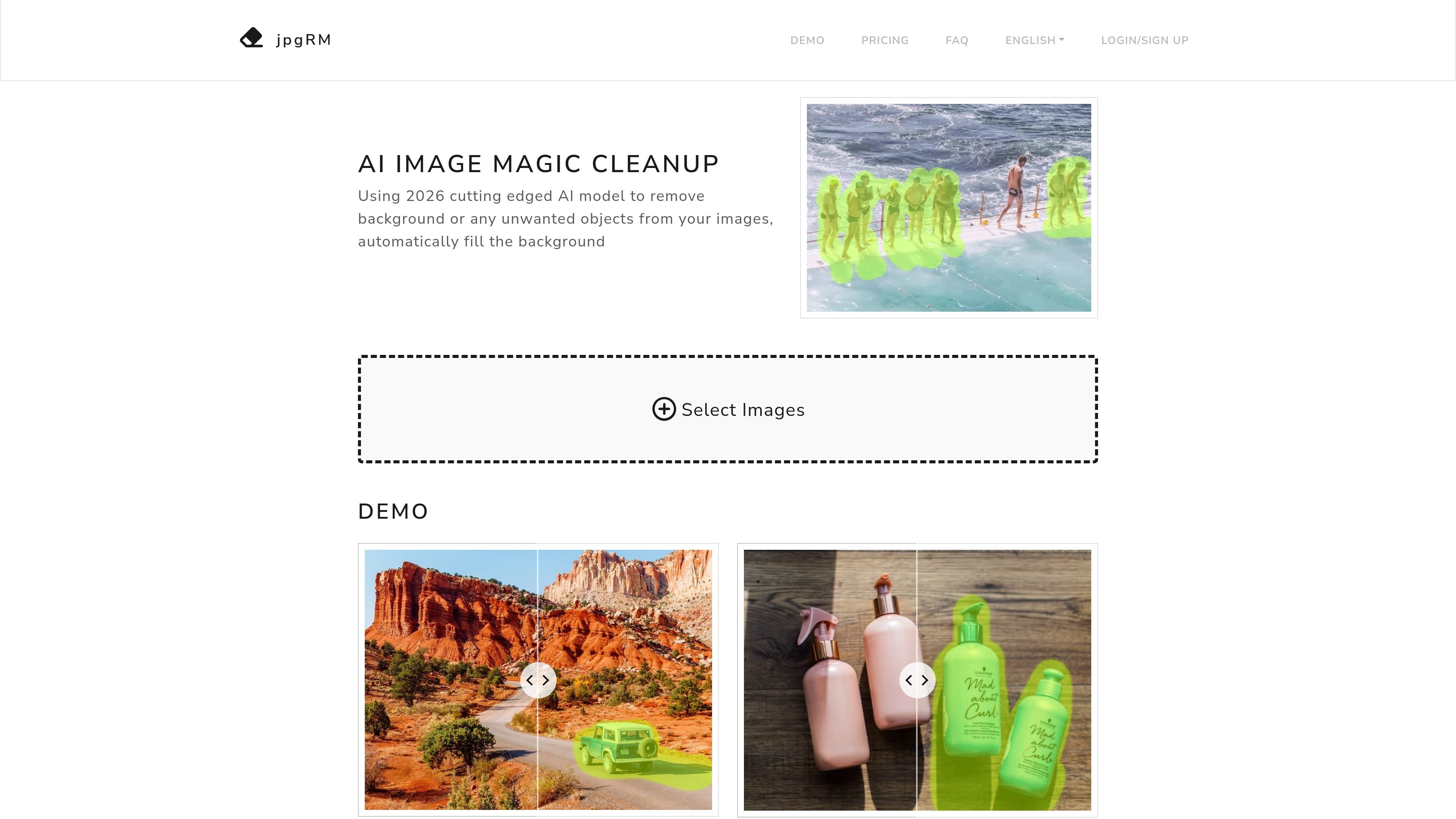
jpgRM is an AI image cleanup tool for removing unwanted parts of photos and automatically filling the background. The site positions it as a brush-driven editor where you mark what should disappear and the model reconstructs the surrounding area.
It is presented as a web product with language versions in English, Simplified Chinese, Traditional Chinese, Japanese, and other languages. The homepage and localized pages show the same core workflow, with options to upload an image, clean it up, compare the result, and download the output.
Select an image, brush over the content you want removed, and run cleanup to erase it and fill the background automatically.
The product is described as removing unwanted parts of an image and filling in the background using an AI model based on GAN content recognition.
The interface includes actions such as undo/redo, compare, zoom, align, and download, which support iterative editing before export.
The site highlights removal of background objects, logos, crowded areas, and watermarks as example cleanup tasks.
Free downloads are limited to 720px, while VIP is presented as enabling higher-resolution downloads up to 4K.
Remove stray people from travel or landscape shots while keeping the rest of the scene intact.
Erase product logos, labels, or other distractions from photos that need a cleaner presentation.
Clear crowded backgrounds in event or street images where the main subject should stand out.
Remove watermarks or other marked overlays from an image where the user has rights to edit the file.
Make quick edits on a phone or tablet when a desktop editor is not available.
It uses an AI model to identify the content and background of an image, then erase the marked area and fill in surrounding background content.
The site says processing usually takes one or two seconds for images under 1000px, and longer for higher-resolution images.
Yes. The site explicitly says jpgRM supports mobile devices.
Free users are limited to 720px downloads. The site says VIP users can download higher-resolution 4K images and are not limited in image count.
The site says processed images are deleted immediately after processing and are not stored.

BgSub is a browser-based AI tool for removing or replacing image backgrounds. Fast cutouts, background replacement, and color adjustment for product images, photos, and web visuals.

Slazzer is an AI photo editor for automatic background removal, with web app, API, desktop software and plugins, plus upscaling and restoration tools.

Pixelcut is an AI photo editor for product images, social content and video assets. Free and paid plans; mobile app and browser access for individuals and teams.

Magic Eraser is an AI-powered tool that allows users to quickly remove unwanted objects, people, text, and blemishes from photos with ease.

Airbrush is an AI photo and portrait editor for web, desktop, and mobile. Retouch portraits, remove backgrounds, and enhance images with credit-based AI tools.

Aaavatar is a macOS portrait editor for teams. Remove backgrounds, apply brand colors or presets, and export consistent staff photos to LinkedIn, Slack, and email.