
Offline, on-device translation
Use Apple Translation on the Mac as the default translation method, without a cloud translator or sign-in.

Menu Linguo is a macOS menu-bar translator for typing, pasting, or selecting text, with on-device Apple Translation by default and optional AI Translation.
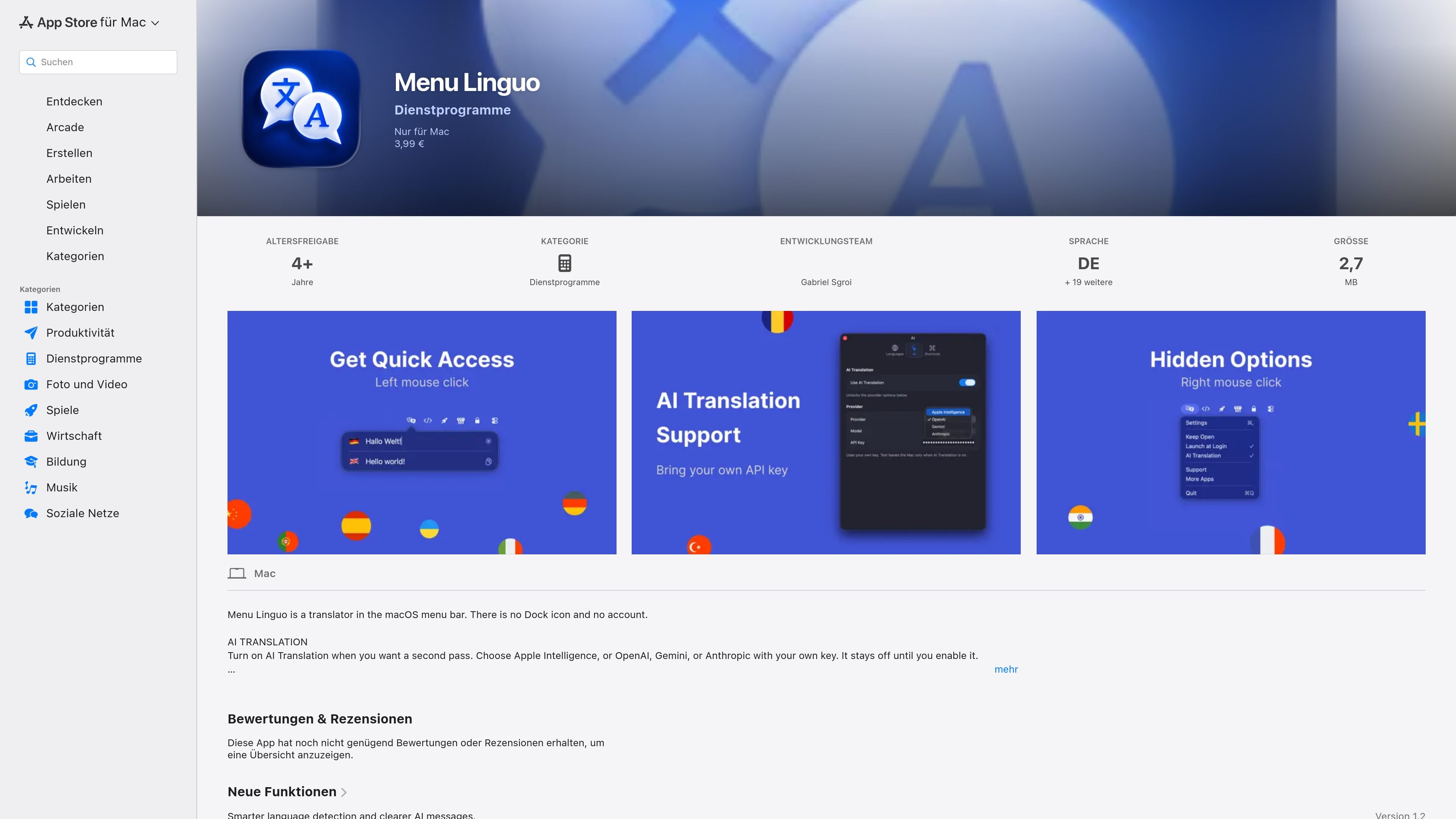
Menu Linguo is a macOS menu-bar translator for typing or pasting text and viewing the translation in a compact two-language card. It is designed to remain accessible from the menu bar rather than appearing as a Dock application, and it does not require an account.
Apple Translation on the Mac is the default and works on-device. Users can optionally enable AI Translation through Apple Intelligence or their own API key for OpenAI, Gemini, or Anthropic. The app also supports selected-text translation, custom shortcuts, language-list management, and automatic language detection when text is entered in the wrong field.
Use Apple Translation on the Mac as the default translation method, without a cloud translator or sign-in.
Enable a second translation pass with Apple Intelligence or a user-supplied key for OpenAI, Gemini, or Anthropic. The option is off until enabled.
Translate selected text and control the card with custom shortcuts for opening the window, keeping it open, and enabling AI Translation.
The menu-bar card displays exactly two languages, supports typing or pasting in either field, and includes copy and clear controls.
Maintain a personal language list, reorder it, and replace either language in the card by clicking its flag. The list starts empty rather than using preset defaults.
The app has no Dock icon, opens from the menu bar, and offers Settings, Keep Open, Launch at Login, Support, More Apps, and Quit from its context menu.
Keep the card available from the menu bar while reading or writing foreign-language messages, documents, or web content, without switching to a separate translator window.
Select text in another Mac application and invoke the configured shortcut to translate it, making the workflow useful when the source text is not already in Menu Linguo.
Use the personal language list and flag controls to switch between different language pairs during travel, study, or multilingual correspondence.
Leave the card open while drafting and checking text, then copy the result from the translation field when it is ready for use elsewhere.
Enable an optional AI pass when a second translation approach is wanted, while keeping the default on-device translation workflow available.
Menu Linguo requires macOS 15.0 or later and runs as a Mac menu-bar utility. On first launch, Settings opens until two languages have been added.
The app uses on-device Apple Translation as its default offline translation method. AI Translation is optional and can use Apple Intelligence or OpenAI, Gemini, or Anthropic with the user’s own API key.
Add languages in Settings using Add Language, or use Choice Language when the list is empty. Two languages are required before the translation card can translate; additional languages can be kept in the personal list and selected from the card.
The card shows two languages, with the source above the translation. You can type or paste text, copy the translation, and use a keyboard shortcut for translating selected text. The app also supports automatic language detection when text is entered in the wrong field.
The app is listed for one Mac and supports Family Sharing for up to six family members when Family Sharing is enabled. The listing does not describe shared workspaces or team administration features.

MagicSlides is an AI presentation generator that turns text, topics, documents, URLs, and videos into slide decks. Google Slides by default, with PowerPoint export and multilingual AI editing.

Microsoft Translator is a Bing translation web app for short text between English and 100+ languages, with image translation, listen and copy.

Rubriq is an AI tool for academic paper editing and translation, with personal subscriptions, institutional plans, and plagiarism-check services.

Globalize.now is an AI localization tool that turns hardcoded app text into repo-owned locale files and keeps translations synced on every Git push.

Glarity is a browser extension for summarizing, translating, and chatting with YouTube videos, web pages, PDFs, search results, and Gmail in one tool.

Caplo is an iPhone app companion that turns live audio from other apps into real-time translated captions in a floating Picture-in-Picture window.